
Unlocking The Secrets of Modifying Wifi Password: A Step-by-step Guide
Are you tired of the same old WiFi password? Do you want to protect your internet connection from unwanted intruders? Look no further! In this article, we’ll take a deep dive into the world of modifying WiFi passwords, covering the best practices for various internet service providers (ISPs) and devices.
Why Modify Your Wifi Password?
Modifying your WiFi password is essential for maintaining a secure online presence. With a strong and unique password, you can prevent unauthorized access to your network and protect sensitive information from falling into the wrong hands.
Step 1: Identify Your Router’s IP Address
The first step in modifying your WiFi password is to identify your router’s IP address. This can usually be found on the back or bottom of your router, or in its manual. Common default IP addresses include:
- 192.168.0.1
- 192.168.1.1
- 192.168.1.254
Step 2: Access Your Router’s Interface
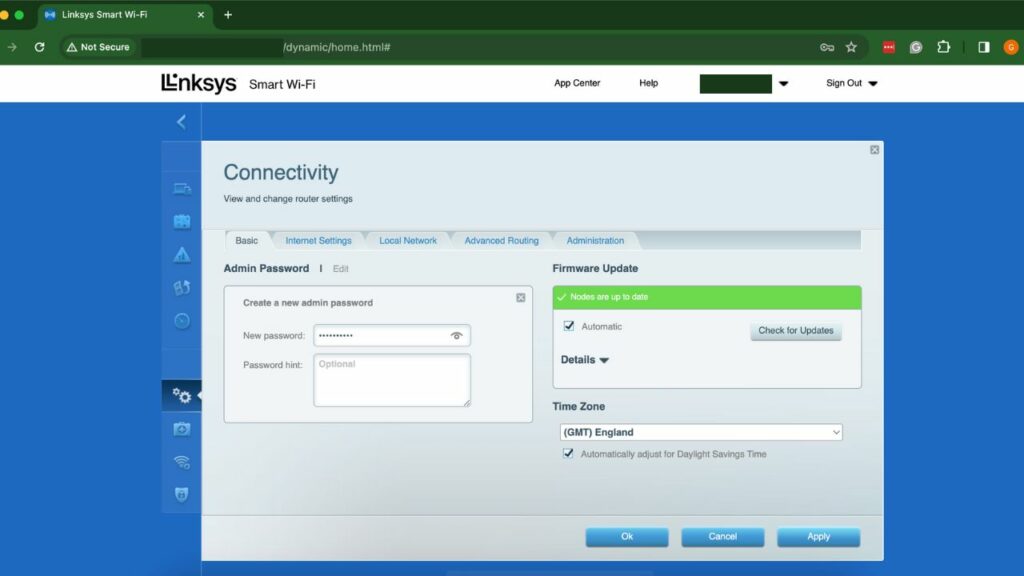
Once you have the IP address, open a web browser and type it in the address bar. You’ll be prompted to enter your router’s admin credentials (username and password). If you’ve never changed them before, check your router’s manual for default login information.
Step 3: Modify Your Wifi Password
After accessing your router’s interface, look for the “WiFi” or “Wireless” settings section. Within this menu, find the option to modify your network name (SSID) and password. Follow these steps:
- Select the “Modify” or “Change” button next to your network name.
- Enter a new network name and password.
- Confirm the changes by clicking the “Apply” or “Save” button.
Provider-specific Instructions
Here’s where things get specific:
Tim (Italy)
To modify your WiFi password with TIM, follow these steps:
- Access your router’s interface using the IP address 192.168.1.1.
- Log in with the default admin credentials (usually “admin” and “password”).
- Click on the “Wi-Fi” menu and select the option to modify your network name and password.
Vodafone (Italy)
For Vodafone users, follow these steps:
- Access your router’s interface using the IP address 192.168.1.254.
- Log in with the default admin credentials (usually “admin” and “password”).
- Click on the “Wi-Fi” menu and select the option to modify your network name and password.
Fastweb (Italy)
To modify your WiFi password with Fastweb, follow these steps:
- Access your router’s interface using the IP address 192.168.1.254.
- Log in with the default admin credentials (usually “admin” and “password”).
- Click on the “Wi-Fi” menu and select the option to modify your network name and password.
Windtre (Italy)
For WINDTRE users, follow these steps:
- Access your router’s interface using the IP address 192.168.1.254.
- Log in with the default admin credentials (usually “admin” and “password”).
- Click on the “Wi-Fi” menu and select the option to modify your network name and password.
Linkem (Italy)
To modify your WiFi password with Linkem, follow these steps:
- Access your router’s interface using the IP address 192.168.1.254.
- Log in with the default admin credentials (usually “admin” and “password”).
- Click on the “Wi-Fi” menu and select the option to modify your network name and password.
Eolo (Italy)
For Eolo users, follow these steps:
- Access your router’s interface using the IP address 192.168.1.254.
- Log in with the default admin credentials (usually “admin” and “password”).
- Click on the “Wi-Fi” menu and select the option to modify your network name and password.
Conclusion
Modifying your WiFi password is a straightforward process that requires some basic computer knowledge. By following these step-by-step instructions, you can protect your internet connection from unwanted intruders and maintain a secure online presence.
Frequently Asked Questions (FAQs)
Q: What if I forget my router’s admin credentials?
A: Check your router’s manual for default login information or reset the router to its factory settings.
Q: How often should I change my WiFi password?
A: It’s recommended to change your WiFi password every 30-60 days to maintain maximum security.
Q: Can I use a strong password generator to create a unique password?
A: Yes, using a strong password generator can help you create a unique and secure password.
Additional Resources
For more information on modifying WiFi passwords or securing your online presence, check out the following resources:
By following these steps and taking advantage of additional resources, you can ensure a secure and private internet experience.


