
How to Connect HP Printer to Wi-fi
Are you tired of dealing with complicated printer setup processes? Look no further! In this article, we will guide you through the simple steps to connect your HP printer to Wi-Fi.
Connecting HP Printer to Wi-fi: A Step-by-step Guide
Connecting an HP printer to Wi-Fi is a straightforward process that can be completed in just a few minutes. However, if you’re not familiar with the process, it may seem daunting. Fear not! We’ve got you covered with this step-by-step guide.
Understanding Your Printer’s Connectivity Options
Before we dive into the instructions, let’s take a look at your printer’s connectivity options. HP printers come equipped with various connectivity features, including Wi-Fi, Ethernet, and USB. For this article, we’ll focus on connecting your printer to Wi-Fi using the wireless network connection option.
Connecting Your Printer to Wi-fi Using Wps
If you have an HP printer that supports the WPS (Wi-Fi Protected Setup) feature, you can connect it to your router’s wireless network using the following steps:
- Ensure that your printer is turned on and the power light is steady.
- Locate the WPS button on your router. This is usually a small, round button that is easily accessible.
- Press and hold the WPS button on your router for 5 seconds to initiate the connection process.
- On your printer, press and hold the Wireless button until it flashes blue.
- Within 2 minutes, press the WPS button on your router again to complete the connection process.
Connecting Your Printer to Wi-fi Using The HP Smart App
If you don’t have a printer that supports WPS or if you prefer using the HP Smart app, follow these steps:
- Download and install the HP Smart app from the Apple App Store or Google Play Store.
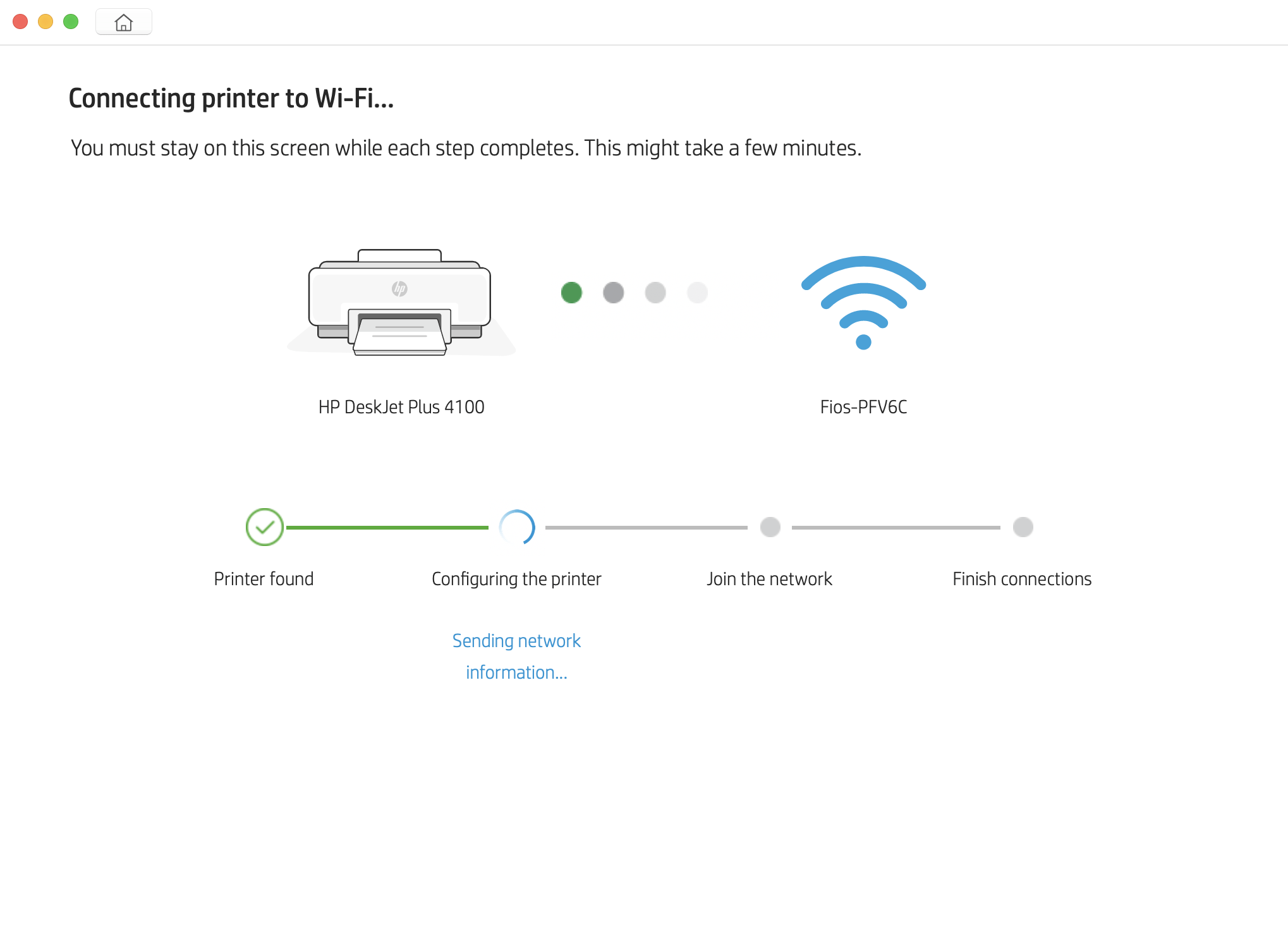
- Open the HP Smart app on your mobile device and tap on “Add Printer” to begin the setup process.
- Select your printer model and follow the prompts to connect it to your Wi-Fi network using the HP Smart app.
Connecting Your Printer to Wi-fi Using a Smartphone or Tablet
If you don’t have a computer or prefer using your smartphone or tablet, here’s how you can connect your HP printer to Wi-Fi:
- Download and install the HP Smart app from the Apple App Store or Google Play Store.
- Open the HP Smart app on your mobile device and tap on “Add Printer” to begin the setup process.
- Select your printer model and follow the prompts to connect it to your Wi-Fi network using the HP Smart app.
Connecting Your Printer to a Pc’s Wi-fi Network
If you prefer connecting your printer directly to your PC’s Wi-Fi network, here’s how you can do it:
- Connect your printer to your computer using an Ethernet cable.
- Open the HP Smart app on your computer and select your printer model.
- Follow the prompts to connect your printer to your computer’s Wi-Fi network.
Connecting Your Printer to a Smartphone or Tablet’s Wi-fi Network
If you prefer connecting your printer directly to your smartphone or tablet’s Wi-Fi network, here’s how you can do it:
- Download and install the HP Smart app from the Apple App Store or Google Play Store.
- Open the HP Smart app on your mobile device and tap on “Add Printer” to begin the setup process.
- Select your printer model and follow the prompts to connect it to your smartphone or tablet’s Wi-Fi network.
Troubleshooting Tips
If you encounter any issues while trying to connect your HP printer to Wi-Fi, here are some troubleshooting tips:
- Restart Your Printer: Sometimes, a simple restart can resolve connectivity issues.
- Check Your Router’s Wi-fi Network Name And Password: Make sure you’re using the correct router name (SSID) and password for your network.
- Update Your Printer’s Firmware: Ensure that your printer is running the latest firmware by checking on the HP website.
Conclusion
Connecting an HP printer to Wi-Fi can seem daunting, but with these simple steps, you should be able to connect it successfully. If you encounter any issues during the process, don’t hesitate to reach out for help. With a little patience and practice, you’ll be printing wirelessly in no time!


