
How to Contact Bancomat on Your Phone: A Comprehensive Guide
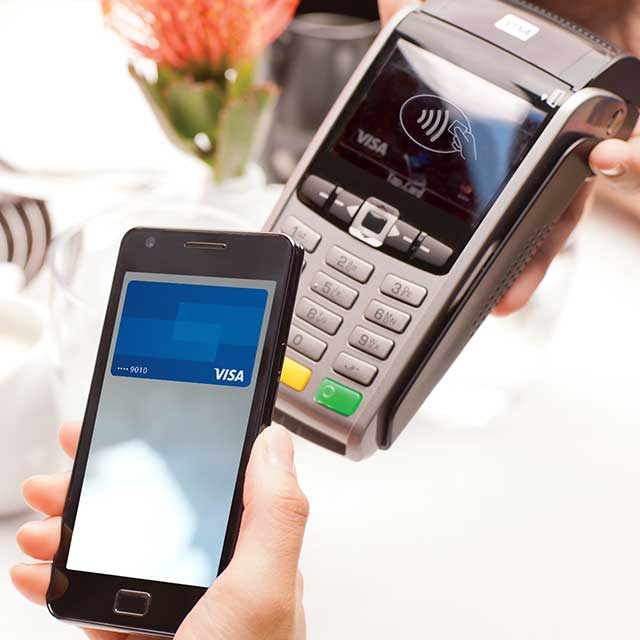
As a seasoned content writer, I’m excited to provide you with a comprehensive guide on how to contact Bancomat on your phone. This article will delve into the world of digital payments and show you how to use your smartphone to make purchases, pay bills, or transfer funds using Bancomat.
What is Bancomat?
Before we dive into the nitty-gritty, let’s first understand what Bancomat is. In simple terms, Bancomat refers to a circuit of payment that allows users to make transactions using their digital portfolios on their smartphones. It’s like having your own personal bank account right in your pocket!
Why Contact Bancomat on Your Phone?
There are numerous benefits to contacting Bancomat on your phone. For instance:
- Convenience: With Bancomat, you can make payments, transfer funds, or check your balance from the comfort of your home (or anywhere else with a stable internet connection).
- Security: Bancomat uses advanced security measures to ensure that your transactions are safe and protected.
- Flexibility: Whether you’re shopping online or in-store, paying bills, or sending money to friends and family, Bancomat makes it easy.
How to Contact Bancomat on Android
If you have an Android device, here’s how to contact Bancomat:
- Download Google Wallet: First, download the Google Wallet app from the Play Store. This app allows you to store your credit or debit cards digitally and use them for transactions.
- Set Up Your Account: Once you’ve downloaded the app, set up your account by linking it to your Google account. You’ll need to add a card, which will be used for payments.
- Add Your Card: To add your card, follow these steps:
- Open the Google Wallet app and tap on the “+” icon (usually located in the top-right corner).
- Select “Card” from the menu that appears.
- Choose the type of card you want to add (credit or debit).
- Enter your card details, including the 16-digit number, expiration date, and CVC code.
- Review and agree to Google’s terms and conditions.
How to Contact Bancomat on Iphone
If you have an iPhone, here’s how to contact Bancomat using Apple Pay:
- Open The Wallet App: Open the Wallet app on your iPhone and tap on the “+” icon (usually located in the top-right corner).
- Add a Card: Choose “Credit or Debit Card” from the menu that appears.
- Scan Your Card: Hold your card up to the camera, and the app will automatically detect it.
- Enter Your Details: Enter the remaining details, including your name, expiration date, and security code.
- Review And Confirm: Review Apple Pay’s terms and conditions before confirming.
How to Contact Bancomat on Samsung
If you have a Samsung device, here’s how to contact Bancomat using Samsung Pay:
- Download The App: Download the Samsung Pay app from the Galaxy Store.
- Set Up Your Account: Set up your account by linking it to your Samsung account.
- Add Your Card: To add your card, follow these steps:
- Open the Samsung Pay app and tap on the “+” icon (usually located in the top-right corner).
- Select “Card” from the menu that appears.
- Choose the type of card you want to add (credit or debit).
- Enter your card details, including the 16-digit number, expiration date, and CVC code.
- Review and agree to Samsung’s terms and conditions.
Conclusion
In conclusion, contacting Bancomat on your phone is easier than you think. With these step-by-step guides, you can start using Bancomat today! Just remember to follow the instructions carefully, and don’t hesitate to reach out if you need help.
Faqs: Contacting Bancomat on Your Phone
Q: What is Bancomat?
A: Bancomat is a circuit of payment that allows users to make transactions using their digital portfolios on their smartphones.
Q: Why contact Bancomat on my phone?
A: Contacting Bancomat on your phone provides convenience, security, and flexibility for making payments or transferring funds.
Q: How do I contact Bancomat on Android?
A: To contact Bancomat on Android, download Google Wallet, set up your account, add a card, and follow the instructions provided.
Q: How do I contact Bancomat on iPhone?
A: To contact Bancomat on iPhone, open the Wallet app, add a card, scan your card, enter your details, review and confirm.
Q: How do I contact Bancomat on Samsung?
A: To contact Bancomat on Samsung, download the Samsung Pay app, set up your account, add a card, follow the instructions provided.


