
How to Modify a Photo on Instagram: A Step-by-step Guide
Are you looking to modify a photo already published on Instagram? Look no further! In this article, we will guide you through the process of editing a photo on Instagram using both your smartphone and PC.
Accessing Your Account on Android/ios
If you’re using an Android or iOS device, accessing your account on Instagram is straightforward. Simply initiate the official app on your device, access your account (if you haven’t already), and proceed to the steps below.
Modifying a Photo on Android/ios
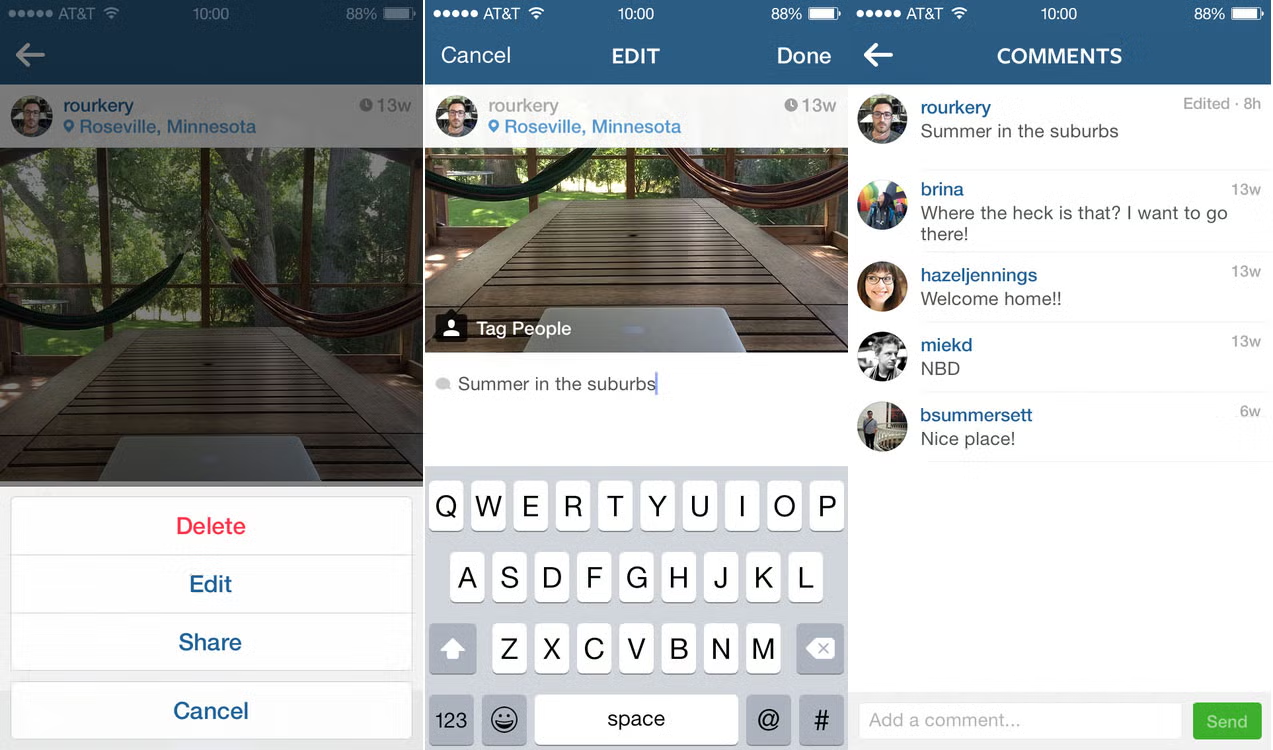
To modify a photo on Instagram directly from your smartphone:
- Initiate the app official of Instagram on your device.
- Access your account if you haven’t already.
- Tap on the miniature of your profile picture in the bottom-right corner of the screen.
- Select the post you want to modify by tapping on it.
- Tap on the three dots (**•••**) in the top-right corner and select “Modify” from the menu that appears.
Modifying a Photo on PC Using Creator Studio
If you have an Instagram account for professionals connected to a Facebook page, you can modify your photo using the Creator Studio. Here’s how:
- Access *Creator Studio.
- Select the post you want to modify by clicking on it.
- Click on the three dots (**•••**) in the top-right corner and select “Modify” from the menu that appears.
Can You Modify a Photo Published in an Instagram Story?
Unfortunately, the answer is no. Instagram does not have an instrument to modify stories after they have been issued. The only way to achieve this is by erasing the story (without deleting comments or likes), modifying the image using external photo editing software, and then re-posting it.
What if I Don’t Have a Smartphone? Can I Modify My Photo on Pc?
Yes, you can modify your Instagram photo on a computer. If you have an Instagram account for professionals connected to a Facebook page, you can use Creator Studio to modify your post. To do this:
- Access *Creator Studio.
- Select the post you want to modify by clicking on it.
- Click on the three dots (**•••**) in the top-right corner and select “Modify” from the menu that appears.
What if I Want to Modify a Photo Already Published?
Unfortunately, Instagram does not allow modification of already published photos. The only way to achieve this is by erasing the photo (without deleting comments or likes), modifying the image using external photo editing software, and then re-posting it.
Faqs
- Can I Modify my Photo on Pc?
Yes, if you have an Instagram account for professionals connected to a Facebook page, you can use Creator Studio to modify your post. - What if I Want to Modify a Photo Already Published in an Instagram Story?
Unfortunately, the answer is no. Instagram does not have an instrument to modify stories after they have been issued. - Can I Modify my Photo Using External Software?
Yes, you can modify your photo using external software and then re-post it on Instagram. - What if I Don’t Have a Smartphone? Can I Still Modify my Instagram Photo?
Yes, if you have an Instagram account for professionals connected to a Facebook page, you can use Creator Studio to modify your post from your computer. - Can I Modify Multiple Photos at Once?
Unfortunately, the answer is no. You will need to modify each photo individually.
By following these steps and answering these FAQs, you’ll be able to modify your Instagram photos with ease, whether using your smartphone or PC.


