
Configuring Outlook With Gmail: A Step-by-step Guide
Are you tired of juggling multiple email accounts? Do you want to access your Gmail emails on your Microsoft Outlook platform? Look no further! In this article, we will guide you through the process of configuring Outlook with Gmail.
Why Configure Outlook With Gmail?
Configuring Outlook with Gmail allows you to:
- Access your Gmail emails directly from Outlook
- Send and receive emails using both platforms seamlessly
- Manage your contacts and calendar events in one place
Prerequisites For Configuration
Before we dive into the configuration process, make sure you have:
- A Gmail account
- Microsoft Outlook installed on your computer or mobile device
- The latest version of Google’s IMAP (Internet Message Access Protocol) enabled
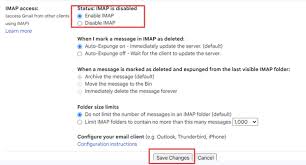
Step 1: Enable Imap on Your Gmail Account
To enable IMAP on your Gmail account, follow these steps:
- Log in to your Gmail account.
- Click on the gear icon in the upper right corner and select “See all settings.”
- Scroll down to the “Forwarding and POP/IMAP” section.
- Select “Enable IMAP” and click “Save Changes.”
Step 2: Configure Outlook With Gmail
Now that you have enabled IMAP, it’s time to configure Outlook with your Gmail account.
Configuring on Computer
If you’re configuring on a computer, follow these steps:
- Open Outlook and go to the “File” menu.
- Click on “Add Account.”
- Select “Manual setup or additional server types.”
- Choose “POP or IMAP” as your email account type.
- Enter your Gmail email address and password.
- Select the “IMAP” option and enter the following information:
- Server: Imap.Gmail.Com
- Port: 993
- SSL: Yes
- Authentication: Yes
- Click “Next” to complete the setup process.
Configuring on Mobile Device
If you’re configuring on a mobile device, follow these steps:
- Open Outlook and tap on the “Add account” button.
- Select “Google” as your email provider.
- Enter your Gmail email address and password.
- Tap on the “IMAP” option and enter the following information:
- Server: Imap.Gmail.Com
- Port: 993
- SSL: Yes
- Authentication: Yes
Step 3: Verify Your Configuration
Once you’ve completed the configuration process, verify that your Outlook account is connected to your Gmail account.
- Check your inbox for any incoming emails from your Gmail account.
- Test sending a new email from Outlook to see if it syncs with your Gmail account.
Synchronizing Outlook And Gmail
If you use the web-based version of Outlook (Outlook.Com), you can synchronize your emails, contacts, and calendar events between Outlook and Gmail.
To do this, follow these steps:
- Log in to your Outlook.Com account.
- Click on the gear icon in the upper right corner and select “Settings.”
- Scroll down to the “Accounts” section.
- Select “Add a new account” and choose “Google” as your email provider.
- Enter your Gmail email address and password.
Troubleshooting Tips
If you encounter any issues during the configuration process, try these troubleshooting tips:
- Ensure that IMAP is enabled on your Gmail account.
- Check that your Outlook account is configured correctly.
- Make sure that your mobile device or computer is connected to the internet.
By following these steps and troubleshooting tips, you’ll be able to configure Outlook with your Gmail account seamlessly. Happy emailing!
Frequently Asked Questions
Q: Why do I need to enable IMAP on my Gmail account?
A: Enabling IMAP allows you to access your Gmail emails directly from Outlook.
Q: Can I configure Outlook with Gmail on a mobile device?
A: Yes, you can configure Outlook with Gmail on both Android and iOS devices.
Q: How do I synchronize Outlook and Gmail?
A: You can synchronize Outlook and Gmail by enabling the “Sync” feature in your Outlook account settings.
Q: What if I encounter issues during the configuration process?
A: Try troubleshooting tips such as ensuring IMAP is enabled, checking Outlook account configurations, and verifying internet connectivity.
Q: Can I use other email providers with Outlook besides Gmail?
A: Yes, you can configure Outlook to work with multiple email providers, including Yahoo Mail, AOL Mail, and more.
Q: How do I remove my Gmail account from Outlook if needed?
A: You can remove your Gmail account from Outlook by going to the “File” menu, selecting “Account Settings,” and clicking on the “Remove Account” button.


