
How to Change Your Facebook Address: A Step-by-step Guide
Are you tired of using an outdated email address associated with your Facebook account? Do you want to update your profile name or change the address of a Facebook page or group? Look no further! In this article, we’ll guide you through the process of changing your Facebook address on both smartphones and computers.
Why Change Your Facebook Address?
Before we dive into the step-by-step instructions, let’s quickly discuss why changing your Facebook address might be necessary. Perhaps you’ve switched to a new email provider or want to create a more professional online presence. Whatever the reason, we’ll show you how to make the change with ease.
Changing Your Email Address on Facebook (Smartphones And Tablets)
To change your email address on Facebook using your smartphone or tablet, follow these steps:
- Open The Facebook App: Launch the Facebook app on your device.
- Tap on The Menu: Tap on the three horizontal lines (⋗) in the top-right corner of the screen to open the menu.
- Settings And Privacy: Scroll down and tap on “Settings & Privacy.”
- Settings: Tap on “Settings” from the dropdown menu.
- See All in Account Center: Select “See All in Account Center.”
- Personal Details: Tap on “Personal Details.”
- Contact Information: Scroll down and tap on “Contact Information.”
- Add New Contact: Tap on “Add New Contact.”
- Add Email Address: Select “Add Email Address.”
- Enter New Email Address: Enter your new email address in the text field.
- Save Changes: Tap on the blue “Save” button.
Deleting Your Old Email Address
To delete your old email address, follow these steps:
- Go Back to Contact Information: Go back to the “Contact Information” section.
- Select Old Email Address: Select the old email address you want to delete.
- Delete Email Address: Tap on the red “Delete Email Address” button.
Changing Your Profile Name or Page Name (Smartphones And Tablets)
To change your profile name or page name, follow these steps:
- Open The Facebook App: Launch the Facebook app on your device.
- Tap on The Menu: Tap on the three horizontal lines (⋗) in the top-right corner of the screen to open the menu.
- Settings And Privacy: Scroll down and tap on “Settings & Privacy.”
- Settings: Tap on “Settings” from the dropdown menu.
- See All in Account Center: Select “See All in Account Center.”
- Personal Details: Tap on “Personal Details.”
- Name User: Tap on your current profile name or page name.
- Edit Name: Tap on the pencil icon to edit your name.
Changing Your Email Address on Facebook (Computers)
To change your email address on Facebook using a computer, follow these steps:
- Log in to Facebook: Log in to your Facebook account using a computer.
- Click on Profile Picture: Click on your profile picture in the top-right corner of the screen.
- Settings And Privacy: Select “Settings & Privacy.”
- Settings: Click on “Settings” from the dropdown menu.
- See All in Account Center: Select “See All in Account Center.”
- Personal Details: Scroll down and click on “Contact Information.”
- Add New Contact: Click on “Add New Contact.”
- Add Email Address: Select “Add Email Address.”
- Enter New Email Address: Enter your new email address in the text field.
- Save Changes: Click on the blue “Save” button.
Deleting Your Old Email Address
To delete your old email address, follow these steps:
- Go Back to Contact Information: Go back to the “Contact Information” section.
- Select Old Email Address: Select the old email address you want to delete.
- Delete Email Address: Click on the red “Delete Email Address” button.
Changing Your Profile Name or Page Name (Computers)
To change your profile name or page name using a computer, follow these steps:
- Log in to Facebook: Log in to your Facebook account using a computer.
- Click on Profile Picture: Click on your profile picture in the top-right corner of the screen.
- Settings And Privacy: Select “Settings & Privacy.”
- Settings: Click on “Settings” from the dropdown menu.
- See All in Account Center: Select “See All in Account Center.”
- Personal Details: Scroll down and click on “Contact Information.”
- Name User: Click on your current profile name or page name.
- Edit Name: Click on the pencil icon to edit your name.
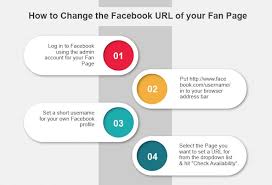
Changing The Address of a Facebook Page
To change the address of a Facebook page, follow these steps:
- Log in to Facebook: Log in to your Facebook account using a computer.
- Click on Profile Picture: Click on your profile picture in the top-right corner of the screen.
- Settings And Privacy: Select “Settings & Privacy.”
- Settings: Click on “Settings” from the dropdown menu.
- See All in Account Center: Select “See All in Account Center.”
- Personal Details: Scroll down and click on “Contact Information.”
- Name User: Click on your current page name.
- Edit Name: Click on the pencil icon to edit your name.
Changing The Address of a Facebook Group
To change the address of a Facebook group, follow these steps:
- Log in to Facebook: Log in to your Facebook account using a computer.
- Click on Profile Picture: Click on your profile picture in the top-right corner of the screen.
- Settings And Privacy: Select “Settings & Privacy.”
- Settings: Click on “Settings” from the dropdown menu.
- See All in Account Center: Select “See All in Account Center.”
- Personal Details: Scroll down and click on “Contact Information.”
- Name User: Click on your current group name.
- Edit Name: Click on the pencil icon to edit your name.
Conclusion
Changing your Facebook address is a straightforward process that can be completed on both smartphones and computers. Whether you want to update your profile name, change the email address associated with your account, or modify the address of a page or group, we’ve got you covered. Remember to save any changes you make by clicking the blue “Save” button.
Frequently Asked Questions
- Q: Can I Change my Facebook Address on my Smartphone?
A: Yes, you can change your Facebook address using the Facebook app on your smartphone. - Q: How do I Delete an Old Email Address Associated With my Facebook Account?
A: To delete an old email address, go to “Contact Information” and select the old email address. Click on the red “Delete Email Address” button. - Q: Can I Change The Name of a Facebook Page or Group?
A: Yes, you can change the name of a Facebook page or group by editing your profile name or page name.


