
How to Safely Change Your Wifi Password: A Step-by-step Guide
Are you tired of using a default WiFi password that’s easily guessable by others? Do you want to ensure your internet connection is secure from unwanted intrusions? Look no further! In this article, we’ll guide you through the simple process of changing your WiFi password on various router models.
Why Change Your Wifi Password?
Before we dive into the steps, let’s quickly discuss why changing your WiFi password is essential. A default or easily guessable password can compromise your internet security, making it vulnerable to hackers and malware. By updating your password regularly, you’ll ensure a safe and secure online experience for yourself and others who use your network.
Pre-requisites
Before we begin, make sure you have the following:
- Router Model: Identify the type of router you’re using (e.G., FRITZ!Box, TIM Hub, Vodafone Station, Wind Hub, or Linkem).
- Router Address: Note down your router’s IP address (usually found on the back label or in the device manual).
- Browser: Ensure you have a compatible browser installed on your device.
Step 1: Find Your Router’s Address
The first step is to find the address of your router, which will be used to access its management panel. To do this:
- Connect your computer (or smartphone/tablet) to your WiFi network.
- Open a web browser and navigate to the following addresses:
- Windows:
Http://192.168.1.1Orhttp://192.168.0.1 - Mac:
Http://192.168.2.1Orhttp://192.168.3.1 - Android: Go to Settings > Wi-Fi and tap on the menu icon (three dots) next to your network name; then, tap on “Advanced” and note down the IP address.
- IPhone/iPad: Go to Settings > Wi-Fi and tap on the “i” icon next to your network name; then, scroll down and note down the IP address.
- Windows:
Step 2: Access Your Router’s Management Panel
Once you have the router’s address, follow these steps:
- Open a web browser and enter the address (e.G.,
Http://192.168.1.1). - You will be prompted to log in using your username and password.
- If this is your first time accessing the panel, use the default credentials (usually “admin” for both username and password).
- If you’ve already set a custom password, use those instead.
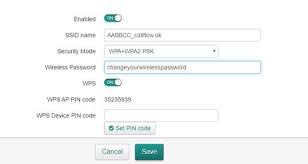
Step 3: Change Your Wifi Password
After logging in, follow these steps to change your WiFi password:
- Look for the WiFi settings section.
- Click on the “Change” or “Edit” button next to the password field.
- Enter a new, strong password that meets your router’s requirements (usually at least 12 characters long and containing a mix of uppercase letters, lowercase letters, numbers, and special characters).
- Note: Some routers may have specific password requirements, so make sure you check the documentation or help section for guidance.
Router-specific Instructions
Since different router models have varying interfaces, we’ll provide brief instructions for some popular brands:
- Fritz!box: Look for the “Wi-Fi” tab and click on the “Security” button. Enter your new password in the “Wireless Password” field.
- Tim Hub: Go to “Settings” > “Wireless” and select the “Change” option next to the password field.
- Vodafone Station: Access the “Station” page, then click on the “Wi-Fi” tab and enter your new password.
- Wind Hub: Navigate to “Network” > “Wireless” and update your password in the respective field.
Conclusion
Changing your WiFi password is a straightforward process that ensures your internet connection remains secure. By following these steps, you’ll be able to protect your network from unwanted intrusions and keep your online experience safe and enjoyable.
Frequently Asked Questions (FAQs)
- What if I Forgot my Router’s Username And Password?
If you’ve forgotten your router’s login credentials, try checking the back label or device manual for default values. If that doesn’t work, reset your router to its factory settings by pressing and holding the “Reset” button.
- Can I Use a Strong Password Without Special Characters?
While it’s recommended to include special characters in your password for added security, some routers might not require them. However, using a password with a mix of uppercase letters, lowercase letters, numbers, and special characters will provide better protection.
- Do I Need to Change my Wifi Password Regularly?
Yes, it’s recommended to update your WiFi password every 60-90 days to maintain optimal security. Additionally, change your password whenever you notice unusual network activity or if someone else has accessed your network without permission.
- How Can I Recover a Lost Wifi Password?
If you’ve forgotten your WiFi password and don’t have the router’s login credentials handy, try contacting the manufacturer’s support team for assistance.
- Can I Use The Same Password Across Multiple Devices?
It’s not recommended to use the same password across multiple devices or networks, as this can compromise security if one device is compromised.
- What Are Some Best Practices For Creating a Strong Wifi Password?
When creating a strong WiFi password:
- Use uppercase letters and lowercase letters.
- Include special characters (e.G., !, @, #, $).
- Incorporate numbers (e.G., 1, 2, 3, Etc.).
- Avoid using easily guessable words or phrases.
- Update your password regularly.
By following these guidelines and staying up-to-date with the latest security recommendations, you’ll be able to enjoy a safe and secure online experience.


