
Unlocking The World of Digital Cartooning: A Guide to Picsart Color Painting
As a lover of digital cartooning, you’re probably aware that having an app that lets you design on your tablet or smartphone is a dream come true. And if you’ve recently spent hours outdoors watching the weather, you might have stumbled upon the perfect opportunity to explore a new app – PicsArt Color Painting. But, not being tech-savvy, you might be wondering how to utilize this amazing tool. Fear not, dear reader! In this article, we’ll guide you through the process of downloading and using PicsArt Color Painting on your Android or iOS device.
Downloading Picsart Color Painting: A Step-by-step Guide
To get started, follow these simple steps:
Android
- Open the Play Store by tapping on its icon (a triangle-colored symbol) on your device’s home screen.
- Search for “PicsArt Color Painting” in the search bar and select the app from the results.
- Tap on the “Install” button to begin the download and installation process.
- Once installed, tap on the “Open” button to launch the app.
Ios/ipados
- Open the App Store by tapping on its icon (a stylized white “A” logo) on your device’s home screen.
- Search for “PicsArt Color Painting” in the search bar and select the app from the results.
- Tap on the “Get” button to begin the download and installation process.
- Once installed, tap on the “Open” button to launch the app.
Mastering Picsart Color Painting: A Guide to Its Features
PicsArt Color Painting is a powerful tool for digital cartoonists, offering an intuitive interface and a wide range of highly customizable instruments. To get started with designing using this app, follow these steps:
- Launch the app on your device.
- Tap on the “Start to Design” button to open a new canvas.
- Familiarize yourself with the toolbar, which contains various instruments for digital cartooning.
Understanding The Toolbar: A Breakdown of Its Instruments
The toolbar is divided into two sections:
Bottom Toolbar (Android) / Top Toolbar (iOS)
- The colored ring icon serves as a selector and mixer for colors.
- Tap on this icon to select and personalize the color of your brush and other instruments that use color in your design.
Top Toolbar (Android) / Bottom Toolbar (iOS)
- The brush icon allows you to choose from various brushes, each with its own characteristics, such as stretch, opacity, dimension, and more.
- Tap on this icon to select a brush and personalize it using the settings menu.
- The rubber icon erases parts of your design or entire canvas.
- Tap on this icon to access different brushes that can be personalized in advanced ways.
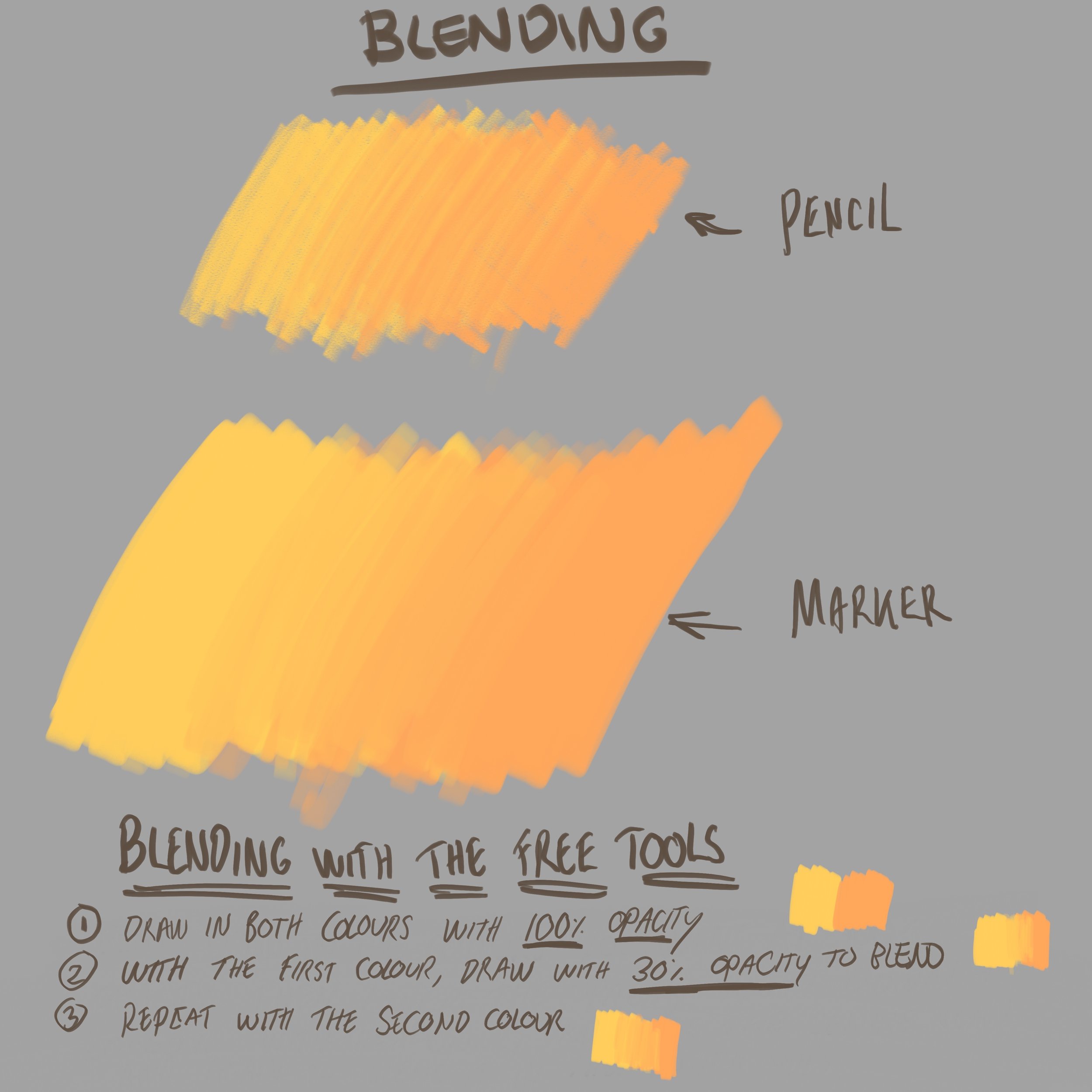
- The finger icon creates subtle nuances in color, much like the instruments mentioned earlier.
- Tap on this icon to access a wide range of highly customizable brushes.
Adding Text And Shapes to Your Design
To add text or shapes to your design:
- Tap on the pen icon to add text.
- Personalize the text by selecting from various fonts and dimensions.
- To personalize the text message, tap on it in its menu settings.
- To add geometric shapes, tap on the square or ring icon and access their personalization menu.
Utilizing The Fill Instrument
The fill instrument (represented by a bucket icon) allows you to fill shapes, backgrounds, or other elements of your design with uniform or personalized patterns.
Exploring Advanced Features: Symmetry And Exporting
- The arrow icons ahead and behind allow for fast modifications, such as erasing or restoring recent changes.
- Tap on the multimedia gallery icon to add photos from your device’s gallery.
- Use the symmetry instrument (represented by a compass icon) to automatically create symmetrical designs.
Saving Your Masterpiece: Exporting And Sharing
Once you’ve completed your design:
- Tap on the arrow icon in the top-right corner to save your design as an image in your device’s gallery.
- You can also export your design as a video or GIF, which displays all the steps of your cartooning process.
Conclusion: Unlocking Your Creativity
With PicsArt Color Painting, you have a powerful tool at your fingertips to unlock your creativity and express yourself through digital cartooning. By following these steps and mastering the app’s features, you’ll be able to create stunning designs that showcase your artistic side. Happy designing!


