
How to Delete Annoying Pop-ups on Your Mobile Device
Are you tired of seeing those pesky pop-ups on your mobile device every time you surf the web or use an app? You’re not alone! Millions of people around the world face this issue, and it’s frustrating to say the least. But don’t worry, we’ve got a solution for you.
What Are Pop-ups?
Before we dive into how to get rid of them, let’s quickly explain what pop-ups are. Pop-ups are small windows that appear on your screen when you’re browsing or using an app. They can be annoying and intrusive, often trying to sell you something or persuade you to take some action.
Why Do Pop-ups Happen?
There are several reasons why pop-ups occur:
- Some websites use pop-ups as a marketing tactic to grab users’ attention.
- Apps may display pop-ups to notify you of updates or promotions.
- Malware and viruses can create pop-ups to trick you into buying something or giving away personal info.
How to Get Rid of Pop-ups on Android Devices
If you have an Android device, follow these simple steps:
- Chrome Browser: Open Chrome and tap the three dots in the top-right corner.
- Click on “Settings” from the menu that appears.
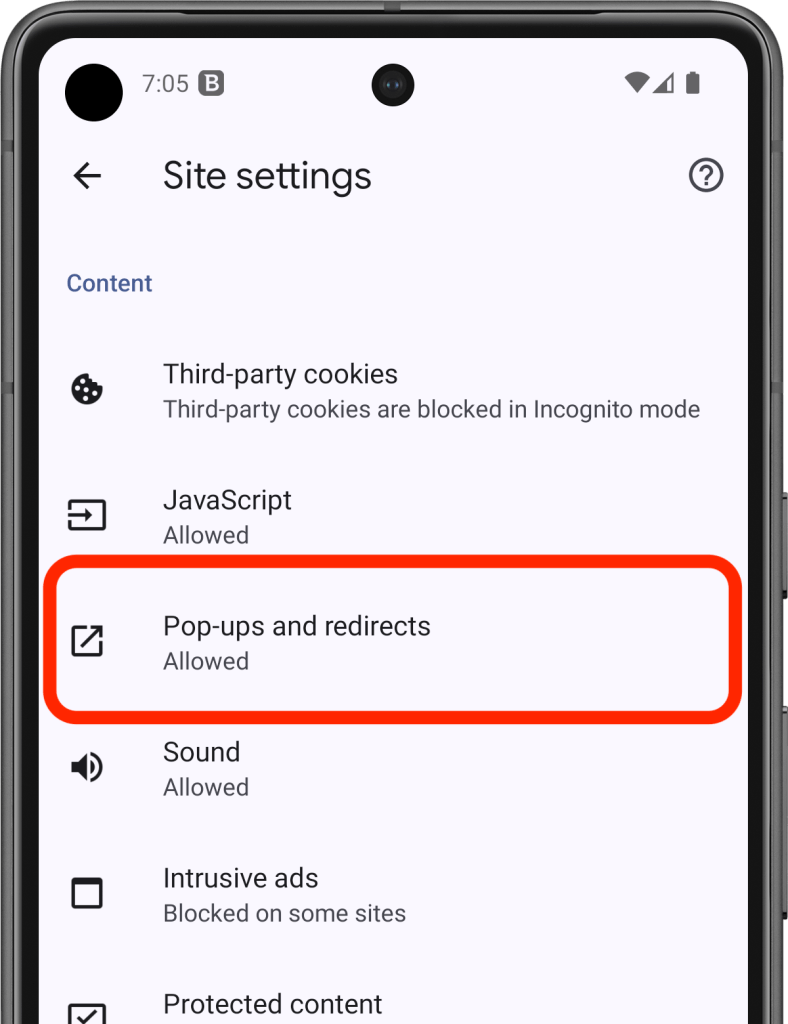
- Scroll down and select “Site settings.”
- Look for “Pop-ups and redirects” and toggle it off.
How to Get Rid of Pop-ups on Ios Devices
If you have an iOS device, follow these steps:
- Safari Browser: Open Safari and tap the “Settings” icon.
- Scroll down and select “Safari.”
- Look for “Block pop-ups” and toggle it on.
Other Browsers
For other browsers like Firefox, Edge, or Opera, you can follow similar steps to block pop-ups:
- Firefox: Tap the three dots in the top-right corner and select “Settings.” Then, scroll down to “Privacy & Security” and toggle off “Block pop-ups.”
- Edge: Tap the three dots in the bottom-right corner and select “Settings.” Then, scroll down to “Cookies and site permissions” and toggle off “Pop-up blocking.”
What If I Still See Pop-ups?
If you’ve followed these steps but still see pop-ups, it’s possible that:
- Malware: You might have malware or a virus on your device. Run an antivirus scan to check for any issues.
- Third-party Apps: Some apps might be causing the pop-ups. Check your installed apps and uninstall any suspicious ones.
- Browser Extensions: Browser extensions can also trigger pop-ups. Review your browser’s extensions and remove any unnecessary ones.
What Should I Do If I’m Scammed?
If you’ve been scammed or tricked into buying something, report it to the relevant authorities (e.G., Google, Apple) and seek help from a trusted friend or family member.
Conclusion
Deleting annoying pop-ups on your mobile device is easier than you think. By following these simple steps for different browsers and devices, you can minimize distractions and enjoy a smoother browsing experience.
Frequently Asked Questions
- Q: Why do I Still See Pop-ups After Blocking Them in my Browser?
A: It’s possible that the pop-up is caused by malware or a third-party app. - Q: How do I Remove Pop-ups From Multiple Browsers on One Device?
A: You can follow similar steps for each browser, but make sure to also check for any relevant settings within your operating system (e.G., Windows, macOS). - Q: What if I Accidentally Block a Legitimate Website or App?
A: If you accidentally block a website or app, simply toggle the pop-up blocker off and try accessing it again.


