
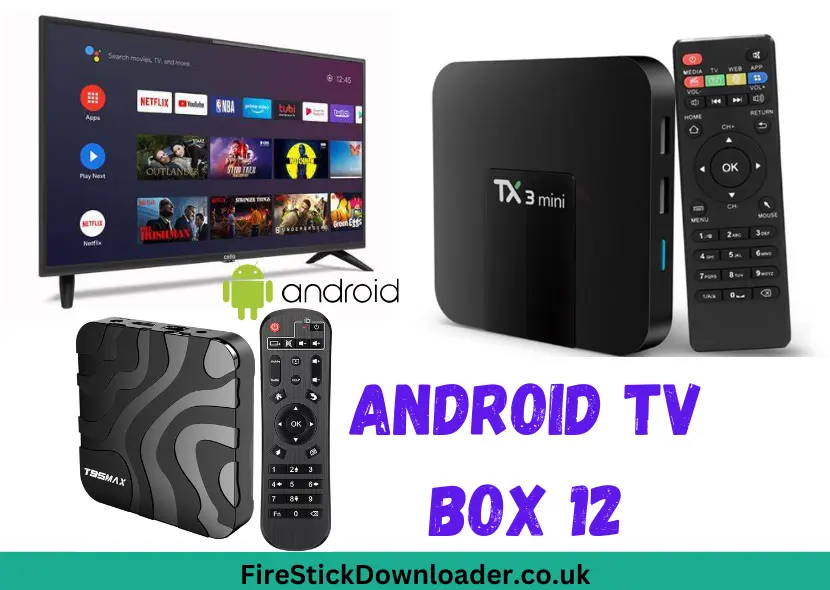
How to Update Android TV Box: A Step-by-step Guide
Are you tired of using an outdated Android TV box? Do you want to experience the latest features and improvements on your device? Look no further! In this comprehensive guide, we will walk you through the steps to update your Android TV box, ensuring that it runs smoothly and efficiently.
Why Update Your Android TV Box?
Before we dive into the process, let’s quickly discuss why updating your Android TV box is essential. An outdated system can lead to:
- Slow performance
- Incompatibility with new apps and features
- Security vulnerabilities
- Poor streaming quality
Updating your device will ensure that it runs smoothly, efficiently, and securely, providing you with an enhanced viewing experience.
Method 1: Updating Android TV Box Via Ota (Over The Air)
The easiest and most efficient way to update your Android TV box is by using the Over The Air (OTA) method. This process involves downloading and installing updates directly from the manufacturer’s servers.
To do this:
- Open the Google Play Store on your TV box.
- Search for “Update” or “System Update.”
- Launch the update app, and follow the on-screen instructions to complete the update.
Method 2: Updating Android TV Box Manually
If the OTA method is not available for your device or you prefer a more hands-on approach, updating your Android TV box manually is an option. This process involves downloading and installing updates from a computer.
To do this:
- Download the latest firmware for your TV box from the manufacturer’s website.
- Extract the firmware file to a microSD card.
- Insert the microSD card into your TV box, and restart it in Fastboot mode.
- Use a tool like Amlogic Series Flash Tool or Rockchip Series Flash Tool & Driver to flash the new firmware.
Method 3: Updating Android TV Box Via PC
Another way to update your Android TV box is by using a computer. This method involves downloading and installing updates from a computer using specialized software.
To do this:
- Download the latest firmware for your TV box from the manufacturer’s website.
- Extract the firmware file to a folder on your computer.
- Use a tool like Amlogic Series Flash Tool or Rockchip Series Flash Tool & Driver to flash the new firmware.
Updating Only Apps
If you’re unable to update your Android TV box, updating only the apps is still an option. This process involves removing existing apps and reinstalling them from the Google Play Store.
To do this:
- Remove all installed apps from your TV box.
- Reinstall the desired apps from the Google Play Store.
By following these steps, you’ll be able to update your Android TV box, ensuring that it runs smoothly and efficiently. Remember to always follow proper safety precautions when working with electronic devices.
Frequently Asked Questions (FAQs)
-
What is The Difference Between Updating my Android TV Box Via Ota And Manually?
Updating your Android TV box via OTA involves downloading and installing updates directly from the manufacturer’s servers, while manual updating involves downloading and installing updates from a computer.
2. Can I Update Only The Apps on my Android TV Box if It’s Not Compatible With Newer Firmware?Yes, you can still update individual apps on your Android TV box even if it’s not compatible with newer firmware.
3. How do I Know Which Method to Use For Updating my Android TV Box?Check the manufacturer’s website or consult the user manual to determine the best method for updating your Android TV box.
Conclusion
Updating your Android TV box is a straightforward process that can greatly improve its performance and functionality. By following these steps, you’ll be able to experience the latest features and improvements on your device.
If you have any questions or concerns, feel free to ask!


