
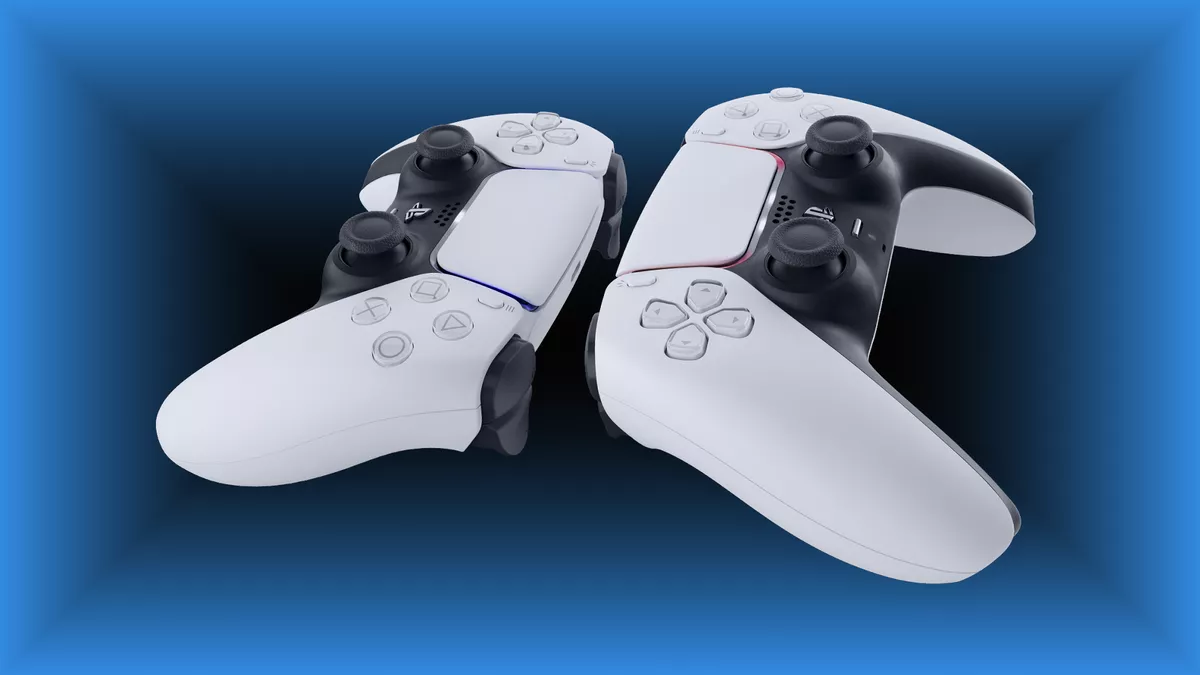
How to Connect Your Ps5 Dualsense Controller to Other Devices
Are you a gamer who’s recently acquired a PlayStation 5 (PS5) and is loving the comfort of the controller? Well, you’re not alone! Many gamers have been enjoying the immersive gaming experience that the PS5 has to offer. However, did you know that you can take your gaming experience to the next level by connecting your DualSense controller to other devices such as a PC, Mac, smartphone, or tablet?
In this article, we’ll guide you on how to connect your PS5 DualSense controller to various devices, so you can enjoy seamless gaming experiences across different platforms.
Why Connect Your Dualsense Controller?
Connecting your DualSense controller to other devices offers several benefits, including:
- Cross-platform Gaming: You can play games that support cross-platform play, allowing you to compete or collaborate with friends who use different gaming consoles.
- Increased Accessibility: Connecting your controller to a PC or Mac enables you to play games that are not available on the PS5, expanding your gaming library.
- Convenience: You can use your DualSense controller as a wireless device, eliminating the need for cables and making it easier to move around while gaming.
Connecting Your Dualsense Controller
To connect your DualSense controller to other devices, follow these steps:
Step 1: Prepare Your Dualsense Controller
Before connecting your DualSense controller to another device, make sure it’s in match mode. To do this:
- Turn off your DualSense controller.
- Press and hold the PS button for around 10 seconds, until the light bar starts flashing quickly.
- Release the PS button.
Step 2: Connect Your Dualsense Controller to a Pc
To connect your DualSense controller to a PC running Windows 10 or Windows 11:
- Ensure that your PC has Bluetooth capabilities.
- Open the Settings app on your PC and navigate to Devices > Bluetooth & devices.
- Click on “Add device” or “Bluetooth” and select “DualSense Wireless Controller”.
- Follow the on-screen instructions to complete the pairing process.
Alternatively, you can connect your DualSense controller to a PC using a USB cable:
- Connect the DualSense controller to your PC via a USB-C cable.
- Open the Settings app on your PC and navigate to Devices > Bluetooth & devices.
- Click on “Add device” or “Bluetooth” and select “DualSense Wireless Controller”.
- Follow the on-screen instructions to complete the pairing process.
Step 3: Connect Your Dualsense Controller to a Mac
To connect your DualSense controller to a Mac:
- Ensure that your Mac has Bluetooth capabilities.
- Open the System Preferences app on your Mac and navigate to Bluetooth.
- Click on “Add device” or “Bluetooth” and select “DualSense Wireless Controller”.
- Follow the on-screen instructions to complete the pairing process.
Step 4: Connect Your Dualsense Controller to a Smartphone or Tablet
To connect your DualSense controller to a smartphone or tablet:
- Ensure that your device has Bluetooth capabilities.
- Open the Settings app on your device and navigate to Bluetooth.
- Click on “Add device” or “Bluetooth” and select “DualSense Wireless Controller”.
- Follow the on-screen instructions to complete the pairing process.
Tips And Tricks
- Make sure that your DualSense controller is updated to the latest firmware for optimal performance.
- If you encounter any issues during the pairing process, try restarting your device or controller and retrying the connection.
- Some games may not support cross-platform play with a DualSense controller. Check the game’s system requirements before connecting your controller.
Conclusion
Connecting your PS5 DualSense controller to other devices is a simple process that can enhance your gaming experience. By following these steps, you’ll be able to enjoy seamless gaming experiences across different platforms and expand your gaming library.
Frequently Asked Questions (FAQs)
- Q: Can I Connect my Dualsense Controller to a Ps4?
A: Unfortunately, no. The DualSense controller is designed specifically for the PS5 and does not have backwards compatibility with older consoles. - Q: How do I Update my Dualsense Controller Firmware?
A: To update your DualSense controller firmware, follow these steps:
1. Connect your controller to a PC or Mac via USB-C cable.
2. Open the Settings app on your device and navigate to Devices > Bluetooth & devices.
3. Click on “Add device” or “Bluetooth” and select “DualSense Wireless Controller”.
4. Follow the on-screen instructions to complete the pairing process. - Q: Can I Use my Dualsense Controller With a Game That Doesn’t Support Cross-platform Play?
A: No, you cannot use your DualSense controller with games that don’t support cross-platform play. However, some games may allow you to connect your controller as an auxiliary device for certain features or modes.
By following these steps and tips, you’ll be able to connect your PS5 DualSense controller to other devices and enjoy a more immersive gaming experience across different platforms. Happy gaming!


