
How to Change Your Whatsapp Profile Picture: A Step-by-step Guide
Are you tired of your old WhatsApp profile picture? Do you want to give your friends a fresh new look? Look no further! In this article, we’ll show you how to change your WhatsApp profile picture in just a few simple steps.
Why Change Your Whatsapp Profile Picture?
Before we dive into the instructions, let’s talk about why changing your WhatsApp profile picture is a good idea. A profile picture can make or break an online presence, and it’s especially important on social media platforms like WhatsApp. By changing your profile picture regularly, you can:
- Refresh your online look
- Show off your personality and style
- Connect with friends and family through shared interests
How to Change Your Whatsapp Profile Picture on Android
If you’re using an Android device, here’s how to change your WhatsApp profile picture:
- Open Whatsapp: First, open the WhatsApp app on your Android device.
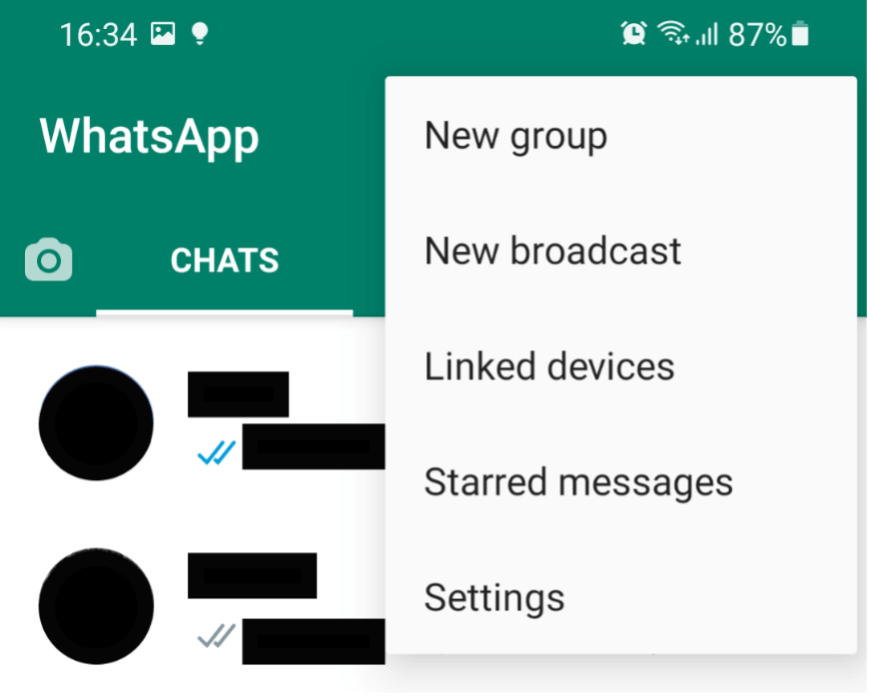
- Tap Settings: Tap the three dots in the top right corner of the screen and select “Settings.”
- Select Profile: Select “Profile” from the menu.
- Tap Edit Profile Picture: Tap the pencil icon next to your current profile picture.
- Choose a New Picture: Choose a new picture from your gallery or take a new photo using the camera app.
- Crop And Resize: Crop and resize the image as needed.
- Save Changes: Tap “Done” to save your changes.
How to Change Your Whatsapp Profile Picture on Iphone
If you’re using an iPhone, here’s how to change your WhatsApp profile picture:
- Open Whatsapp: First, open the WhatsApp app on your iPhone.
- Tap Settings: Tap the three dots in the top right corner of the screen and select “Settings.”
- Select Profile: Select “Profile” from the menu.
- Tap Edit Profile Picture: Tap the pencil icon next to your current profile picture.
- Choose a New Picture: Choose a new picture from your gallery or take a new photo using the camera app.
- Crop And Resize: Crop and resize the image as needed.
- Save Changes: Tap “Done” to save your changes.
How to Change Your Whatsapp Profile Picture on Computer
If you’re using WhatsApp on a computer, here’s how to change your profile picture:
- Open Whatsapp Web: First, open WhatsApp Web in your web browser.
- Click Settings: Click the three dots in the top right corner of the screen and select “Settings.”
- Select Profile: Select “Profile” from the menu.
- Tap Edit Profile Picture: Tap the pencil icon next to your current profile picture.
- Choose a New Picture: Choose a new picture from your computer or take a new photo using the webcam.
- Crop And Resize: Crop and resize the image as needed.
- Save Changes: Click “Done” to save your changes.
Tips And Tricks
Here are some tips and tricks for changing your WhatsApp profile picture:
- Use high-quality images that are clear and well-lit.
- Experiment with different poses, angles, and expressions.
- Keep your profile picture consistent across all social media platforms.
- Update your profile picture regularly to keep things fresh.
Conclusion
Changing your WhatsApp profile picture is a simple process that can make a big difference in how you’re perceived online. By following the steps outlined above, you can give your friends a fresh new look and show off your personality and style. Remember to keep your profile picture consistent across all social media platforms and update it regularly to keep things fresh.
Frequently Asked Questions
Here are some frequently asked questions about changing your WhatsApp profile picture:
- Q: How do I Change my Whatsapp Profile Picture on Android?
A: To change your WhatsApp profile picture on Android, tap the three dots in the top right corner of the screen and select “Settings.” Then, tap “Profile” and choose a new picture from your gallery or take a new photo using the camera app. - Q: How do I Change my Whatsapp Profile Picture on Iphone?
A: To change your WhatsApp profile picture on iPhone, tap the three dots in the top right corner of the screen and select “Settings.” Then, tap “Profile” and choose a new picture from your gallery or take a new photo using the camera app. - Q: Can I Use an Avatar as my Whatsapp Profile Picture?
A: Yes, you can use an avatar as your WhatsApp profile picture. To do this, go to the Profile section of Settings and select “Avatar.” - Q: How do I Capsize my Whatsapp Profile Picture Without Adding a New One?
A: To capsize your WhatsApp profile picture without adding a new one, go to the Profile section of Settings and select “Capsize image.” Then, choose the current image profile. - Q: Can I Use Whatsapp on PC to Change my Profile Picture?
A: Yes, you can use WhatsApp on PC to change your profile picture. To do this, open WhatsApp Web in your web browser and follow the same steps as above.
Common Issues
Here are some common issues that may arise when changing your WhatsApp profile picture:
- Image Quality: Make sure the image is high-quality and well-lit.
- Crop And Resize: Make sure to crop and resize the image as needed.
- Save Changes: Make sure to save your changes by tapping “Done” or clicking “Done.”
- Profile Picture Not Updating: If your profile picture is not updating, try restarting WhatsApp or checking for updates.
Troubleshooting
Here are some troubleshooting steps you can take if you’re experiencing issues with changing your WhatsApp profile picture:
- Check Internet Connection: Make sure your internet connection is stable.
- Restart Whatsapp: Restart WhatsApp to see if it resolves the issue.
- Update Whatsapp: Update WhatsApp to the latest version.
- Contact Support: Contact WhatsApp support for further assistance.


