
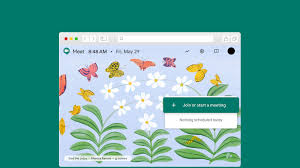
How to Use Google Meet (Hangouts Meet) For Video Conferences
Are you tired of using outdated video conferencing tools? Do you want to take your online meetings to the next level with high-quality video and audio? Look no further than Google Meet, also known as Hangouts Meet. This powerful platform allows you to create video conferences with up to 250 participants, making it ideal for team meetings, client presentations, and more.
In this article, we’ll show you how to use Google Meet on your PC, smartphone, or tablet. We’ll cover the basics of creating a meeting, joining a conference, and even sharing your screen with others.
What is Google Meet?
Google Meet is a video conferencing service developed by Google that allows users to create meetings and participate in them from anywhere in the world. It’s free to use for up to 100 participants, and with a G Suite account, you can extend these limitations to 250 participants and 24 hours of meeting time.
How to Use Google Meet on PC
To get started with Google Meet on your PC, follow these steps:
- Access The Official Website: Open your web browser and navigate to the Google Meet website.
- Initiate a New Meeting: Click on the “Initiate a meeting” button and log in with your Google account.
- Configure Settings: In the new window that appears, you’ll see options for microphone and webcam permissions. Click on the buttons to allow access to these peripherals.
- Select Video or Presentation Mode: Choose whether you want to start a video conference or initiate a presentation by clicking on the respective button.
- Add Participants: If you’re creating a new meeting, you can share the link with others to join the conference. Alternatively, you can invite participants directly by clicking on the “Add persons” button.
Using Google Meet on Smartphone And Tablet
Google Meet is also available on mobile devices running Android or iOS. To use it on your smartphone or tablet:
- Download And Install The App: Visit the Play Store (for Android) or App Store (for iOS) to download the Google Meet app.
- Open The App: Launch the app by tapping its icon on your home screen.
- Create a New Meeting: Tap the “New meeting” button to initiate a video conference, or enter a code to join an existing meeting.
- Configure Audio And Video Settings: Use the controls on the screen to enable or disable microphone and webcam access, as well as adjust video quality and resolution.
Benefits of Using Google Meet
Google Meet offers numerous benefits for businesses and individuals alike:
- High-quality Video And Audio: Ensure that your online meetings are clear and effective with crystal-clear video and audio.
- Easy to Use: With an intuitive interface, you can quickly get started with creating and joining meetings without any technical expertise.
- Scalability: Whether you have a small team or a large organization, Google Meet allows you to scale your meetings to suit your needs.
Conclusion
Google Meet is an excellent video conferencing tool that offers high-quality video and audio, ease of use, and scalability. By following the steps outlined in this article, you can get started with using Google Meet on your PC, smartphone, or tablet. Whether you’re a business owner, entrepreneur, or simply someone who wants to stay connected with loved ones, Google Meet is an excellent choice for your online meeting needs.
Faqs
- Q: How Many Participants Can I Have in a Google Meet Conference?
A: With a free account, you can have up to 100 participants in a meeting. With a G Suite account, you can extend this limit to 250 participants. - Q: Can I Record Google Meet Conferences?
A: Yes, with a G Suite account, you can record meetings for future reference. - Q: How do I Join a Google Meet Conference if I Don’t Have an Invitation Link?
A: You can join a meeting by entering the code provided to you by the meeting organizer. - Q: Can I Use Google Meet on my Smartphone or Tablet?
A: Yes, Google Meet is available on mobile devices running Android or iOS. - Q: Is Google Meet Free to Use?
A: While there are some features that require a G Suite account, basic usage of Google Meet is free for up to 100 participants.
I hope this helps! If you have any further questions or need assistance with using Google Meet, feel free to ask.


