
How to Control a PC From a Distance: A Step-by-step Guide
Are you tired of being physically present to fix issues on someone else’s computer? Do you want to learn how to control a PC from a distance? Look no further! In this article, we will explore the various ways to remotely access and control a PC, making it easier for you to provide assistance without having to be physically present.
The Need For Remote Access
We’ve all been there – stuck with a friend’s computer that won’t turn on or is experiencing some other technical issue. The need to fix the problem quickly can be overwhelming, especially if you’re not familiar with the system. That’s where remote access comes in. With remote access, you can control the PC from a distance, allowing you to troubleshoot and fix issues without having to physically touch the device.
Method 1: Remote Desktop (Windows)
If you’re using Windows 10 or later, you have the built-in feature called Remote Desktop that allows you to remotely access another computer. To enable this feature, follow these steps:
- Click on the Start button and select Settings.
- Click on System and then click on Remote Desktop.
- Toggle the switch under “Remote desktop” to On.
- Make sure that the “Allow remote connections to this PC” checkbox is selected.
Once you’ve enabled remote access, you can connect to another computer by typing in its IP address or hostname in the Remote Desktop Connection window.
Method 2: Sharing Monitor (macOS)
If you’re using a Mac, you can use the built-in feature called Sharing Monitor to remotely control another Mac. To enable this feature, follow these steps:
- Click on the Apple menu and select System Preferences.
- Click on Sharing and then click on Screen Sharing.
- Select the option to allow remote access to your screen.
Once you’ve enabled remote access, you can connect to another Mac by typing in its IP address or hostname in the Screen Sharing window.
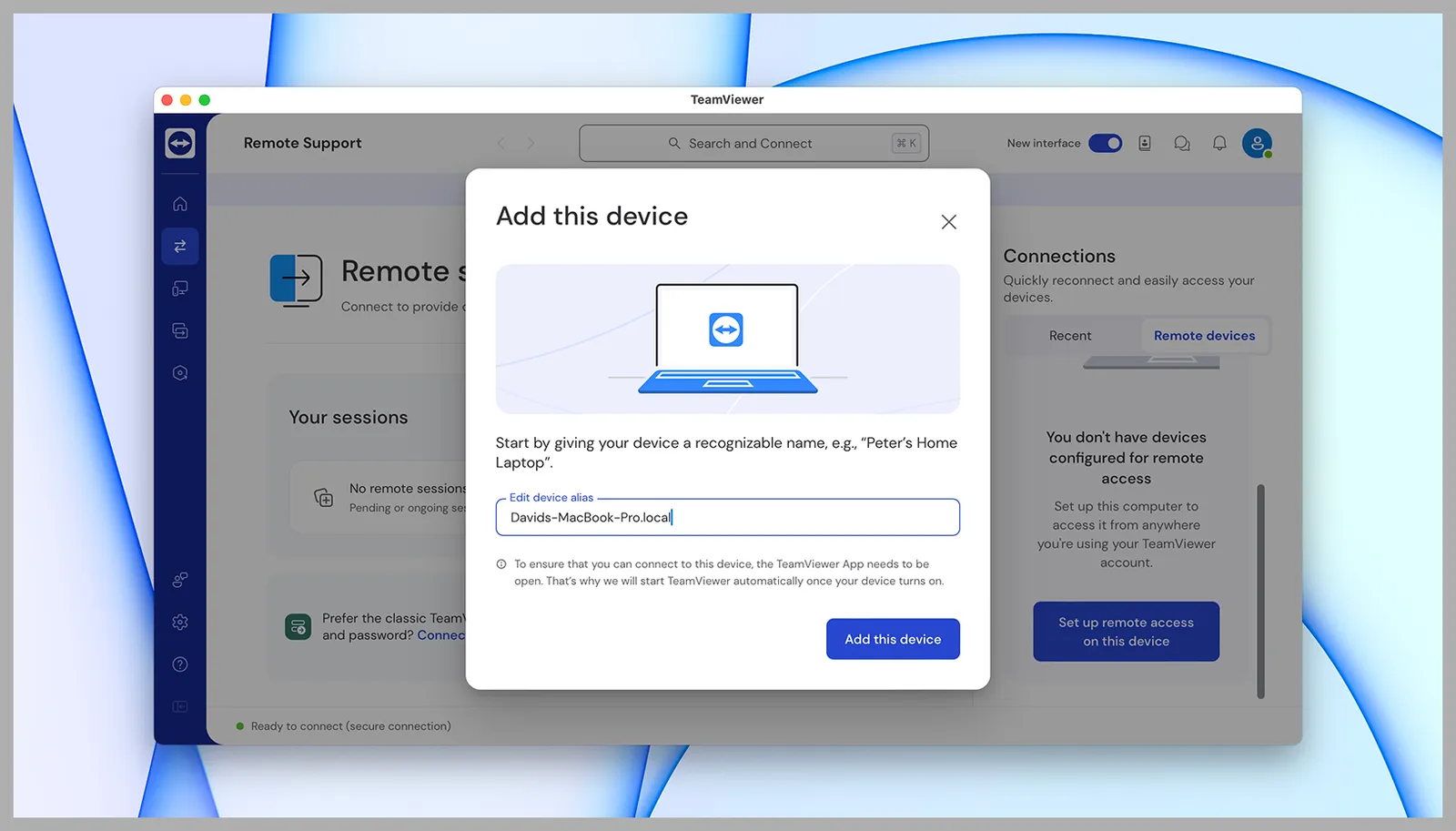
Method 3: Teamviewer
TeamViewer is a popular software that allows you to remotely control and access another computer. To use TeamViewer, follow these steps:
- Download and install the TeamViewer software on both computers.
- Open TeamViewer on the remote computer and enter the ID number displayed on the screen.
- On your local computer, open TeamViewer and enter the ID number of the remote computer.
- Click on the “Connect” button to establish a connection.
Method 4: Jump Desktop
Jump Desktop is another software that allows you to remotely control and access another Mac or Windows computer. To use Jump Desktop, follow these steps:
- Download and install the Setapp software on both computers.
- Open Jump Desktop on the remote computer and enter your credentials.
- On your local computer, open Jump Desktop and enter the ID number of the remote computer.
- Click on the “Connect” button to establish a connection.
Other Programs For Remote Access
There are many other programs available that allow you to remotely control and access another computer. Some popular options include:
- Chrome Remote Desktop
- AnyDesk
- Microsoft Remote Desktop
These programs offer similar features to TeamViewer and Jump Desktop, but may have slightly different interfaces and functionality.
Conclusion
Remote access is a powerful tool that can make it easier for you to provide technical assistance without having to be physically present. Whether you’re using Windows or macOS, there are many options available that allow you to remotely control and access another computer. By following the steps outlined in this article, you can learn how to use remote access to troubleshoot and fix issues on someone else’s computer.
Faqs
- What is Remote Access?
Remote access refers to the ability to control and interact with a computer from a distance. - How do I Enable Remote Access on Windows?
To enable remote access on Windows, go to Settings > System > Remote Desktop and toggle the switch to On. - How do I Use Teamviewer?
To use TeamViewer, download and install the software on both computers, enter the ID number displayed on the screen, and click on the “Connect” button. - What Are Some Other Programs For Remote Access?
Some popular options include Chrome Remote Desktop, AnyDesk, and Microsoft Remote Desktop. - How do I Use Jump Desktop?
To use Jump Desktop, download and install the Setapp software on both computers, enter your credentials, and click on the “Connect” button. - Can I Remotely Access a Mac From a Windows Computer?
Yes, you can remotely access a Mac from a Windows computer using TeamViewer or Jump Desktop. - How do I Troubleshoot Issues With Remote Access?
If you’re experiencing issues with remote access, try restarting the software, checking your internet connection, and ensuring that both computers are running the same version of the software.
I hope this article has been helpful in explaining how to control a PC from a distance!


