
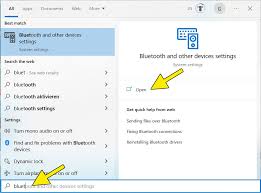
How to Actuate Bluetooth on Windows 10: A Step-by-step Guide
Are you tired of struggling to connect your Bluetooth devices to your Windows 10 PC? Look no further! In this article, we will guide you through the simple steps to activate and manage Bluetooth on your computer.
What is Bluetooth?
Bluetooth is a wireless personal area network (PAN) technology that allows devices to communicate with each other over short distances. It’s commonly used for transferring files, streaming audio, and connecting accessories like speakers or keyboards.
Why Activate Bluetooth on Windows 10?
Activating Bluetooth on your Windows 10 PC opens up a world of possibilities for connectivity and convenience. With Bluetooth enabled, you can:
- Transfer files between devices
- Stream music and videos to compatible speakers or headphones
- Connect wireless accessories like keyboards or mice
- Share data between devices in close proximity
How to Activate Bluetooth on Windows 10: From Settings
To activate Bluetooth on your Windows 10 PC, follow these steps:
- Click on The Start Button: Located at the bottom left corner of your screen, click on the Start button.
- Select Settings: Click on the Settings icon (looks like a gear).
- Choose Devices: In the Settings window, select “Devices”.
- Click on Bluetooth & Other Devices: On the left side of the window, click on “Bluetooth & other devices”.
- Toggle The Switch to ON: Beside the word “Bluetooth”, toggle the switch to turn it ON.
How to Activate Bluetooth on Windows 10: From Notifications
Alternatively, you can activate Bluetooth from the notifications panel:
- Click on The Arrow Icon: Located at the bottom right corner of your screen, click on the arrow icon.
- Select Show Hidden Icons: Click on “Show hidden icons”.
- Click on Bluetooth: Beside the clock, you’ll see a small Bluetooth icon (looks like a blue circle with a white B). Click on it.
How to Couple Devices With Bluetooth on Windows 10
Once Bluetooth is activated, follow these steps to couple devices:
- Open Settings: Go back to the Settings window.
- Choose Devices: Select “Devices” from the left menu.
- Click on Add Device: Beside the word “Bluetooth”, click on “Add device”.
- Select Bluetooth: Choose “Bluetooth” as the type of device you want to add.
- Search For Devices: Your PC will search for nearby Bluetooth devices. Select the device you want to pair with.
How to Remove Devices From Windows 10
If you need to remove a device, follow these steps:
- Open Settings: Go back to the Settings window.
- Choose Devices: Select “Devices” from the left menu.
- Click on Bluetooth & Other Devices: On the left side of the window, click on “Bluetooth & other devices”.
- Find The Device You Want to Remove: Locate the device in the list and click on it.
- Click on Remove Device: Beside the device name, click on the three dots (…), then select “Remove device”.
Advanced Settings For Bluetooth Management
For more advanced users, here are some additional settings to consider:
- Allow Other Devices to Find This PC: This setting allows other Bluetooth devices to detect your PC.
- Avvisami When a New Device is Connected: Enable this feature to receive notifications when a new device connects via Bluetooth.
- Show The Bluetooth Icon in The Notification Area: Display the Bluetooth icon on the taskbar.
Troubleshooting Bluetooth Issues
If you’re experiencing issues with Bluetooth, try these troubleshooting steps:
- Check For Driver Updates: Ensure your Bluetooth drivers are up-to-date.
- Restart Your PC: Sometimes, a simple reboot can resolve connectivity issues.
- Try a Different Device: If one device isn’t working, try pairing another to see if the issue is specific to that device.
How to Add a Bluetooth Adapter
If you’re unable to find Bluetooth on your PC or need additional capabilities, consider adding a Bluetooth adapter:
- Purchase a Bluetooth Adapter: Buy a Bluetooth adapter from an electronics store or online.
- Connect The Adapter: Insert the adapter into one of your computer’s USB ports.
Conclusion
Activating and managing Bluetooth on Windows 10 is easier than you think! By following these steps, you’ll be able to connect your devices, transfer files, and enjoy seamless wireless communication.
Frequently Asked Questions (FAQs)
- What Are The Benefits of Using Bluetooth?
Bluetooth offers a convenient and wireless way to connect devices, making it ideal for transferring files, streaming audio, and more. - How do I Know if my Device is Compatible With Bluetooth?
Most modern devices come equipped with Bluetooth capabilities. Check your device’s specifications or manufacturer’s website for confirmation. - Why Can’t I Find Bluetooth on my Pc?
Make sure Bluetooth is enabled in your settings or notifications panel. - I’m Having Trouble Pairing Devices Via Bluetooth. What Should I Do?
Try restarting your PC, updating drivers, or switching to a different device. - Can I Use Bluetooth With Multiple Devices?
Yes! You can connect and manage multiple Bluetooth devices simultaneously. - How do I Update my Bluetooth Drivers?
Follow the steps outlined in our troubleshooting section. - What is The Difference Between Bluetooth 4.0 And Bluetooth 5.0?
Bluetooth 5.0 Offers improved range, speed, and compatibility compared to earlier versions like Bluetooth 4.0.
Final Thoughts
In conclusion, activating and managing Bluetooth on Windows 10 is a straightforward process that opens up new possibilities for connectivity and convenience. By following these steps and troubleshooting tips, you’ll be able to enjoy seamless wireless communication with your devices.


