
How to Read a Message on Whatsapp Without Visualizing It
Are you tired of being bombarded with messages on WhatsApp without having the time or inclination to respond immediately? Do you wish there was a way to read messages without visualizing them, so you can stay in control and manage your conversations more effectively?
Well, you’re in luck! In this article, we’ll explore various solutions that allow you to read messages on WhatsApp without visually seeing them. We’ll cover options for both Android and iPhone devices, as well as a solution specifically designed for PC users.
Disabling Message Read Receipts on Android
One of the most straightforward ways to read messages without visualizing them is by disabling message read receipts on your Android device. This feature allows you to see when someone has read your messages, but it also means that others can see when you’ve read their messages.
To disable this feature, follow these steps:
- Open WhatsApp and go to the three dots at the top right corner.
- Tap on “Settings” and then select “Account.”
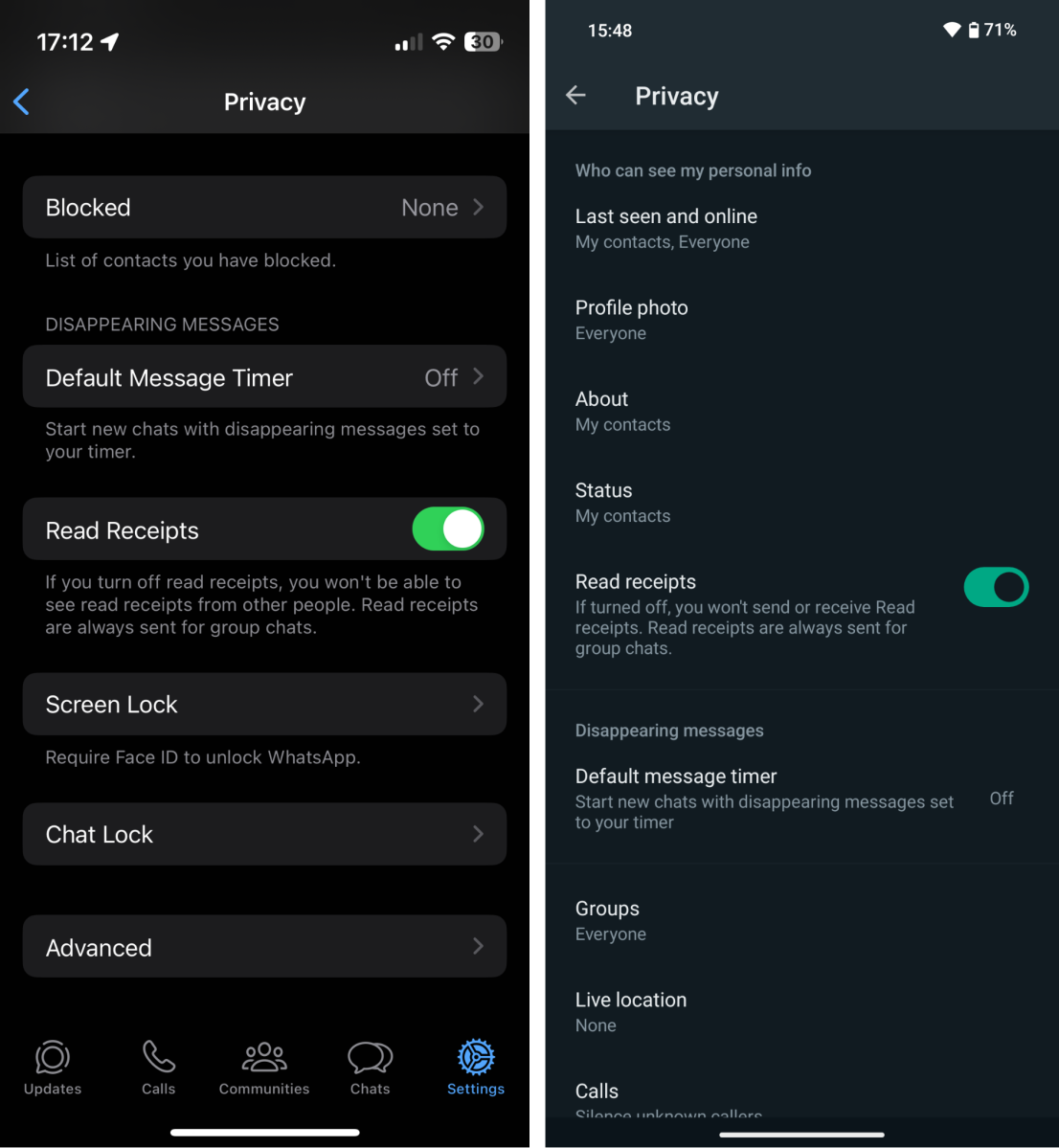
- Choose “Privacy” and toggle off the switch next to “Read Receipts.”
By disabling message read receipts, you’ll be able to read messages without others seeing that you’ve read them. However, keep in mind that this feature only works for one-to-one conversations and not for group chats.
Reading Messages From The Notification Shade on Android
Another way to read messages without visually seeing them is by reading them from the notification shade on your Android device. Here’s how:
- Open the notification shade by swiping down from the top of your screen.
- Look for the WhatsApp notification and swipe left or right to view the message preview.
- Tap on the message preview to read the entire conversation.
By using this method, you can quickly scan through messages without having to open the WhatsApp app.
Using Google Assistant on Android
If you have a Google Assistant-enabled device, you can use it to read messages from WhatsApp without visually seeing them. Here’s how:
- Open the Google Assistant app and say “Hey Google, read my last WhatsApp message.”
- The assistant will read out the last message you received.
By using this feature, you can stay up-to-date with your conversations without having to physically interact with your device.
Using The Whatsapp Widget on Android
Another option for reading messages without visualizing them is by using the WhatsApp widget on your Android device. Here’s how:
- Open the home screen and tap and hold on an empty area.
- Tap on “Widgets” and select the WhatsApp widget.
- Place the widget on your home screen and tap on it to view a message preview.
By using this feature, you can quickly glance through messages without having to open the WhatsApp app.
Disabling Message Read Receipts on Iphone
If you’re an iPhone user, disabling message read receipts is a bit more complicated than on Android devices. Here’s how:
- Open WhatsApp and go to Settings.
- Tap on “Account” and then select “Privacy.”
- Toggle off the switch next to “Read Receipts.”
By disabling message read receipts, you’ll be able to read messages without others seeing that you’ve read them. However, keep in mind that this feature only works for one-to-one conversations and not for group chats.
Reading Messages From The Notification Center on Iphone
Another way to read messages without visually seeing them is by reading them from the notification center on your iPhone device. Here’s how:
- Open the notification center by swiping down from the top of your screen.
- Look for the WhatsApp notification and tap on it to view a message preview.
- Swipe left or right to view other messages.
By using this method, you can quickly scan through messages without having to open the WhatsApp app.
Using Siri on Iphone
If you have an iPhone device with Siri enabled, you can use it to read messages from WhatsApp without visually seeing them. Here’s how:
- Open Siri by saying “Hey Siri” or pressing and holding the home button.
- Say “Read my last WhatsApp message.”
- Siri will read out the last message you received.
By using this feature, you can stay up-to-date with your conversations without having to physically interact with your device.
Reading Messages on PC
If you’re using a Windows or macOS device, reading messages on WhatsApp without visualizing them is a bit more complicated than on mobile devices. Here’s how:
- Open the WhatsApp client or web application and log in to your account.
- Click on the message preview to read the entire conversation.
By using this method, you can quickly scan through messages without having to physically interact with your device.
Conclusion
In conclusion, reading messages on WhatsApp without visualizing them is a great way to stay in control of your conversations and manage your time more effectively. By disabling message read receipts or using features like Google Assistant, the WhatsApp widget, or Siri, you can quickly scan through messages without having to physically interact with your device.
Frequently Asked Questions
Q: Will disabling message read receipts affect my group chats?
A: No, disabling message read receipts will only affect one-to-one conversations and not group chats.
Q: Can I use these features on both Android and iPhone devices?
A: Yes, most of the features mentioned can be used on both Android and iPhone devices.
Q: Will using these features affect my phone’s battery life?
A: No, using these features should not significantly affect your phone’s battery life.
Final Thoughts
In today’s fast-paced world, managing our conversations effectively is crucial. By using these features, you can stay in control of your WhatsApp conversations and manage your time more effectively. Try them out and see how they work for you!
References
- WhatsApp FAQ
- Google Assistant Help Center
- Siri User Guide


