
How to Turn Off Iphone 12: A Comprehensive Guide
Are you wondering how to turn off your iPhone 12? With the removal of the Home button, things may seem a bit more complicated than before. But fear not! In this article, we’ll guide you through the various ways to turn off your iPhone 12, including turning it off without a touch screen or physical buttons.
Understanding The New Standard Procedure
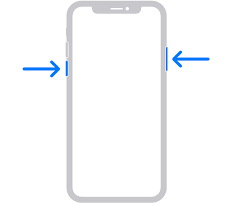
The standard procedure for turning off an iPhone 12 involves using two physical buttons and interacting with the touchscreen. Specifically, you need to press and release the right edge button and the volume up button simultaneously, then drag the slider to turn off your device. If you’re experiencing problems with your touch screen or physical buttons, don’t worry! We’ve got alternative solutions for you.
How to Turn Off Iphone 12 Without a Touch Screen
If your iPhone 12 has been dropped and its touchscreen is no longer functional, there’s still hope. You can turn off your device without using the touchscreen by pressing and releasing the volume up button, then pressing and holding the right edge button until you see the shutdown screen.
Turning Off Iphone 12 Without Physical Buttons
If you’re experiencing problems with your physical buttons, don’t worry! You can still turn off your iPhone 12 by going to Settings > General > Shut Down. This will take you directly to the shutdown screen, where you can complete the process.
How to Turn On Iphone 12
To turn on your iPhone 12, simply press and hold the right edge button until you see the Apple logo appear on the screen. Alternatively, if you’re experiencing problems with your physical buttons, you can connect your device to a power source using the Lightning cable provided in the box.
How to Restart Iphone 12
If your iPhone 12 is unresponsive or frozen, you can try restarting it by pressing and holding the volume up button, then releasing it quickly. Press and hold the volume down button until you see the shutdown screen, then press and hold the right edge button until your device restarts.
How to Turn Off Flashlight on Iphone 12
If you’ve accidentally turned on the flashlight on your iPhone 12, simply tap and hold the flashlight icon in the Control Center to turn it off. Alternatively, swipe down from the top-right corner of the screen to access the Control Center and toggle the flashlight switch.
Conclusion
Turning off an iPhone 12 may seem daunting at first, but with these step-by-step guides, you’ll be able to navigate the process with ease. Whether you’re experiencing problems with your touch screen or physical buttons, we’ve got alternative solutions for you. Remember to save your data before attempting any troubleshooting steps.
Frequently Asked Questions (FAQs)
- How do I Turn Off my Iphone 12?
To turn off your iPhone 12, press and release the right edge button and volume up button simultaneously, then drag the slider to shut down your device. - Can I Turn Off my Iphone 12 Without a Touch Screen?
Yes, you can turn off your iPhone 12 without using the touchscreen by pressing and releasing the volume up button, then pressing and holding the right edge button until you see the shutdown screen. - How do I Turn on my Iphone 12?
To turn on your iPhone 12, press and hold the right edge button until you see the Apple logo appear on the screen. - Can I Restart my Iphone 12 Without Using The Touchscreen?
Yes, you can restart your iPhone 12 by pressing and holding the volume up button, then releasing it quickly, followed by pressing and holding the volume down button until you see the shutdown screen. - How do I Turn Off The Flashlight on my Iphone 12?
To turn off the flashlight on your iPhone 12, tap and hold the flashlight icon in the Control Center or swipe down from the top-right corner of the screen to access the Control Center and toggle the flashlight switch. - Can I Turn Off my Iphone 12 Without Physical Buttons?
Yes, you can turn off your iPhone 12 by going to Settings > General > Shut Down. - What Should I do if my Iphone 12 is Frozen or Unresponsive?
Try restarting your iPhone 12 by pressing and holding the volume up button, then releasing it quickly, followed by pressing and holding the volume down button until you see the shutdown screen. - Can I Save my Data Before Troubleshooting my Iphone 12?
Yes, it’s recommended to save your data before attempting any troubleshooting steps to avoid losing important information.


