
Installing Windows 11 on Unsupported Pcs: A Step-by-step Guide
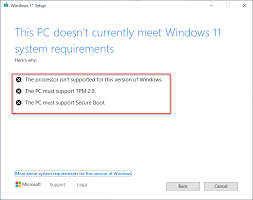
Are you struggling to install Windows 11 on your PC, despite it not being officially supported? Look no further! In this article, we’ll walk you through a step-by-step guide on how to install Windows 11 on unsupported PCs using various methods.
Understanding The Minimum Requirements For Windows 11 Installation
Before we dive into the installation process, it’s essential to understand the minimum requirements for installing Windows 11. These include:
- A CPU with at least two logical units and a clock speed of 1 GHz or higher
- At least 4 GB of RAM
- A UEFI firmware with Secure Boot active
- A TPM 2.0 Chip
Method 1: Installing Windows 11 Using an Official Support Medium
If your PC meets the minimum requirements, you can install Windows 11 using an official support medium such as a USB drive or DVD.
- Download the Media Creation Tool from Microsoft’s website.
- Run the tool and select the language and architecture of Windows 11 you want to install.
- Choose whether to create a bootable USB drive or download the ISO file directly.
- If creating a USB drive, ensure it has at least 8 GB of free space.
- Follow the on-screen instructions to complete the installation process.
Method 2: Installing Windows 11 Using an Official Support Medium With Bypassed Requirements
If your PC doesn’t meet the minimum requirements but has a TPM 1.2 Chip and Secure Boot active, you can use the official support medium with bypassed requirements.
- Download the Media Creation Tool from Microsoft’s website.
- Run the tool and select the language and architecture of Windows 11 you want to install.
- Choose whether to create a bootable USB drive or download the ISO file directly.
- If creating a USB drive, ensure it has at least 8 GB of free space.
- To bypass the requirements, follow these steps:
- Press Win+R on your keyboard and type regedit.Exe.
- Navigate to HKEY_LOCAL_MACHINE\SYSTEM\Setup\ and create a new DWORD value named MoSetup.
- Set the value to 1 and restart your PC.
Method 3: Installing Windows 11 Using a Script
If you’re not able to install Windows 11 using an official support medium or bypassed requirements, you can use a script to do so.
- Download the Universal Media Creation Tool from Microsoft’s website.
- Run the tool and select the language and architecture of Windows 11 you want to install.
- Choose whether to create a bootable USB drive or download the ISO file directly.
- To bypass requirements using the script, follow these steps:
- Open Notepad and copy the following code:
Regedit.Exe /s "%windir%\system32\regedit.Exe" HKEY_LOCAL_MACHINE\SYSTEM\Setup\ - Save the file as a .Bat file on your desktop.
- Double-click the .Bat file to run it.
- Open Notepad and copy the following code:
Method 4: Installing Windows 11 Using Rufus
If you’re not able to install Windows 11 using an official support medium, bypassed requirements, or a script, you can use Rufus to create a bootable USB drive with modified requirements.
- Download Rufus from Microsoft’s website.
- Run the tool and select the language and architecture of Windows 11 you want to install.
- Choose whether to create a bootable USB drive or download the ISO file directly.
- To modify the requirements using Rufus, follow these steps:
- Select the device/unit as the USB drive.
- Set the option image to Extended Windows 11 Installation (no TPM/no Secure Boot).
- Configure the system destination as BIOS (or UEFI CSM).
- Follow the on-screen instructions to complete the installation process.
Conclusion
Installing Windows 11 on unsupported PCs can be a challenge, but with these methods, you should be able to successfully install the operating system. Remember to always follow the official guidelines and take necessary precautions when modifying requirements or using scripts.
Frequently Asked Questions (FAQs)
- What Are The Minimum Requirements For Installing Windows 11?
The minimum requirements include a CPU with at least two logical units and a clock speed of 1 GHz or higher, at least 4 GB of RAM, a UEFI firmware with Secure Boot active, and a TPM 2.0 Chip.
- Can I Install Windows 11 on my PC if it Doesn’t Meet The Minimum Requirements?
Yes, you can use various methods to bypass the requirements and install Windows 11 on your unsupported PC.
- What Are The Risks Associated With Installing Windows 11 on an Unsupported Pc?
There is a risk of system instability or crashes when installing Windows 11 on an unsupported PC. Always follow official guidelines and take necessary precautions before proceeding.
- Can I Use a Script to Install Windows 11 on my Pc?
Yes, you can use scripts like the Universal Media Creation Tool or Rufus to bypass requirements and install Windows 11 on your unsupported PC.
- What is The Difference Between Uefi And Bios?
UEFI (Unified Extensible Firmware Interface) is a more modern firmware interface that provides better security features than traditional BIOS.
- Can I Use Rufus to Create a Bootable Usb Drive With Modified Requirements?
Yes, you can use Rufus to create a bootable USB drive with modified requirements and install Windows 11 on your unsupported PC.
- What Are The Benefits of Using Rufus to Create a Bootable Usb Drive?
Rufus provides a user-friendly interface for creating bootable USB drives and modifying requirements, making it easier to install Windows 11 on unsupported PCs.
- Are There Any Risks Associated With Using Scripts or Modified Firmware to Bypass Requirements?
Yes, there is a risk of system instability or crashes when using scripts or modified firmware to bypass requirements. Always follow official guidelines and take necessary precautions before proceeding.


