
Asking Friendship on Facebook to a Person Blocked: A Step-by-step Guide
Are you looking to reconnect with someone on Facebook, but the person has previously blocked you? Don’t worry; we’ve got you covered! In this article, we’ll walk you through the process of asking friendship on Facebook to a person who has blocked you. We’ll explore the steps involved in unblocking and re-requesting friendship using both smartphone and computer.
Why Can’t I Just Send Another Request?
Before we dive into the step-by-step guide, it’s essential to understand why simply sending another request doesn’t work. When someone blocks you on Facebook, your access to their profile is restricted. To send a new request, you must first unblock them and then re-initiate a friendship request.
Step 1: Unblocking Someone on Facebook (Smartphone)
To unblock someone on Facebook using your smartphone:
- Open the Facebook app and tap on the menu icon.
- Select “Settings and Privacy” from the menu.
- Choose “Blocking” from the settings menu.
- Find the person you want to unblock in your list of blocked users.
- Tap on the “Unblock” button next to their name.
Step 2: Re-sending a Friendship Request (Smartphone)
Once you’ve unblocked the person, you can send them a new friendship request:
- Type their name in the search bar and select their profile from the results.
- Tap on the “Add Friend” button to send a new friendship request.
Step 3: Unblocking Someone on Facebook (Computer)
If you’re using a computer, follow these steps to unblock someone on Facebook:
- Open your web browser and log in to your Facebook account.
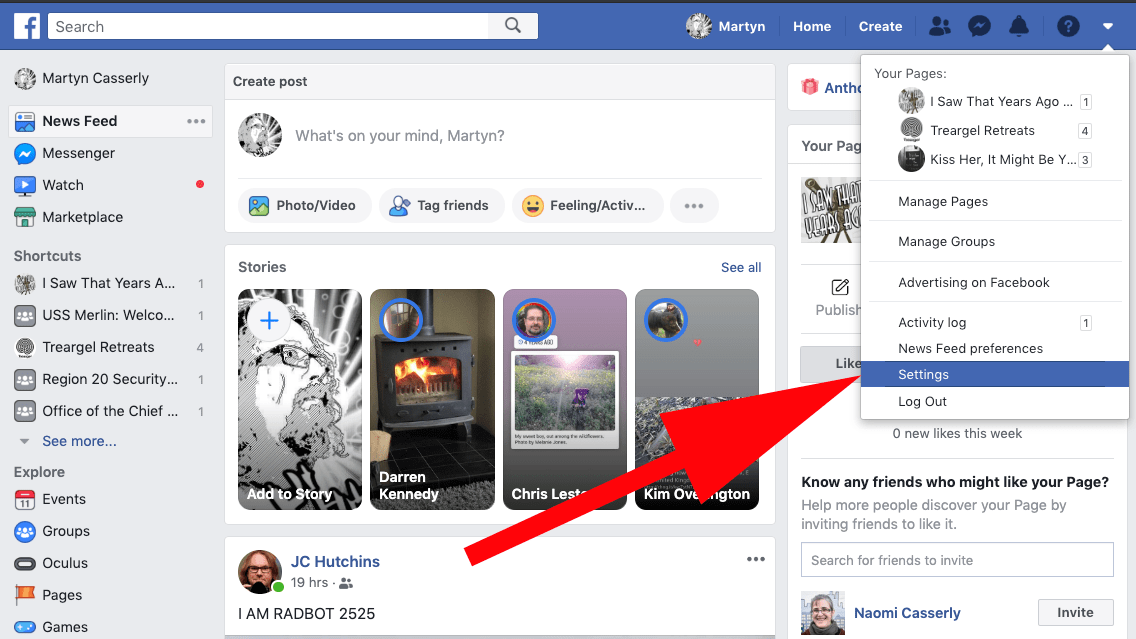
- Click on your profile picture in the top right corner of the page.
- Select “Settings and Privacy” from the dropdown menu.
- Choose “Blocking” from the settings menu.
- Find the person you want to unblock in your list of blocked users.
- Click on the “Unblock” button next to their name.
Step 4: Re-sending a Friendship Request (Computer)
After unblocking the person, you can send them a new friendship request:
- Type their name in the search bar and select their profile from the results.
- Click on the “Add Friend” button to send a new friendship request.
What If I’m Still Having Trouble?
If you’re experiencing issues or have doubts about the process, don’t hesitate to reach out to Facebook’s customer support team. You can find help by visiting the Facebook Help Center on your smartphone or computer.
The Benefits of Asking Friendship on Facebook to a Person Blocked
Asking friendship on Facebook to a person who has blocked you can be a great way to reconnect and strengthen relationships. By following these simple steps, you can:
- Re-initiate a friendship that’s been lost due to misunderstandings or miscommunication
- Strengthen your online presence by expanding your friend network
- Open up new opportunities for collaboration, communication, and connection
Conclusion
Asking friendship on Facebook to a person who has blocked you is a straightforward process. By following the steps outlined in this article, you can unblock the person and re-send a friendship request using either your smartphone or computer. Remember to be patient and understanding if the other person doesn’t accept your request immediately.
Frequently Asked Questions (FAQs)
- Q: Why Can’t I Just Send Another Request?
A: When someone blocks you on Facebook, your access to their profile is restricted. To send a new request, you must first unblock them and then re-initiate a friendship request. - Q: How do I Unblock Someone on Facebook Using my Smartphone?
A: Open the Facebook app, tap on the menu icon, select “Settings and Privacy,” choose “Blocking,” find the person you want to unblock, and tap on the “Unblock” button next to their name. - Q: Can I Use a Computer to Unblock Someone on Facebook?
A: Yes! Follow the same steps as above using your web browser. - Q: What if I’m Still Having Trouble?
A: Reach out to Facebook’s customer support team for help. - Q: Why Should I Ask Friendship on Facebook to a Person Who Has Blocked Me?
A: Re-initiating a friendship can strengthen relationships, expand your friend network, and open up new opportunities for collaboration and connection. - Q: Can I Use The Facebook Help Center For Assistance?
A: Yes! Visit the Facebook Help Center using either your smartphone or computer.
Bonus Tip: Don’t be discouraged if the other person doesn’t accept your request immediately. Sometimes, people need time to think or reflect on their decision. Be patient and understanding, and don’t hesitate to reach out to them again in the future.


