
The Ultimate Guide to Resolving Ps4 Provisional Modality Issues
Are you tired of dealing with the frustration of your PlayStation 4 (PS4) being stuck in provisional modality? Don’t worry, you’re not alone! In this article, we’ll provide a step-by-step guide on how to resolve this issue and get back to gaming in no time.
What is Provisional Modality?
Provisional modality is a mode that your PS4 enters when it encounters an error or problem during the boot-up process. This mode allows your console to run essential system functions, but some features may be restricted or unavailable.
Symptoms of Provisional Modality
If your PS4 is stuck in provisional modality, you may experience:
- The console not turning on or staying on for more than a few seconds
- A black screen with a red LED light
- Error messages or warnings on the screen
Why Does My Ps4 Get Stuck in Provisional Modality?
There are several reasons why your PS4 might get stuck in provisional modality, including:
- Software glitches or bugs
- Hardware issues or faulty components
- Power surges or electrical problems
- Overheating or cooling issues
How to Resolve Provisional Modality Issues
Don’t worry; we’ve got you covered! Here are some steps to help resolve the issue:
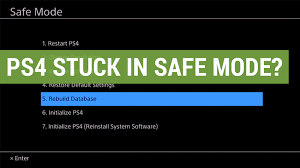
Step 1: Restart Your Ps4 in Safe Mode
To restart your PS4 in safe mode, follow these steps:
- Press and hold the power button on your console for about 30 seconds
- Release the power button and wait for the console to turn off
- Press and hold the power button again for another 30 seconds
- Release the power button and wait for the console to restart
Step 2: Update Your Ps4 Software
Make sure your PS4 software is up-to-date. You can update your PS4 by:
- Going to Settings > System Software Update
- Selecting “Update” and following the on-screen instructions
- Downloading the latest software update from the PlayStation website
Step 3: Rebuild Your Database
If your database is corrupted or damaged, you might need to rebuild it. To do this:
- Go to Settings > System > Provisional Modality
- Select “Rebuild Database”
- Follow the on-screen instructions and wait for the process to complete
Step 4: Reset Your Ps4 to Factory Settings
If none of the above steps work, you might need to reset your PS4 to its factory settings. This will erase all data on your console:
- Go to Settings > System > Provisional Modality
- Select “Factory Reset”
- Confirm that you want to proceed and follow the on-screen instructions
Troubleshooting Tips
If you’re still experiencing issues, try these troubleshooting tips:
- Check for any loose connections or cables
- Ensure your console is properly ventilated
- Try resetting your router or modem
- If you’ve made any recent changes or updates, try rolling back to a previous version
Conclusion
Resolving PS4 provisional modality issues can be frustrating, but with these steps and troubleshooting tips, you should be able to resolve the issue. Remember to always follow proper safety precautions when working with electronics.
Faqs
Here are some frequently asked questions (FAQs) related to this topic:
- Q: What is provisional modality?
A: Provisional modality is a mode that your PS4 enters when it encounters an error or problem during the boot-up process. - Q: Why does my PS4 get stuck in provisional modality?
A: There are several reasons why your PS4 might get stuck in provisional modality, including software glitches or bugs, hardware issues or faulty components, power surges or electrical problems, and overheating or cooling issues. - Q: How do I resolve provisional modality issues?
A: To resolve provisional modality issues, try restarting your PS4 in safe mode, updating your PS4 software, rebuilding your database, or resetting your console to factory settings. - Q: What should I do if none of the above steps work?
A: If none of the above steps work, try troubleshooting by checking for any loose connections or cables, ensuring proper ventilation, trying resetting your router or modem, and rolling back to a previous version. - Q: Will resetting my PS4 erase all data on the console?
A: Yes, resetting your PS4 will erase all data on the console. Make sure you have backed up any important data before proceeding.
Additional Resources
If you need further assistance or guidance, try these additional resources:
- Sony PlayStation Support
- PlayStation Community Forum
- Online tutorials and guides


