
Transferring Files From Android to Mac: A Comprehensive Guide
Are you tired of dealing with cluttered device storage and limited space? Transferring files from your Android smartphone or tablet to a Mac computer is a straightforward process that can be accomplished in various ways. In this guide, we’ll explore the different methods for transferring files between these two platforms.
Why Transfer Files From Android to Mac?
Transferring files from your Android device to a Mac computer offers several benefits:
- Free Up Space: By moving large files and data from your Android device to a Mac, you can free up valuable storage space.
- Access on Multiple Devices: Transferred files become accessible on your Mac, allowing you to work with them across different platforms.
- Enhanced Productivity: With transferred files readily available on your Mac, you can focus on more important tasks without the burden of managing data on multiple devices.
Method 1: Using Android File Transfer
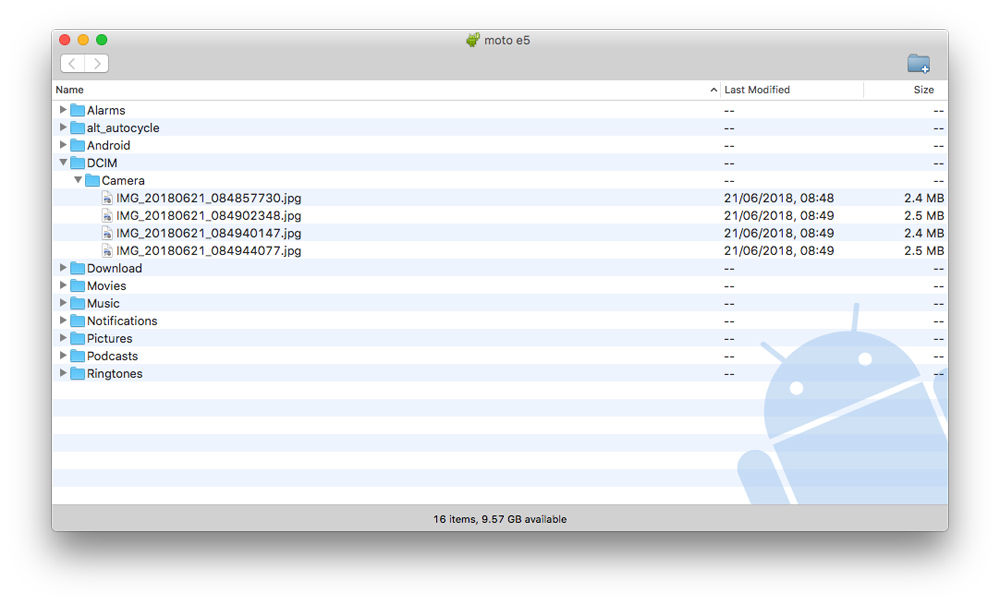
The most straightforward method for transferring files from Android to Mac is by using the Android File Transfer app. This app allows you to easily transfer files between your device and computer.
- Download And Install: Download the Android File Transfer app from the Google Play Store or Apple App Store.
- Connect Your Device: Connect your Android device to your Mac using a USB cable.
- Select Files: Select the files you want to transfer on your Android device, then drag and drop them onto the Android File Transfer window on your Mac.
Method 2: Using Snapdrop
Snapdrop is another popular method for transferring files between devices. This service allows you to transfer files directly from your Android device to your Mac computer using a web browser.
- Visit The Snapdrop Website: Visit the Snapdrop website and create an account if you don’t already have one.
- Connect Your Devices: Connect both your Android device and Mac computer to the same Wi-Fi network.
- Select Files: Select the files you want to transfer on your Android device, then click the “Send” button. The file will be transferred directly to your Mac.
Method 3: Using Send Anywhere
Send Anywhere is another popular method for transferring files between devices. This app allows you to transfer files from your Android device to your Mac computer using a web browser.
- Download And Install: Download the Send Anywhere app on your Android device and install it.
- Connect Your Devices: Connect both your Android device and Mac computer to the same Wi-Fi network.
- Select Files: Select the files you want to transfer on your Android device, then click the “Send” button. The file will be transferred directly to your Mac.
Method 4: Using Bluetooth
Bluetooth is another method for transferring files between devices. This technology allows you to transfer files from your Android device to your Mac computer using a wireless connection.
- Enable Bluetooth: Enable Bluetooth on both your Android device and Mac computer.
- Pair Devices: Pair the devices by following the on-screen instructions.
- Select Files: Select the files you want to transfer on your Android device, then click the “Transfer” button. The file will be transferred directly to your Mac.
Conclusion
Transferring files from your Android device to a Mac computer is a straightforward process that can be accomplished using various methods. By following these steps, you can easily transfer files between devices and free up valuable storage space on your Android device.
Frequently Asked Questions (FAQs)
- Q: What Are The Benefits of Transferring Files From Android to Mac?
A: Transferring files from Android to Mac offers several benefits, including freeing up space, accessing files on multiple devices, and enhancing productivity. - Q: Which Method is Best For Transferring Files Between Devices?
A: The best method depends on your personal preference. You can choose between using an app like Android File Transfer, a service like Snapdrop, or Bluetooth technology. - Q: Can I Transfer Files Directly From my Android Device to my Mac Computer?
A: Yes, you can transfer files directly from your Android device to your Mac computer using methods like Snapdrop and Send Anywhere. - Q: Do I Need to Have Both Devices Connected to The Same Wi-fi Network For Transferring Files?
A: No, you don’t need to have both devices connected to the same Wi-Fi network. You can transfer files directly from your Android device to your Mac computer using methods like Bluetooth.
Conclusion
Transferring files from your Android device to a Mac computer is a simple process that can be accomplished using various methods. By choosing the right method for your needs, you can easily transfer files between devices and free up valuable storage space on your Android device.


