
How to Order a List in Alphabetical Command on Word
Are you tired of having lists that are not organized alphabetically? Do you want to know how to easily order a list in alphabetical command on Microsoft Word? Look no further! In this article, we will guide you through the simple steps to accomplish this task.
What is Alphabetical Order?
Alphabetical order refers to the arrangement of words or names in the correct sequence based on their alphabetical value. It means that all the letters are arranged from A to Z, or from Z to A if you prefer a reverse order.
Using Word’s Built-in Functionality
Word has a built-in functionality that allows you to easily sort lists alphabetically. To access this feature, follow these steps:
- Open Your Document: Open the document containing the list you want to organize.
- Select The List: Select all the names or objects in the list by clicking on them with your mouse.
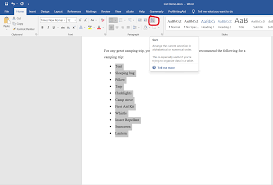
- Click on The Order Button: Click on the “Order” button located in the Home tab of the Word ribbon. This will open a window with various options for sorting.
Sorting Options
In the sorting options window, you can choose from three types of sorting:
- Paragraphs: Sort paragraphs based on their content.
- Text: Sort text within a paragraph or selection.
- Number or Date: Sort numerical values or dates in ascending or descending order.
Reversing Alphabetical Order
If you want to reverse the alphabetical order, follow these steps:
- Select The List: Select all the names or objects in the list by clicking on them with your mouse.
- Click on The Order Button: Click on the “Order” button located in the Home tab of the Word ribbon.
- Choose Reverse Alphabetical Order: In the sorting options window, choose the option for reverse alphabetical order.
Organizing a Picture
Word also allows you to organize the content of pictures based on various criteria. If your picture contains names, dates, or other information, follow these steps:
- Select The Picture: Select the picture containing the information.
- Click on The Layout Tab: Click on the “Layout” tab located in the top right corner of the screen.
- Click on The Order Button: Click on the “Order” button located in the bottom left corner of the screen.
Sorting Options For Pictures
In the sorting options window, you can choose from three types of sorting:
- Titles of Columns: Sort columns based on their titles.
- Text: Sort text within a column or selection.
- Number or Date: Sort numerical values or dates in ascending or descending order.
Saving Your Changes
Once you have sorted your list or picture, save the changes by clicking on the “Save” button located in the top right corner of the screen.
Conclusion
Sorting lists and pictures alphabetically is a simple task that can be accomplished using Word’s built-in functionality. By following these steps, you can easily organize your lists and pictures based on various criteria.
Frequently Asked Questions (FAQs)
- How do I Sort a List of Names in Alphabetical Order?
To sort a list of names in alphabetical order, select the names with your mouse, click on the “Order” button located in the Home tab of the Word ribbon, and choose the option for alphabetical order.
- Can I Reverse The Alphabetical Order?
Yes, you can reverse the alphabetical order by selecting the list with your mouse, clicking on the “Order” button located in the Home tab of the Word ribbon, and choosing the option for reverse alphabetical order.
- How do I Organize a Picture Based on Its Content?
To organize a picture based on its content, select the picture with your mouse, click on the “Layout” tab located in the top right corner of the screen, and click on the “Order” button located in the bottom left corner of the screen.
- What Are The Different Sorting Options For Pictures?
The different sorting options for pictures include:
- Titles of columns
- Text within a column or selection
-
Numerical values or dates in ascending or descending order
-
How do I Save my Changes After Sorting a List or Picture?
To save your changes, click on the “Save” button located in the top right corner of the screen.


