
How to Partition a Hard Disk: A Step-by-step Guide
Are you looking to partition your hard disk? Do you want to install multiple operating systems on the same computer, conserve data on an independent disc, or keep your files organized? Look no further! In this article, we will guide you through the process of partitioning a hard disk, using Windows and macOS as examples.
What Are Partitions?
Before diving into the partitioning process, let’s understand what partitions are. A partition is a virtual container that exists on a physical storage device, such as a hard disk or solid-state drive (SSD). Think of it like a folder on your computer, but instead of containing files, it contains an entire operating system.
Types of Partitions
There are three main types of partitions: Primary, extended, and logical. Primary partitions can host any type of file system, including operating systems. Extended partitions serve as containers for creating logical partitions, which can host any type of data. Logical partitions bypass the four-partition limit in BIOS-based systems.
Choosing a File System
When partitioning your hard disk, you’ll need to choose a file system. Some popular options include:
- FAT32: A dated file system with limitations on file size (4GB).
- NTFS: The default file system for Windows, incompatible with Macs without additional drivers.
- ExFAT: A file system with compatibility similar to FAT32 but without the 4GB limit.
- HFS+: The old generation of macOS’s file system, compatible with Macs only.
- APFS: Apple’s new generation file system, optimized for SSDs and used as the default on recent macOS versions.
Partitioning a Hard Disk in Windows
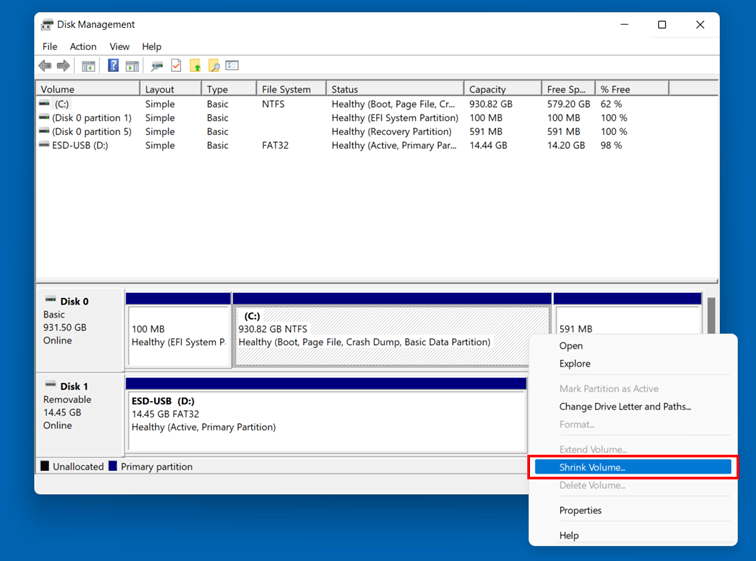
Windows 11 and earlier versions come equipped with a built-in utility called Disk Management. This tool allows you to create, delete, format, resize, move, and extend partitions.
- Open Disk Management by typing “diskmgmt.Msc” in the Run dialog box (Windows key + R).
- Right-click on the disk you want to partition and select “Create and Format a New Partition” or “Delete Volume”.
- Follow the prompts to create, delete, format, resize, move, or extend partitions as needed.
Paragon Partition Manager Community Edition
If you’re looking for an alternative to Windows’ built-in utility, consider Paragon Partition Manager Community Edition. This free software allows you to perform basic partition operations, including creating, deleting, formatting, resizing, moving, and extending partitions.
- Download the software from Paragon’s website.
- Follow the installation prompts and launch the application.
- Use the “Disks and Volumes” tab to select the disk you want to partition and choose the operation you need to perform (e.G., Resize, format, delete).
Other Programs For Partitioning a Hard Disk on Windows
If Paragon Partition Manager doesn’t meet your needs, consider these alternative programs:
- MiniTool Partition Wizard: A free software with advanced features like deleting free blank space, formatting partitions, and resizing volumes.
- EaseUS Partition Master: A comprehensive partition manager that allows you to create, delete, format, resize, move, and extend partitions.
- DiskGenius: A practical program for managing disks and recovering data.
Partitioning a Hard Disk in Macos
If you’re using a Mac, you can use the built-in Utility app to partition your hard disk.
- Open the Utilities folder in Finder.
- Launch the Disk Utility app.
- Select the disk you want to partition from the list on the left.
- Click on the “Partitions” tab and choose the operation you need to perform (e.G., Create, resize, delete).
Conclusion
Partitioning a hard disk can seem daunting, but with this guide, you should now feel confident in your ability to partition your hard disk using Windows or macOS. Remember to always backup your important data before making any changes to your disk.
Faqs
- What is The Difference Between a Primary And Logical Partition?
A primary partition can host an operating system, while a logical partition serves as a container for other partitions. - Which File System Should I Use on my Mac?
If you’re using macOS High Sierra or later, consider using APFS, which offers better performance and management features than HFS+. - Can I Partition a Hard Disk Without Losing Data?
Yes, by creating a new partition instead of deleting the existing one, you can avoid losing data. - How do I Recover Lost Partitions in Windows?
Use the built-in Disk Management utility or third-party software like MiniTool Partition Wizard to recover deleted partitions. - Can I Install Multiple Operating Systems on The Same Computer?
Yes, by partitioning your hard disk and creating separate volumes for each operating system, you can run multiple OSes simultaneously. - What is The Difference Between Diskgenius And Easeus Partition Master?
DiskGenius offers advanced features like data recovery, while EaseUS Partition Master provides comprehensive partition management capabilities. - Can I Resize a Partition Without Losing Data?
Yes, using software like Paragon Partition Manager or MiniTool Partition Wizard, you can safely resize partitions without losing data. - How do I Create a New Partition on my Mac?
Use the built-in Disk Utility app to create a new partition by selecting the disk, clicking on the “Partitions” tab, and choosing the operation you need to perform (e.G., Create).


