
How to Open .Exe Files on Mac: A Step-by-step Guide
Are you tired of not being able to open .Exe files on your Mac? Look no further! In this article, we will explore the various ways to run Windows-based applications on a Mac.
The Challenge of Running Windows on a Mac
While Macs are known for their ease of use and sleek design, they can sometimes be limited in terms of compatibility with certain software. This is where running Windows on a Mac comes in – allowing you to access a wide range of Windows-only programs and applications.
Method 1: Using Parallels Desktop
Parallels Desktop is a powerful virtualization program that allows you to run Windows and other operating systems on your Mac. Here’s how to use it:
Step 1: Download And Install Parallels Desktop
To start, download the free trial version of Parallels Desktop from their website. Once installed, launch the program and follow the prompts to create a new virtual machine.
Step 2: Choose Your Windows Version
Next, select the version of Windows you want to install (Windows 11 is recommended). Make sure to choose the correct architecture (32-bit or 64-bit) for your virtual machine.
Step 3: Allocate Resources
Assign sufficient RAM and CPU resources to your virtual machine to ensure smooth performance. You can also allocate a separate hard drive for your Windows installation.
Step 4: Install Windows
Parallels Desktop will automatically download the necessary files for Windows installation. Follow the prompts to complete the setup process.
Method 2: Using Virtualbox
VirtualBox is another popular virtualization program that allows you to run multiple operating systems on a single machine. Here’s how to use it:
Step 1: Download And Install Virtualbox
Download the free version of VirtualBox from their website and follow the installation instructions.
Step 2: Create a New Virtual Machine
Launch VirtualBox and create a new virtual machine, selecting Windows as the operating system.
Step 3: Allocate Resources
Assign sufficient RAM and CPU resources to your virtual machine. You can also allocate a separate hard drive for your Windows installation.
Step 4: Install Windows
VirtualBox will automatically download the necessary files for Windows installation. Follow the prompts to complete the setup process.
Method 3: Using Crossover
CrossOver is a user-friendly program that allows you to run Windows-based applications on your Mac without the need for virtualization. Here’s how to use it:
Step 1: Download And Install Crossover
Download the free trial version of CrossOver from their website.
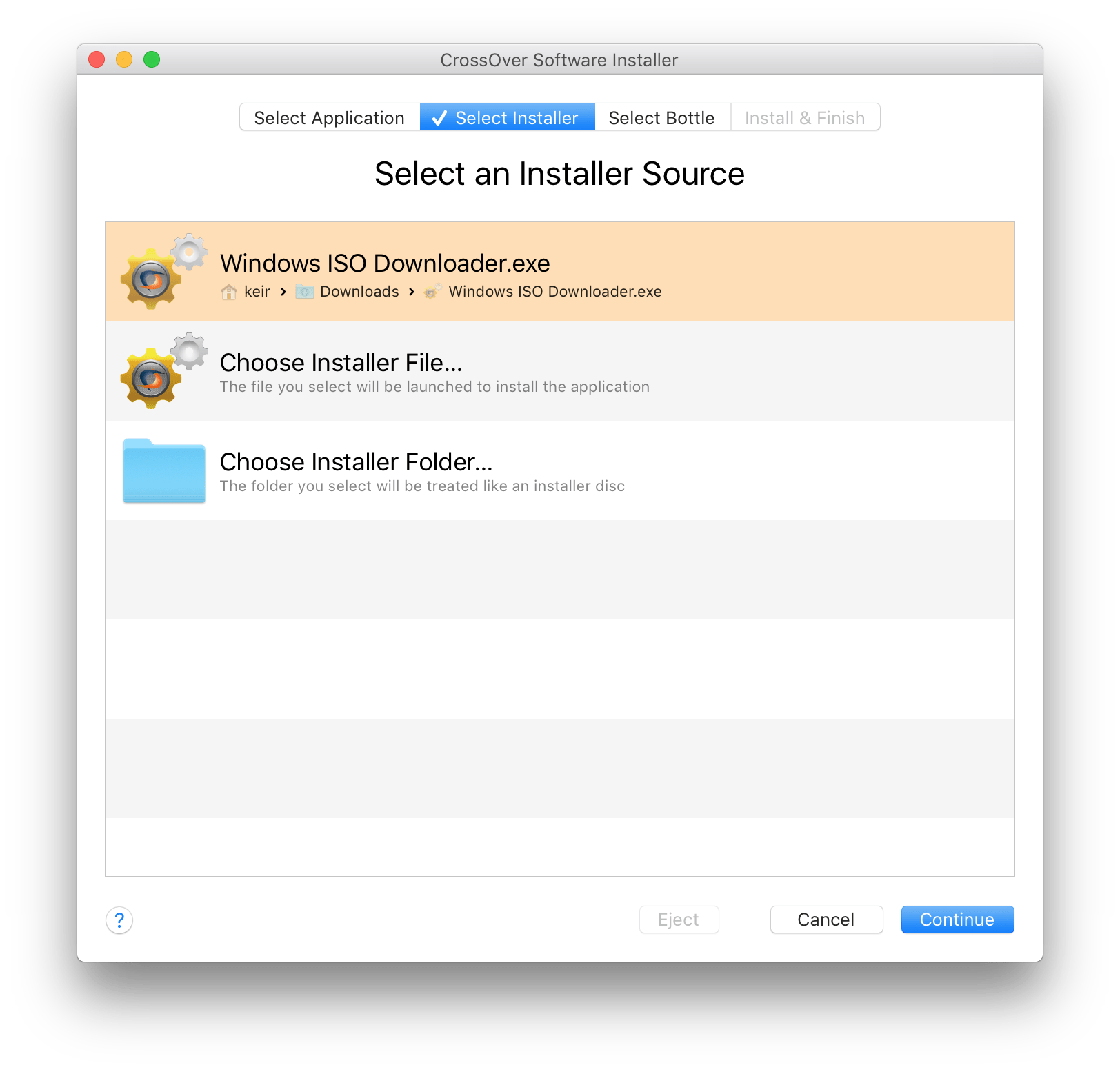
Step 2: Open Your .exe File
Launch CrossOver and open your desired .Exe file. Follow the prompts to complete the installation process.
Other Options For Running Windows on a Mac
- Boot Camp: This method allows you to partition your hard drive and install Windows directly on it.
- Vmware Fusion Player: A free virtualization program that supports running multiple operating systems, including Windows.
Conclusion
Running Windows-based applications on a Mac is easier than ever with the various options available. By following these steps, you can enjoy seamless integration between your Windows and macOS environments. Experiment with different methods to find what works best for you!
Faqs
-
What are the system requirements for running Windows on a Mac?
- The system requirements vary depending on the method used. However, a minimum of 4GB RAM and a 64-bit processor is recommended.
-
Can I run both macOS and Windows simultaneously?
- Yes, with virtualization software like Parallels Desktop or VirtualBox, you can run both operating systems side by side.
-
How do I transfer files between my Mac and Windows environments?
- You can use the shared folders feature in virtualization software to transfer files between your Mac and Windows environments.
-
Are there any compatibility issues with running Windows on a Mac?
- Yes, some Windows applications may not work properly on a Mac due to hardware differences or software incompatibility.
-
Can I run older versions of Windows on my Mac?
- Yes, most virtualization software supports running older versions of Windows, including Windows XP and Windows Vista.
-
How do I troubleshoot issues with running Windows on a Mac?
- Check the documentation for your chosen method or seek support from the developers if you encounter any problems.
-
Can I run Linux on my Mac as well?
- Yes, many virtualization software supports running multiple operating systems, including Linux.
-
How do I ensure seamless integration between my Windows and macOS environments?
- By using a user-friendly program like CrossOver or ensuring that your chosen method is compatible with the latest versions of both operating systems.
By following these steps and considering the various options available, you can enjoy running Windows-based applications on your Mac without any hassle.


