
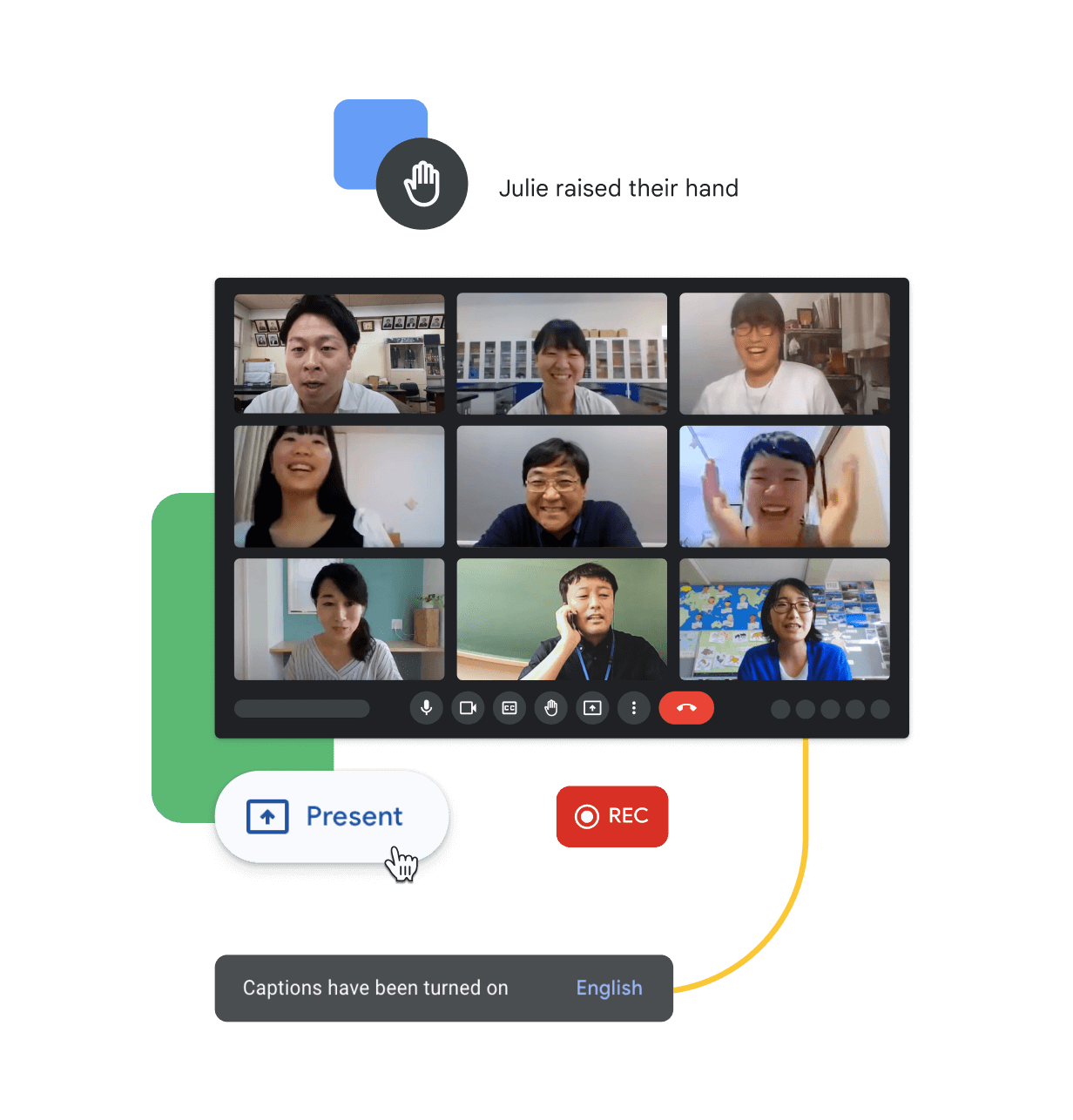
How to Share a Video on Google Meet: A Step-by-step Guide
Are you looking to share a video with your colleagues or clients using Google Meet? With the rise of remote work, video conferencing has become an essential tool for businesses and individuals alike. In this article, we’ll show you how to share a video on Google Meet with audio, as well as share a file video on Google Meet.
What is Google Meet?
Google Meet is a video conferencing platform that allows users to hold virtual meetings, share files, and collaborate in real-time. It’s a part of the G Suite package, which offers a range of productivity tools for businesses and individuals.
Why Share a Video on Google Meet?
Sharing a video on Google Meet can be useful for several reasons:
- Presentations: You can use Google Meet to present videos, slides, or other multimedia content to your colleagues or clients.
- Training: Sharing a video can be an effective way to train employees or students on new skills or knowledge.
- Meetings: Google Meet allows you to share videos during meetings, which can help keep everyone engaged and informed.
Sharing a Video on Google Meet With Audio
To share a video on Google Meet with audio, follow these steps:
- Open Google Chrome on your computer.
- Go to the Google Meet website and sign in with your Google account.
- Click on the “New meeting” button and select the option to initiate a new meeting.
- Choose the option to present a video (not take a video).
- Select the video you want to share from your computer or mobile device.
- Ensure that the audio is enabled for the presentation.
Sharing a File Video on Google Meet
To share a file video on Google Meet, follow these steps:
- Open Google Chrome on your computer.
- Go to the Google Meet website and sign in with your Google account.
- Click on the “New meeting” button and select the option to initiate a new meeting.
- Choose the option to present a video (not take a video).
- Select the file video you want to share from your computer or mobile device.
Sharing a Video on Google Meet With Smartphone or Tablet
To share a video on Google Meet using your smartphone or tablet, follow these steps:
- Open the Google Meet app on your device.
- Sign in with your Google account.
- Click on the “New meeting” button and select the option to initiate a new meeting.
- Choose the option to present a video (not take a video).
- Select the video you want to share from your device.
Tips And Tricks
- Audio: Make sure that the audio is enabled for the presentation to ensure that everyone can hear the video.
- Video Quality: Ensure that the video quality is good, as poor quality may affect the viewing experience.
- Sharing Permissions: Check the sharing permissions on your device or computer to ensure that others can access the video.
Conclusion
In conclusion, sharing a video on Google Meet is a straightforward process that can be completed using either a computer or mobile device. By following these steps and tips, you’ll be able to share videos with ease and collaborate more effectively with your colleagues or clients.
Faqs
Here are some frequently asked questions about sharing videos on Google Meet:
Q: How do I Share a Video on Google Meet?
A: To share a video on Google Meet, follow the steps outlined above.
Q: Can I Share a File Video on Google Meet?
A: Yes, you can share a file video on Google Meet by following the steps outlined above.
Q: What is The Best Way to Share a Video on Google Meet?
A: The best way to share a video on Google Meet is to use Google Chrome on your computer and follow the steps outlined above.
Q: Can I Share a Video on Google Meet Using my Smartphone or Tablet?
A: Yes, you can share a video on Google Meet using your smartphone or tablet by following the steps outlined above.
Q: How do I Enable Audio For my Presentation on Google Meet?
A: To enable audio for your presentation on Google Meet, ensure that the audio is enabled when selecting the video to present.
Q: What Happens if The Video Quality is Poor on Google Meet?
A: If the video quality is poor on Google Meet, it may affect the viewing experience. Ensure that the video quality is good before sharing.
Q: Can I Share a Video on Google Meet Without Audio?
A: Yes, you can share a video on Google Meet without audio by disabling the audio when selecting the video to present.
Q: What Happens if Someone Else Shares a Video on my Behalf on Google Meet?
A: If someone else shares a video on your behalf on Google Meet, ensure that they have the necessary permissions to access and share the video.


