
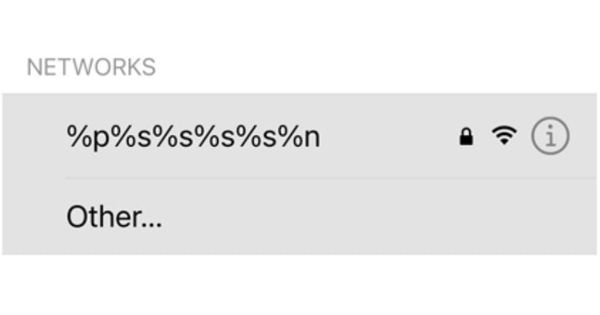
How to Rename Your Iphone Hotspot
Are you tired of seeing your iPhone’s hotspot name as “iPhone of [your name]” every time you try to connect to the internet? Do you want to give it a personalized touch? Look no further! In this article, we will guide you on how to rename your iPhone hotspot and also provide instructions on how to change its password.
Understanding The Iphone Hotspot
Before we dive into the renaming process, let’s understand what an iPhone hotspot is. An iPhone hotspot allows you to share your phone’s internet connection with other devices through Wi-Fi. This feature is useful when you’re in a situation where you don’t have access to the internet via Wi-Fi, and you need to use your phone’s data plan.
Why Rename Your Iphone Hotspot?
Renaming your iPhone hotspot can be beneficial for several reasons:
- It helps to identify your device when connecting to other devices.
- It adds a personal touch to your device.
- It makes it easier to distinguish your device from others in the same network.
How to Rename Your Iphone Hotspot on an Iphone
Renaming your iPhone hotspot is a straightforward process that can be done directly on your phone. Here’s how:
- Open your Settings app and tap on “Cellular.”
- Make sure the toggle next to “Hotspot” is turned on.
- Tap on “Personal Hotspot” and then select “Wi-Fi Password.” Enter a new password or keep the current one.
How to Rename Your Iphone Hotspot on a Computer
If you want to rename your iPhone hotspot from your computer, you’ll need to follow these steps:
- Connect your iPhone to your computer using a Lightning cable.
- Open iTunes and select your iPhone from the top left corner of the screen.
- Click on “Summary” and then click on “Edit” next to the name of your iPhone. Type in the new name you want to give it, and press Enter.
How to Rename Your Iphone Hotspot Using Wi-fi
If you have already connected your iPhone and computer to the same Wi-Fi network, you can rename your iPhone hotspot directly from your computer without physically connecting them. Here’s how:
- Ensure that both your iPhone and computer are connected to the same Wi-Fi network.
- Open iTunes on your computer or Finder on a Mac (running macOS Catalina or later).
- Click on “Summary” and then click on “Edit” next to the name of your iPhone.
How to Change Your Iphone Hotspot Password
Changing your iPhone hotspot password is also an easy process that can be done directly from your phone’s settings app. Here are the steps:
- Open your Settings app.
- Tap on “Cellular.”
- Make sure the toggle next to “Hotspot” is turned on.
- Tap on “Personal Hotspot” and then select “Wi-Fi Password.” Enter a new password or keep the current one.
Why Change Your Iphone Hotspot Password?
Changing your iPhone hotspot password can help improve security by making it harder for others to connect to your device without permission. It’s especially useful when you’re in public areas where people might try to access your device’s internet connection.
Conclusion
Renaming and changing the password of your iPhone hotspot is a simple process that can be done directly on your phone or from your computer. By following these steps, you can personalize your device and improve its security.


