
How to Reset Iphone 7: A Step-by-step Guide
Are you looking for a way to reset your iPhone 7? Whether it’s due to a frozen screen, a forgotten passcode, or simply wanting to start fresh, this guide will walk you through the steps to reset your device.
Understanding The Reasons Behind an Iphone Reset
Before we dive into the process, it’s essential to understand why you might need to reset your iPhone 7. Some common reasons include:
- A frozen screen that won’t respond
- A forgotten passcode or password
- A malfunctioning operating system
- A desire to start fresh and sell or give away your device
The Standard Procedure For Resetting an Iphone 7
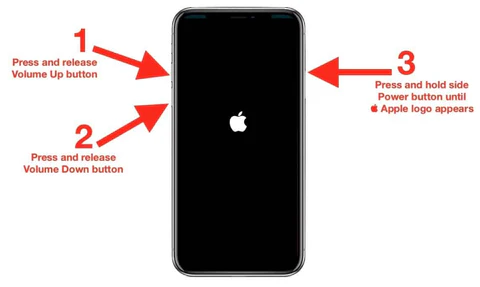
To reset your iPhone 7, follow these steps:
- Press and hold the Sleep/Wake button on the top right side of your device.
- Hold the Sleep/Wake button until the “Slide to Power Off” slider appears on your screen.
- Slide the slider from left to right to turn off your iPhone 7.
- Once your device has turned off, press and hold the Sleep/Wake button again until the Apple logo appears on your screen.
- Release the button when you see the home screen appear.
Resetting an Iphone 7 in Case of a Frozen Screen
If your screen is frozen and won’t respond to the standard procedure, try this alternative method:
- Press and hold the Sleep/Wake button and the Volume Down button on the bottom left side of your device.
- Hold both buttons for at least 10 seconds until you see the Apple logo appear on your screen.
- Release the buttons when you see the home screen appear.
Resetting an Iphone 7 With a Broken Power Button
If your power button is broken or not functioning correctly, don’t worry! You can still reset your device using AssistiveTouch:
- Go to Settings > General > Accessibility > AssistiveTouch.
- Turn on AssistiveTouch and tap the icon that appears on your screen.
- Tap Device > Shut Down.
- Follow the prompts to shut down your iPhone 7.
Using Repower For Jailbroken Iphones
If you have a jailbroken iPhone 7, you can use RePower to reset your device:
- Open Cydia and search for RePower.
- Install RePower and follow the prompts to activate it.
- Press and hold the Sleep/Wake button on your device until the “Slide to Power Off” slider appears.
- Slide the slider from left to right to turn off your iPhone 7.
Conclusion
Resetting an iPhone 7 is a relatively simple process that can be completed using one of several methods. Whether you’re dealing with a frozen screen, a forgotten passcode, or simply wanting to start fresh, this guide has provided you with the steps necessary to reset your device. If you have any further questions or concerns, feel free to ask.
Frequently Asked Questions
Here are some additional questions and answers related to resetting an iPhone 7:
- Q: Can I Reset my Iphone 7 if It’s Frozen?
A: Yes, you can try the alternative method of pressing and holding the Sleep/Wake button and the Volume Down button. - Q: What Happens if my Power Button is Broken?
A: You can still reset your device using AssistiveTouch. - Q: Can I Use Repower to Reset my Jailbroken Iphone 7?
A: Yes, you can install RePower and follow the prompts to activate it.


