
Protecting a Folder With Password Without Programs
Are you looking for ways to safeguard your sensitive files from unauthorized access? Look no further! In this article, we’ll explore how to protect a folder with password without using any programs on Windows, macOS, and Ubuntu.
Why Protect Your Files?
In today’s digital age, protecting your personal data is more crucial than ever. With so many people sharing devices and networks, the risk of unauthorized access is higher than ever. By encrypting your folders, you can ensure that only authorized individuals have access to them.
Protecting a Folder on Windows
While there isn’t a built-in feature in Windows to protect a folder with password without programs, we can use some creative workarounds to achieve the desired result. Here are two methods:
Method 1: Conceal The Folder
One way to prevent unauthorized access is to conceal the folder itself. To do this:
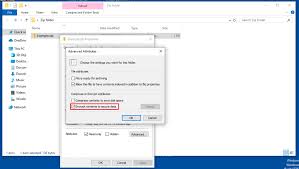
- Right-click on the folder you want to protect and select “Properties.”
- In the Properties window, navigate to the “General” tab.
- Check the box next to “Hidden” to conceal the folder.
By concealing the folder, it will no longer be visible in File Explorer. To access the folder, simply type the correct path in the address bar or use the “Show hidden files and folders” option.
Method 2: Modify Permissions
Another approach is to modify the permissions of the folder so that only authorized users can access it. To do this:
- Right-click on the folder you want to protect and select “Properties.”
- In the Properties window, navigate to the “Security” tab.
- Click on the “Edit” button next to the user name and enter the correct password.
- Select the desired permissions for the user.
By modifying the permissions, you can control who has access to the folder and what level of access they have.
Protecting a Folder on Macos
On macOS, protecting a folder with password is relatively straightforward using the Disk Utility app:
- Launch Disk Utility from the Applications/Utilities folder.
- Select “New Image” from the Utilities menu.
- Choose “Empty Volume” as the image type and click “Continue.”
- Set the desired size for the volume and choose the encryption method (AES-128 or AES-256).
- Enter a password to protect the volume.
By creating an encrypted volume, you can store sensitive files in a secure manner.
Protecting a Folder on Ubuntu
On Ubuntu, protecting a folder with password requires using the zip command:
- Open a Terminal window and navigate to the directory containing the folder you want to protect.
- Use the
zipcommand to create an encrypted zip archive:
Bash

Zip -er myfolder.Zip /path/to/folder/
Replacemyfolder.Zipwith the desired name for your zip file, and/path/to/folder/with the actual path to the folder.
By creating a password-protected zip archive, you can safeguard your sensitive files.
Conclusion
Protecting a folder with password without programs may seem like an impossible task, but with these creative workarounds, you can ensure that only authorized individuals have access to your sensitive files. Whether you’re using Windows, macOS, or Ubuntu, there’s a method for securing your data.
Frequently Asked Questions (FAQs)
- Q: Can I Protect Multiple Folders at Once?
A: Yes, you can protect multiple folders by creating separate encrypted volumes or zip archives. - Q: How do I Access The Protected Folder on Windows?
A: To access a concealed folder, simply type the correct path in the address bar or use the “Show hidden files and folders” option. - Q: What Happens if Someone Knows my Password?
A: If someone knows your password, they will have full access to the encrypted volume or zip archive. - Q: Can I Change The Password For a Protected Folder?
A: Yes, you can change the password by modifying the encryption settings in Disk Utility (macOS) or using thezipcommand with a new password option. - Q: Is There a Limit to The Size of Files That Can be Encrypted?
A: Generally, yes, there are file size limits for encrypted volumes and zip archives. However, you can create multiple encrypted volumes or zip archives to store larger files. - Q: Can I Protect Folders on External Hard Drives?
A: Yes, you can protect folders on external hard drives by creating an encrypted volume or zip archive on the drive itself. - Q: Are These Methods Secure Against All Types of Attacks?
A: While these methods provide a high level of security, they may not be foolproof against advanced hacking techniques. Always use multiple layers of security to protect your sensitive files.
I hope this article has provided you with valuable insights into protecting your folders with password without programs!


