
The Ultimate Guide to Personalizing Your Android Keyboard
Are you tired of using the default keyboard on your Android device? Do you want to add a personal touch to your typing experience? Look no further! In this article, we will guide you through the process of customizing your Android keyboard.
Why Personalize Your Android Keyboard?
Personalizing your Android keyboard can enhance your overall user experience. With so many virtual keyboards available on the Google Play Store, it’s easy to get overwhelmed by the options. However, having a customized keyboard can make typing easier, faster, and more enjoyable.
The Best Virtual Keyboards For Android
Before we dive into the customization process, let’s take a look at some of the best virtual keyboards available on the Google Play Store.
- Gboard: Gboard is the default keyboard app on many Android devices. It offers a range of features, including gesture typing and multilingual support.
- Swiftkey: SwiftKey is another popular keyboard app that offers advanced features like next-word prediction and personalization.
- Google Keyboard: Google Keyboard is a simple yet effective keyboard app that offers a clean and intuitive interface.
How to Personalize Your Android Keyboard
Now that we’ve covered some of the best virtual keyboards for Android, let’s get started with the customization process!
Step 1: Download a Virtual Keyboard
To personalize your Android keyboard, you’ll need to download a virtual keyboard from the Google Play Store. Some popular options include Gboard, SwiftKey, and Google Keyboard.
- Gboard: To download Gboard, simply search for “Gboard” on the Google Play Store and tap the Install button.
- Swiftkey: To download SwiftKey, search for “SwiftKey” on the Google Play Store and tap the Install button.
- Google Keyboard: To download Google Keyboard, search for “Google Keyboard” on the Google Play Store and tap the Install button.
Step 2: Add a Virtual Keyboard
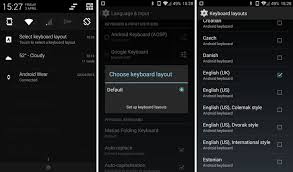
Once you’ve downloaded your chosen virtual keyboard, it’s time to add it to your device. Here’s how:
- Go to Settings > System > Language & input.
- Tap on Virtual keyboards.
- Select the virtual keyboard you want to use (e.G., Gboard or SwiftKey).
Step 3: Customize Your Keyboard
Now that you’ve added a virtual keyboard, it’s time to customize it! Here are some tips:
- Change The Layout: Some virtual keyboards allow you to change the layout of your keyboard. For example, you can switch from QWERTY to AZERTY.
- Add Dictionaries: You can add dictionaries for different languages or regions to improve typing accuracy.
- Change The Color Scheme: Many virtual keyboards let you change the color scheme or theme to match your device’s style.
Step 4: Save Your Customizations
Once you’ve customized your keyboard, be sure to save your changes! Here’s how:
- Go back to Settings > System > Language & input.
- Tap on Virtual keyboards.
- Select the virtual keyboard you want to use (e.G., Gboard or SwiftKey).
- Tap on Save.
Tips And Tricks
Here are some additional tips and tricks to help you get the most out of your customized Android keyboard:
- Use a Keyboard With Gesture Typing: Gesture typing allows you to type faster by sliding your finger across the keyboard.
- Customize Your Dictionary: You can add or remove words from your dictionary to improve typing accuracy.
- Experiment With Different Layouts: Try out different keyboard layouts, such as QWERTY or AZERTY, to find what works best for you.
Conclusion
Personalizing your Android keyboard is a great way to enhance your overall user experience. With so many virtual keyboards available on the Google Play Store, it’s easy to get started. Remember to customize your keyboard layout, add dictionaries, and change the color scheme to match your device’s style. Happy typing!
Frequently Asked Questions (FAQs)
Here are some additional FAQs related to personalizing your Android keyboard:
- Q: How do I Switch Between Different Virtual Keyboards?
A: To switch between different virtual keyboards, go to Settings > System > Language & input and select the virtual keyboard you want to use. - Q: Can I Customize my Keyboard Layout on Gboard or Swiftkey?
A: Yes! On both Gboard and SwiftKey, you can change the layout of your keyboard by going to Settings > Virtual keyboards and selecting a different layout. - Q: How do I Add Dictionaries to my Virtual Keyboard?
A: To add dictionaries to your virtual keyboard, go to Settings > System > Language & input and select the dictionary you want to use. - Q: Can I Change The Color Scheme of my Virtual Keyboard?
A: Yes! On both Gboard and SwiftKey, you can change the color scheme or theme by going to Settings > Virtual keyboards and selecting a different theme.
Recommendations
Here are some additional recommendations for personalizing your Android keyboard:
- Use a Keyboard With Gesture Typing: Gesture typing allows you to type faster by sliding your finger across the keyboard.
- Customize Your Dictionary: You can add or remove words from your dictionary to improve typing accuracy.
- Experiment With Different Layouts: Try out different keyboard layouts, such as QWERTY or AZERTY, to find what works best for you.
I hope this article has been helpful in guiding you through the process of personalizing your Android keyboard!


