
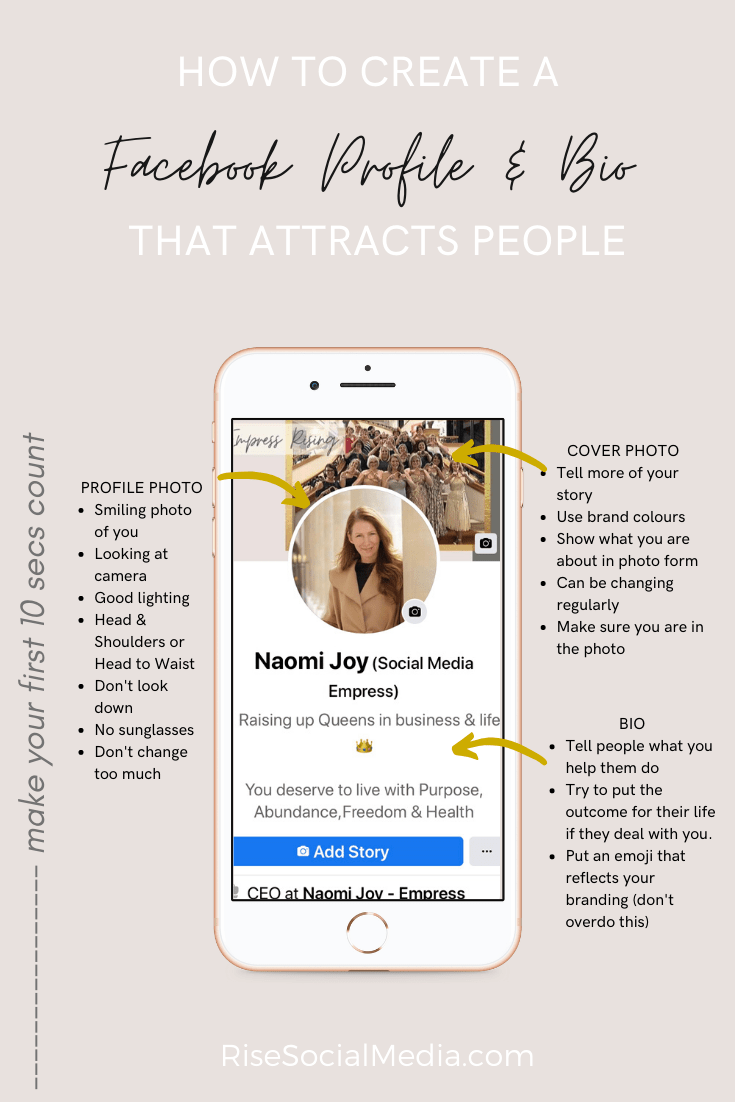
Creating a Profile on Facebook: A Step-by-step Guide
In today’s digital age, having a profile on social media platforms like Facebook is not only important but also essential to stay connected with friends, family, and colleagues. However, creating a profile can be daunting, especially for those who are new to the world of social media. In this article, we will guide you through the process of creating a profile on Facebook, including the steps to create a personal, business, or private profile.
Why Create a Profile on Facebook?
Before we dive into the step-by-step guide, let’s talk about why creating a profile on Facebook is essential. Having a profile on Facebook allows you to:
- Connect with friends and family
- Stay updated with news and events
- Share your thoughts and experiences
- Join groups and communities that align with your interests
- Utilize Facebook’s various features, such as messaging, photos, and videos
Creating a Profile on Facebook: A Step-by-step Guide
Step 1: Download The Facebook App or Access Facebook Via Computer
To create a profile on Facebook, you will need to download the Facebook app on your smartphone or tablet or access Facebook via computer. If you’re using a smartphone or tablet, follow these steps:
- Open the Google Play Store (for Android devices) or the Apple App Store (for iOS devices)
- Search for “Facebook”
- Click on the Facebook app icon and click “Install” to download and install the app
- Once installed, open the app and log in to your account
If you’re using a computer, follow these steps:
- Open a web browser (such as Google Chrome or Mozilla Firefox)
- Go to the Facebook website (www.Facebook.Com)
- Click on the “Create New Account” button
- Fill out the registration form with your name, email address, password, and other required information
Step 2: Choose Your Profile Type
Once you’ve logged in or created a new account, you’ll be prompted to choose your profile type. You can choose from:
- Personal: A personal profile is for individuals who want to connect with friends and family.
- Business: A business profile is for companies, organizations, or individuals who want to promote their business or organization.
- Private: A private profile is for individuals who want to keep their profile private and only visible to specific people.
Step 3: Fill Out Your Profile Information
Once you’ve chosen your profile type, fill out the required information, including:
- Name
- Email address
- Password
- Date of birth
- Gender
Step 4: Add a Profile Picture And Cover Photo
Add a profile picture and cover photo to make your profile more visually appealing.
Creating a Business Profile on Facebook
If you’re creating a business profile, follow these additional steps:
- Go to the Facebook page creation tool
- Fill out the required information, including:
- Page name
- Category (such as “Business” or “Service”)
- Address and location
- Contact information (such as phone number and email address)
- Add a profile picture and cover photo
Creating a Private Profile on Facebook
If you’re creating a private profile, follow these additional steps:
- Go to the Facebook settings menu
- Click on “Privacy”
- Select your desired privacy options, such as who can see your posts or who can contact you
- Adjust your profile visibility and permissions accordingly
Conclusion
Creating a profile on Facebook is a straightforward process that requires some basic information. Whether you’re creating a personal, business, or private profile, following the steps outlined in this article will guide you through the process. Remember to choose your profile type wisely, fill out your profile information accurately, add a profile picture and cover photo, and adjust your privacy settings accordingly.
Frequently Asked Questions
- What is The Difference Between a Personal And Business Profile on Facebook?
A personal profile is for individuals who want to connect with friends and family, while a business profile is for companies, organizations, or individuals who want to promote their business or organization.
- How do I Create a Private Profile on Facebook?
To create a private profile, go to the Facebook settings menu and click on “Privacy”. Select your desired privacy options, such as who can see your posts or who can contact you.
- What Are The Benefits of Having a Business Profile on Facebook?
Having a business profile on Facebook allows you to promote your business, connect with customers, and utilize various features such as messaging and advertising.
- Can I Change my Profile Type After Creating an Account?
Yes, you can change your profile type by going to the Facebook settings menu and clicking on “Account” > “Edit Profile”.
- How do I Add a Profile Picture And Cover Photo to my Facebook Profile?
To add a profile picture and cover photo, go to the Facebook page creation tool (for business profiles) or follow these steps: Go to your profile, click on the three dots next to the profile picture icon, and select “Edit Profile Picture” or “Add Cover Photo”.
- How do I Adjust my Privacy Settings on Facebook?
To adjust your privacy settings, go to the Facebook settings menu and click on “Privacy”. Select your desired privacy options, such as who can see your posts or who can contact you.
- Can I Delete my Facebook Profile?
Yes, you can delete your Facebook profile by going to the Facebook settings menu and clicking on “Account” > “Delete Account”.
- How do I Recover a Deleted Facebook Account?
To recover a deleted Facebook account, contact Facebook’s customer support team via phone or email.


