
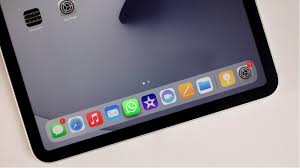
Download Whatsapp on Ipad: A Step-by-step Guide
Are you tired of not being able to use WhatsApp on your iPad? Well, you’re in luck because we’ve got the solution for you! In this article, we’ll show you how to download and install WhatsApp on your iPad, using both Safari and the App Store.
Why is Whatsapp Not Available on Ipad?
Before we dive into the guide, let’s quickly explain why WhatsApp isn’t available on iPad by default. The official WhatsApp app is designed for iPhone and Android devices only. However, with a few workarounds, you can still use WhatsApp on your iPad.
Method 1: Using Whatsapp Web in Safari
The first method involves using WhatsApp Web directly within Safari on your iPad. This method is safe and stable, but it has some limitations.
Step-by-step Guide to Using Whatsapp Web in Safari
- Open Safari on your iPad.
- Type https://Www.Whatsapp.Com in the address bar and press Enter.
- You will see a QR code on the screen. Open WhatsApp on your smartphone (iPhone or Android).
- Select the “Chat” tab, then tap the three dots on the top-right corner.
- Tap “WhatsApp Web/Desktop.”
- Scan the QR code using your smartphone’s camera.
Method 2: Using Padchat For Whatsapp Messenger
If you want to use WhatsApp with notifications on your iPad, you can try PadChat for WhatsApp Messenger. This app brings WhatsApp Web to your iPad and adds notification support.
Step-by-step Guide to Installing Padchat For Whatsapp Messenger
- Download PadChat for WhatsApp Messenger from the App Store.
- Open the app and follow the instructions to scan the QR code using your smartphone’s camera.
- Once scanned, you’ll be able to use WhatsApp on your iPad with notifications.
Adding a Home Screen Icon
To make it easier to access WhatsApp on your iPad, you can add an icon to your home screen. To do this:
- Open Safari and navigate to the WhatsApp Web page.
- Tap the “Share” icon (a square with an arrow) on the top-right corner.
- Select “Add to Home Screen.”
- Give the icon a name and tap “Add.”
Troubleshooting Tips
- If you encounter any issues while following these steps, try restarting your iPad or closing and reopening WhatsApp on your smartphone.
- Be aware that using PadChat for WhatsApp Messenger may display ads.
Conclusion
Downloading and installing WhatsApp on your iPad is easier than ever! With these two methods, you can use WhatsApp with or without notifications. Remember to follow the steps carefully, and don’t hesitate to reach out if you need further assistance.
Faqs
- Can I Download Whatsapp on my Ipad Without an Iphone?
Yes, but you’ll still need a smartphone with WhatsApp installed. - Why is Whatsapp Not Available on Ipad by Default?
The official WhatsApp app is designed for iPhone and Android devices only. - What Are The Limitations of Using Whatsapp Web in Safari?
You can’t receive notifications when the app is closed or minimized. - How do I Add a Home Screen Icon to Access Whatsapp?
Follow the steps outlined in the “Adding a Home Screen Icon” section. - Can I Use Padchat For Whatsapp Messenger With an Iphone?
Yes, but be aware that it may display ads and has some limitations. - What if I Encounter Issues While Following These Steps?
Try restarting your iPad or closing and reopening WhatsApp on your smartphone.
I hope this article has been helpful!


