
How to Invite All Your Friends to an Event on Facebook
Are you planning a beautiful party and want to invite all your friends without spending hours manually selecting their names? Look no further! In this article, we’ll show you how to utilize the power of Facebook’s web version to make inviting all your friends a click away.
Using Facebook’s Web Version: A Game-changer
If you’re using Facebook on your computer, you can take advantage of its web version to send invitations to all your friends. This feature is not available on mobile devices, so if you’re planning an event and want to invite everyone on your contact list, this is the way to go.
Step-by-step Guide: Inviting All Friends on Computer
- Log in to Facebook: Start by logging in to your Facebook account using the web version.
- Access Your Events: Click on the “Events” tab from the left-hand side menu or use the shortcut button (≡) to access your events.
- Select The Event: Choose the event you want to invite all your friends to, either by clicking on it directly or searching for it in the list of upcoming events.
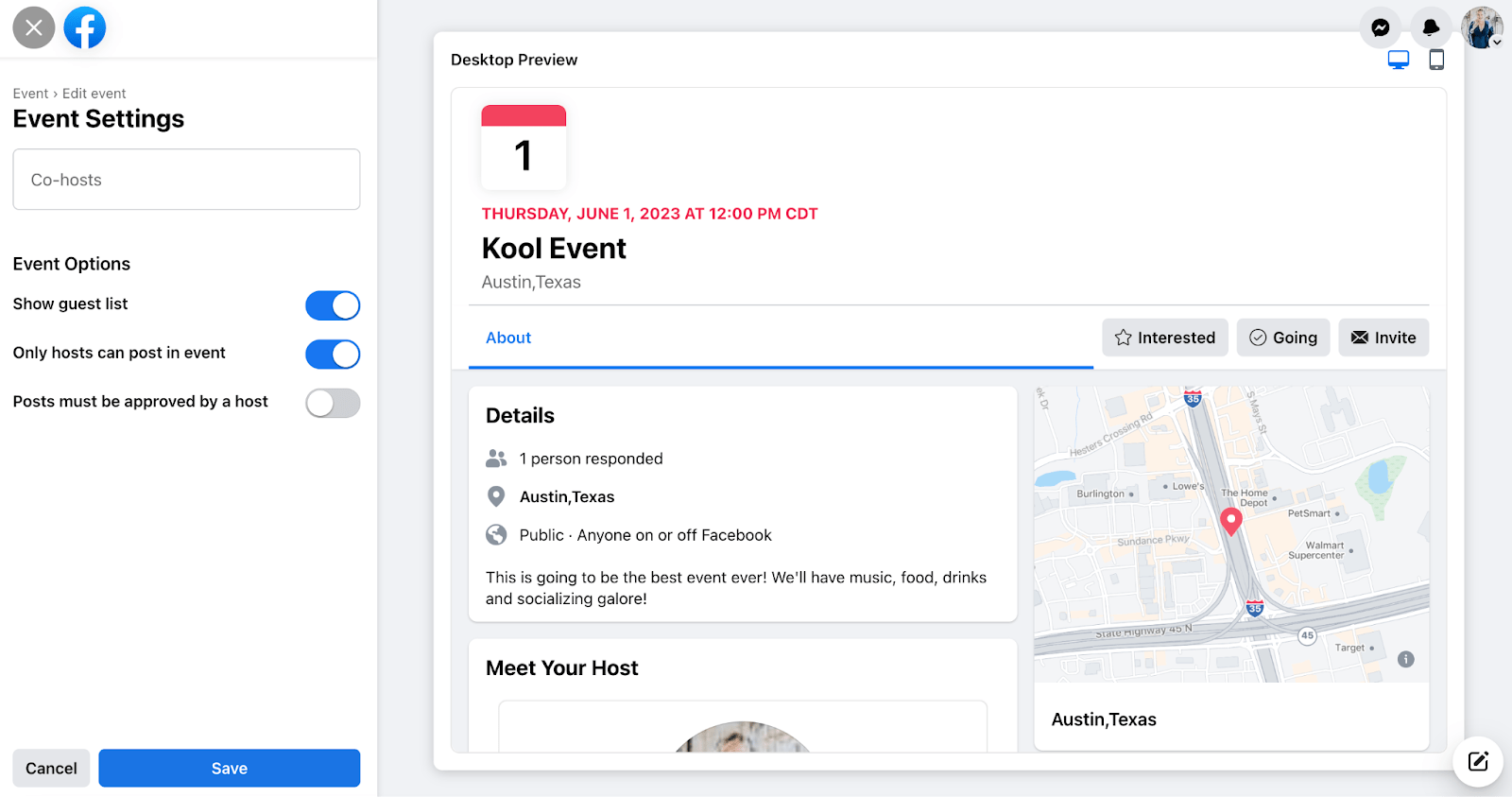
- Click The Invite Button: Click the “Invite” button below the event image to start inviting your contacts.
- Select All Contacts: Click on the “Select All” option at the top-right corner of the invite window to select all your friends.
- Forward Invitations: Click the “Forward Invitations” button to send invitations to all your selected friends.
Inviting All Friends on Mobile: A Workaround
Unfortunately, inviting all your friends on mobile devices is not possible using Facebook’s official app. However, you can use a workaround by accessing the web version of Facebook in desktop mode.
- Access Web Version: Open Facebook in desktop mode on your mobile device.
- Select The Event: Choose the event you want to invite all your friends to from the list of upcoming events.
- Click The Invite Button: Click the “Invite” button below the event image to start inviting your contacts.
- Select All Contacts: Select all your friends by clicking on the “Select All” option at the top-right corner of the invite window.
- Forward Invitations: Click the “Forward Invitations” button to send invitations to all your selected friends.
Inviting All Friends on a Facebook Page: Mobile
If you want to invite all your contacts to like a specific Facebook page, using the mobile app is the best way to do it.
- Access Your Profile: Log in to your Facebook account and access your profile.
- Select The Page: Choose the page you want to invite all your friends to by clicking on its name.
- Click The Invite Button: Click the “Invite” button below the page image to start inviting your contacts.
- Select All Contacts: Select all your friends by clicking on the “Select All” option at the top-right corner of the invite window.
- Forward Invitations: Click the “Forward Invitations” button to send invitations to all your selected friends.
Inviting All Friends on a Facebook Page: Computer
Unfortunately, inviting all your friends on a Facebook page using the computer version is not possible. However, you can use the web version of Facebook in desktop mode as a workaround.
- Access Web Version: Open Facebook in desktop mode on your computer.
- Select Your Page: Choose the page you want to invite all your friends to by clicking on its name.
- Click The Invite Button: Click the “Invite” button below the page image to start inviting your contacts.
- Decide Whether to Forward Invitations on Messenger: You can choose whether to forward invitations directly on Messenger or not.
- Forward Invitations: Click the “Forward Invitations” button to send invitations to all your selected friends.
Conclusion
Inviting all your friends to an event or a Facebook page using the web version of Facebook is a breeze. By following these simple steps, you can save time and effort while still making sure everyone on your contact list receives an invitation.


