
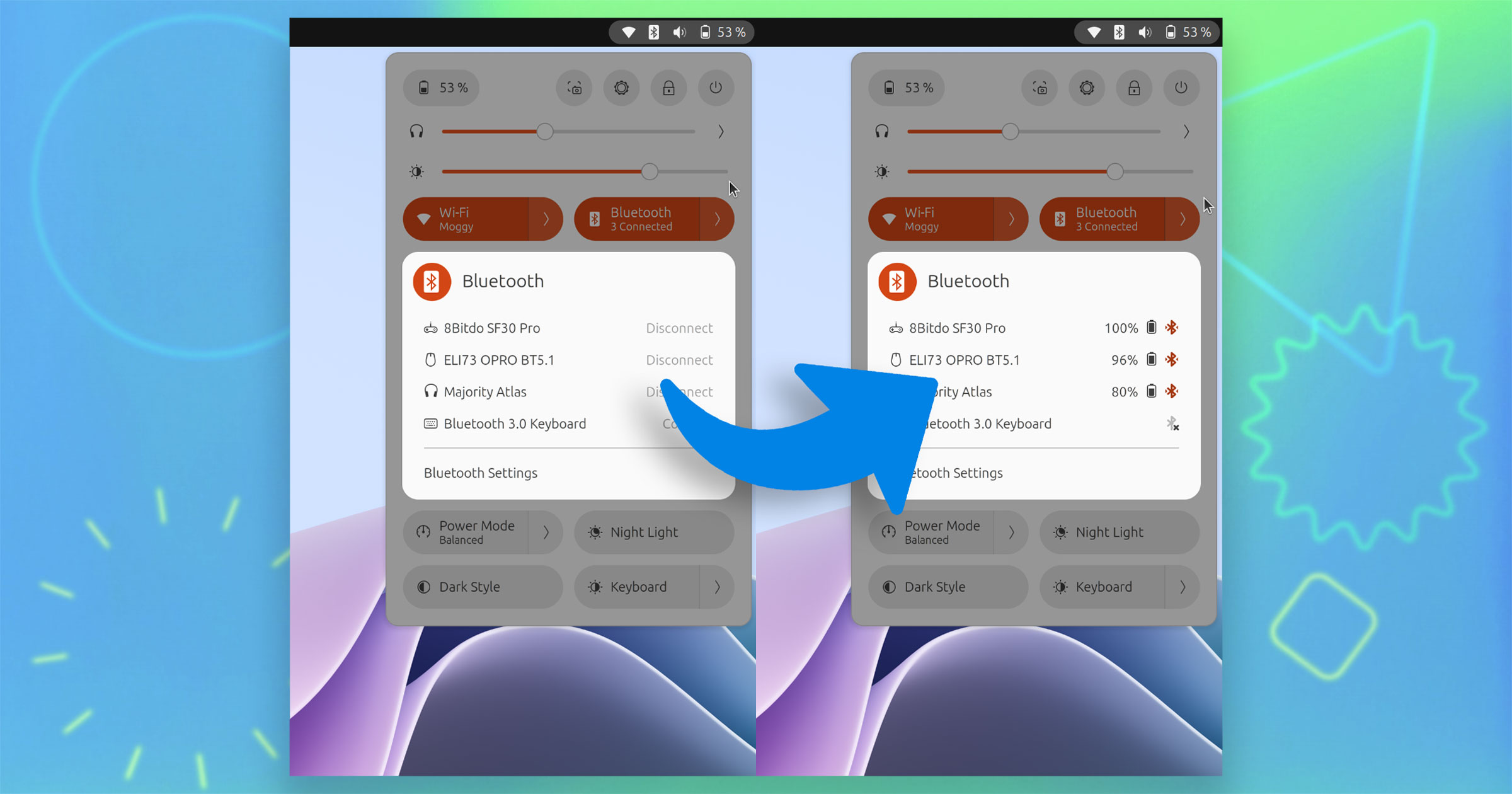
How to See The Battery Level of Bluetooth Devices on Your Smartphone or Tablet
Are you tired of wondering how much battery life is left in your Bluetooth devices? Look no further! In this guide, we’ll show you how to easily check the battery level of your Bluetooth devices on your Android, iPhone, PC, and Mac.
Why Is It Important to Check Battery Levels?
Checking the battery levels of your Bluetooth devices can save you from unexpected disconnections or dropped calls. Imagine being in the middle of an important call or meeting when your phone suddenly loses connection with your Bluetooth device. By keeping track of the battery level, you’ll always be prepared for situations like these.
How to See Battery Levels on Android Devices
If you’re using an Android device with a version 8.1 Or later, checking the battery level is as easy as pie! Here’s how:
- Qualify Your Bluetooth Device: Open your phone’s settings app and go to “Connection device” > “Bluetooth”. Turn on the toggle switch next to “Bluetooth”.
- Activate Pairing Mode: Put your Bluetooth device in pairing mode by following its instructions.
- Connect Your Device: Once paired, open your phone’s Bluetooth settings again and look for the name of your device.
- Check Battery Levels: You should see an icon indicating the battery level next to your device’s name.
Alternative Apps on Android
If you’re using an older version of Android or can’t find the built-in feature, don’t worry! There are some great third-party apps that can help you check battery levels:
- BatON
- AirDroid
How to See Battery Levels on Iphone And Ipad Devices
On iOS 9 and later devices, checking battery levels is a breeze!
- Qualify Your Bluetooth Device: Open your device’s settings app and go to “Bluetooth”. Turn on the toggle switch next to “Bluetooth”.
- Activate Pairing Mode: Put your Bluetooth device in pairing mode by following its instructions.
- Connect Your Device: Once paired, open your device’s Bluetooth settings again and look for the name of your device.
- Check Battery Levels: You should see an icon indicating the battery level next to your device’s name.
How to See Battery Levels on PC Devices
On Windows 10 devices, checking battery levels is a straightforward process:
- Access Settings: Click on the Start button and go to “Settings” > “Devices”.
- Go to Bluetooth Settings: Click on “Bluetooth & other devices”.
- Find Your Device: Look for your device’s name in the list.
- Check Battery Levels: You should see an indicator showing the battery level next to your device’s name.
How to See Battery Levels on Mac Devices
On macOS, checking battery levels is a simple process:
- Access Bluetooth Settings: Click on the speaker icon in the menu bar and go to “Bluetooth”.
- Find Your Device: Look for your device’s name in the list.
- Check Battery Levels: You should see an indicator showing the battery level next to your device’s name.
Conclusion
Checking the battery levels of your Bluetooth devices is essential for avoiding unexpected disconnections or dropped calls. By following these simple steps on Android, iPhone, PC, and Mac devices, you’ll always be prepared for any situation that comes your way.
Faqs
- Q: Why do I Need to Check Battery Levels?
A: Checking the battery level of your Bluetooth device can prevent unexpected disconnections or dropped calls. - Q: What if my Android Device is Older Than Version 8.1? Can I Still Check Battery Levels?
A: Yes, you can use third-party apps like BatON or AirDroid to check battery levels on older Android devices. - Q: How do I Know if my Bluetooth Device is Compatible With Checking Battery Levels?
A: Check your device’s manual or manufacturer website for compatibility information. - Q: Can I Use Any Third-party App to Check Battery Levels?
A: Not all third-party apps are reliable, so be sure to choose a reputable one. - Q: Why is it Important to Keep my Bluetooth Device Charged?
A: Keeping your Bluetooth device charged ensures that you can connect and communicate smoothly with other devices. - Q: Can I Check Battery Levels on All Types of Bluetooth Devices?
A: Yes, you can check battery levels on most Bluetooth devices, but some older or incompatible devices may not support this feature. - Q: How Often Should I Check The Battery Level of my Bluetooth Device?
A: It’s a good idea to check the battery level regularly, especially if you use your Bluetooth device frequently. - Q: Are There Any Other Ways to Check Battery Levels Besides Using The Built-in Feature or Third-party Apps?
A: Yes, some devices may have additional features or settings that allow you to check battery levels in different ways.


