
How to Log Out of Linkedin: A Step-by-step Guide
Are you tired of being logged into LinkedIn on your device? Do you want to log out but don’t know where to start? Look no further! In this guide, we will walk you through the simple steps to log out of LinkedIn on both mobile and desktop devices.
Why Log Out of Linkedin?
Logging out of LinkedIn is an essential step in maintaining your online security and privacy. By logging out, you can prevent unauthorized access to your account and ensure that only you have control over your profile and data.
Log Out of Linkedin on Mobile Devices
To log out of LinkedIn on a mobile device, follow these steps:
- Open The Linkedin App: Open the LinkedIn app on your Android or iOS device.
- Tap on Your Profile Picture: Tap on your profile picture in the top left corner of the screen.
- Settings: Select “Settings” from the menu that appears.
- Go Out: Scroll down to the bottom of the settings page and select “Go out”.
- Confirm Logout: Confirm that you want to log out by selecting “Yes, I’m sure”.
Log Out of Linkedin on Desktop Devices
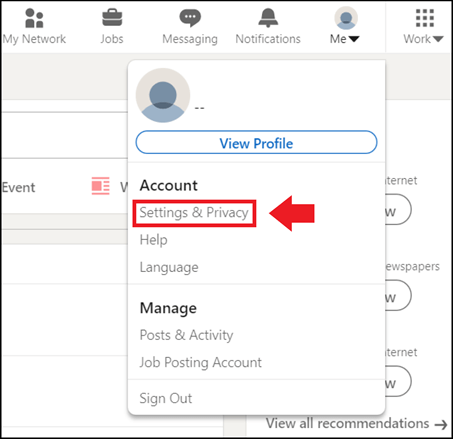
To log out of LinkedIn on a desktop device, follow these steps:
- Open Your Browser: Open your browser (e.G., Google Chrome, Mozilla Firefox) and navigate to the LinkedIn website.
- Click on Your Profile Picture: Click on your profile picture in the top right corner of the screen.
- Settings: Select “Settings” from the menu that appears.
- Go Out: Scroll down to the bottom of the settings page and select “Go out”.
- Confirm Logout: Confirm that you want to log out by selecting “Yes, I’m sure”.
How to Cancel Your Linkedin Premium Subscription
If you have a LinkedIn Premium subscription, you can cancel it at any time. To do so, follow these steps:
- Open The Settings Page: Open the settings page for your LinkedIn account.
- Subscription Management: Select the “Subscription” section from the menu.
- Cancel Subscription: Scroll down to the bottom of the page and select “Cancel subscription”.
- Confirm Cancellation: Confirm that you want to cancel your subscription by selecting “Yes, I’m sure”.
Why Cancel Your Linkedin Premium Subscription?
Canceling your LinkedIn Premium subscription can help you save money and reduce clutter in your digital life. If you’re not using the premium features or feel that they’re not worth the cost, consider canceling your subscription.
Tips For Logging Out of Linkedin
- Always log out of LinkedIn when you’re finished using the app or website.
- Use a secure password and keep it confidential to protect your account from unauthorized access.
- Consider using two-factor authentication (2FA) to add an extra layer of security to your account.
Conclusion
Logging out of LinkedIn is a simple process that can help maintain your online security and privacy. By following the steps outlined in this guide, you can log out of LinkedIn on both mobile and desktop devices. Remember to always be cautious when using social media platforms like LinkedIn, and consider canceling any subscriptions or features that you don’t use regularly.
Frequently Asked Questions
- Q: Why do I need to log out of LinkedIn?
A: Logging out of LinkedIn helps maintain your online security and privacy. - Q: How do I log out of LinkedIn on mobile devices?
A: To log out of LinkedIn on a mobile device, follow the steps outlined in this guide. - Q: Can I cancel my LinkedIn Premium subscription?
A: Yes, you can cancel your LinkedIn Premium subscription at any time.


