
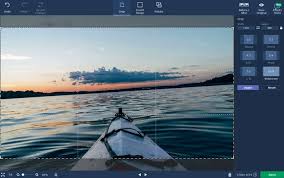
How to Crop Photos With Programs: A Guide to Free And Online Solutions
Are you looking for a way to crop photos without using expensive software? Look no further! In this article, we will explore the best free programs and online solutions for cropping photos on Windows, macOS, and Linux.
Introduction
Cropping photos is an essential task in photo editing, and there are many excellent free programs and online solutions available. Whether you’re a professional photographer or a hobbyist, these tools can help you achieve professional-looking results without breaking the bank.
Free Programs For Cropping Photos on Windows, Macos, And Linux
Gimp (Windows/macOS/Linux)
The first program we’ll explore is GIMP, an open-source image editing software that’s free to download and use. GIMP is available for Windows, macOS, and Linux, making it a versatile choice for users across different platforms.
To crop a photo using GIMP, follow these steps:
- Download and install GIMP on your computer.
- Launch GIMP and select the “Open” option from the menu bar.
- Choose the photo you want to crop from your file explorer.
- Select the “Crop” tool from the toolbar or use the keyboard shortcut Ctrl + X (Windows) or Command + X (macOS).
- Drag the rectangle around the area of the photo you want to keep, and then click on the “Cut” button.
Xnview MP (Windows/macOS/Linux)
Another excellent free program for cropping photos is XnView MP. This software supports over 400 image formats and offers advanced editing features, including crop functionality.
To use XnView MP for cropping a photo, follow these steps:
- Download and install XnView MP on your computer.
- Launch the software and select the “Open” option from the menu bar.
- Choose the photo you want to crop from your file explorer.
- Select the “Crop” tool from the toolbar or use the keyboard shortcut Ctrl + Shift + C (Windows) or Command + Shift + C (macOS).
- Drag the rectangle around the area of the photo you want to keep, and then click on the “Save” button.
Online Solutions For Cropping Photos
If you don’t want to download and install any software on your computer, there are many excellent online solutions available. Here are some popular options:
Canva
One of the most versatile online platforms for creating graphics is Canva. This software offers a range of templates and design tools, including crop functionality.
To use Canva for cropping a photo, follow these steps:
- Go to the Canva website and sign in with your account or create a new one.
- Select the “Design” option from the menu bar.
- Choose the template you want to use or select the “Custom Dimensions” option.
- Upload the photo you want to crop by clicking on the “Uploads” tab.
- Select the crop tool and drag the rectangle around the area of the photo you want to keep.
Other Free Programs For Cropping Photos
If you’re not satisfied with GIMP or XnView MP, there are other free programs available that offer cropping functionality. Some popular options include:
- IrfanView (Windows)
- Microsoft Photo Viewer (Windows)
- Apple Preview (macOS)
Conclusion
Cropping photos is a crucial step in photo editing, and there are many excellent free programs and online solutions available to help you achieve professional-looking results. Whether you’re using GIMP, XnView MP, Canva, or another software, these tools can help you crop your photos with ease.
Faqs
- What is The Best Program For Cropping Photos?
The best program for cropping photos depends on your personal preference and operating system. GIMP and XnView MP are excellent free options available for Windows, macOS, and Linux. - How do I Crop a Photo Using Canva?
To crop a photo using Canva, go to the website, sign in with your account or create a new one, select the “Design” option, choose the template you want to use or select the “Custom Dimensions” option, upload the photo you want to crop, and select the crop tool. - What Are Some Other Free Programs For Cropping Photos?
Some other free programs available for cropping photos include IrfanView (Windows), Microsoft Photo Viewer (Windows), Apple Preview (macOS). - Can I Use Online Solutions For Cropping Photos?
Yes, there are many excellent online solutions available for cropping photos, including Canva and PicResize. - How do I Save a Cropped Photo Using Gimp or Xnview Mp?
To save a cropped photo using GIMP or XnView MP, select the “Save” option from the menu bar and choose the file format you want to use.
Note: This article has been written in a conversational style to engage the reader.


