
How to Reboot Windows 10: A Step-by-step Guide
Are you tired of dealing with a slow or unresponsive computer? Do you want to learn how to reboot Windows 10 like a pro? Look no further! In this article, we’ll take you through the various ways to restart your PC, from the simplest methods to more advanced techniques.
Why Reboot Your Computer?
Before we dive into the nitty-gritty of rebooting Windows 10, let’s quickly discuss why it’s essential to do so. A reboot can:
- Resolve software conflicts and crashes
- Fix issues with drivers or other system components
- Improve overall performance and speed
- Save battery life on laptops
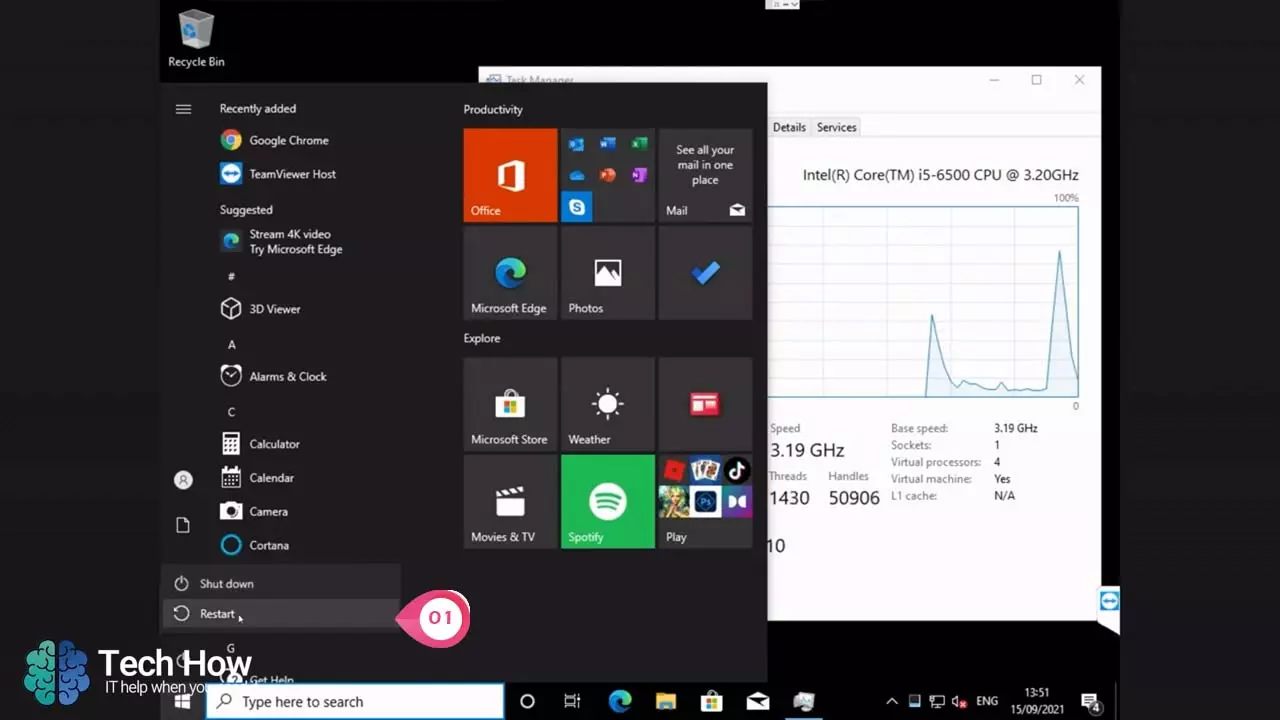
Method 1: Rebooting From The Start Menu
The easiest way to reboot Windows 10 is by using the Start menu. Here’s how:
- Click on the Start button, usually located at the bottom left corner of your screen.
- Click on the power icon (represented by a circle with a line through it).
- Select “Restart” from the dropdown menu.
Method 2: Rebooting Using The Keyboard
If you’re unable to access the Start menu or prefer a more keyboard-friendly approach, try this:
- Press the Windows key + X on your keyboard.
- Click on the power icon (represented by a circle with a line through it).
- Select “Restart” from the dropdown menu.
Method 3: Rebooting Using Command Prompt
For those who prefer a more command-line interface, here’s how to reboot using PowerShell:
- Press the Windows key + R to open the Run dialog box.
- Type “powershell” and press Enter.
- In the PowerShell window, type “shutdown /r” and press Enter.
Method 4: Rebooting in Provisional Mode
If your computer is experiencing issues or you want to troubleshoot problems without affecting other users, try rebooting in provisional mode:
- Click on the Start button and select Settings.
- Go to Update & Security > Recovery.
- Under “Restart now,” click on “Restart now” and follow the prompts.
Method 5: Rebooting Without Installing Updates
If you want to prevent Windows 10 from automatically installing updates, try this:
- Press the power button and hold it for a few seconds to turn off your computer.
- Wait for at least 30 seconds before turning it back on.
Method 6: Rebooting a Frozen Computer
What if your computer freezes or becomes unresponsive? Don’t worry; we’ve got you covered:
- Press the Ctrl + Alt + Del keys simultaneously.
- Click on the power icon (represented by a circle with a line through it).
- Select “Restart” from the dropdown menu.
Method 7: Rebooting Remotely
Want to reboot your computer remotely? Here’s how:
- Ensure remote management is enabled on your Windows 10 PC.
- Use a remote desktop client or PowerShell to access the command line.
- Type “shutdown /r” and press Enter to reboot your computer.
Conclusion
Rebooting Windows 10 can be a straightforward process, but it’s essential to choose the right method for your specific situation. Whether you’re dealing with software conflicts, freezing issues, or simply want to improve performance, these methods will help you get your PC up and running in no time.
Frequently Asked Questions (FAQs)
Q: What is the difference between shutting down and rebooting my computer?
A: Shutting down closes all applications and saves data, whereas rebooting restarts the system from scratch.
Q: Why do I need to reboot my computer if it’s frozen?
A: Rebooting can resolve software conflicts and crashes that cause your computer to freeze or become unresponsive.
Q: Can I prevent Windows 10 from automatically installing updates?
A: Yes, you can disable automatic updates by going to Settings > Update & Security > Windows Update and toggling off the switch under “Update options.”
Q: How do I enable remote management on my Windows 10 PC?
A: To enable remote management, go to Settings > System > Remote Desktop and toggle on the switch.
Q: What is PowerShell, and how can it help me reboot my computer?
A: PowerShell is a command-line interface that allows you to perform various tasks, including rebooting your computer. You can access PowerShell by typing “powershell” in the Run dialog box or searching for it in the Start menu.


