
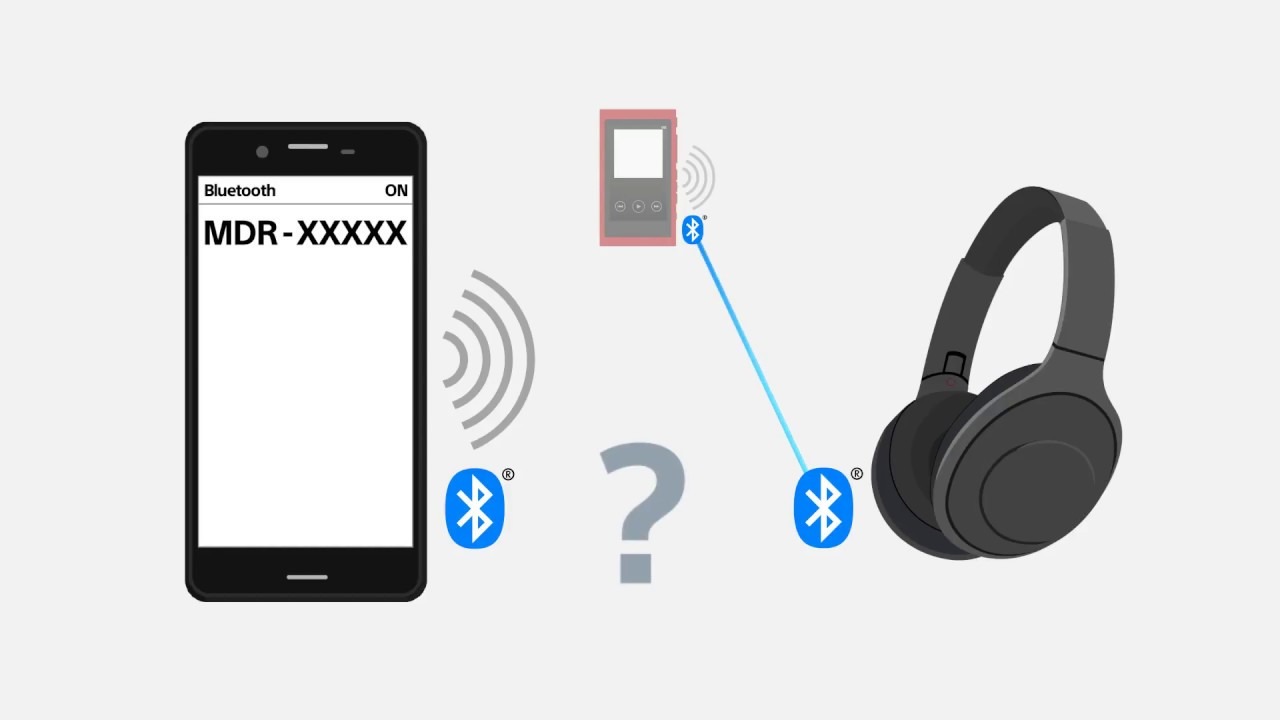
How to Connect Bluetooth Devices: A Step-by-step Guide
Are you tired of dealing with tangled cords and lost headphones? Do you want to enjoy seamless connectivity between your devices without the hassle of cables? Look no further! In this article, we’ll guide you through the process of connecting Bluetooth devices, making it easy for anyone to understand.
What is Bluetooth And Why Should I Use It?
Bluetooth is a wireless technology that allows devices to communicate with each other over short distances. It’s a convenient way to connect your phone, speaker, or tablet to other devices without the need for cables. With Bluetooth, you can listen to music, make hands-free calls, or share files between devices.
Requirements For Connecting Bluetooth Devices
Before we dive into the step-by-step guide, here are some requirements to keep in mind:
- Make sure your device has a built-in Bluetooth feature.
- Ensure that the other device you want to connect is also Bluetooth-enabled.
- Put both devices within range of each other (typically 30 feet or less).
- Follow the manufacturer’s instructions for pairing and connecting devices.
How to Connect Bluetooth Devices: A Step-by-step Guide
Here are the steps to follow:
Step 1: Enable Bluetooth on Your Device
To start, enable Bluetooth on your device by going to Settings > Bluetooth. Make sure it’s turned ON.
Step 2: Put Your Device in Pairing Mode
Next, put your device in pairing mode by going to Settings > Bluetooth and selecting “Pair a new device.” Follow the on-screen instructions to complete this step.
Step 3: Discover Available Devices
Using your device, scan for available devices. This will typically involve searching for nearby devices or entering a passcode. Be sure to select the correct device you want to connect to.
Step 4: Confirm Connection
Once you’ve selected the device, confirm the connection by following the on-screen instructions. You may need to enter a PIN code or complete additional steps.
How to Connect Bluetooth Devices to Specific Devices
Here’s how to connect Bluetooth devices to specific devices:
Connecting Bluetooth Devices to Android Phones And Tablets
To connect a Bluetooth device to an Android phone or tablet, follow these steps:
- Enable Bluetooth on your Android device.
- Open the Settings app and select “Connections” > “Bluetooth.”
- Select the voice “Connect new device” and choose the type of device you want to pair (e.G., Headset, speaker).
- Follow the on-screen instructions to complete the pairing process.
Connecting Bluetooth Devices to Iphones And Ipads
To connect a Bluetooth device to an iPhone or iPad, follow these steps:
- Enable Bluetooth on your iOS device.
- Open the Settings app and select “Bluetooth.”
- Select the voice “Connect” next to the device you want to pair (e.G., Headset, speaker).
- Follow the on-screen instructions to complete the pairing process.
Connecting Bluetooth Devices to Windows Computers
To connect a Bluetooth device to a Windows computer, follow these steps:
- Enable Bluetooth on your Windows device.
- Open the Settings app and select “Devices” > “Bluetooth & other devices.”
- Select “Add a device” and choose the type of device you want to pair (e.G., Headset, speaker).
- Follow the on-screen instructions to complete the pairing process.
Connecting Bluetooth Devices to Macos Computers
To connect a Bluetooth device to a macOS computer, follow these steps:
- Enable Bluetooth on your macOS device.
- Open the System Preferences app and select “Bluetooth.”
- Select “Connect” next to the device you want to pair (e.G., Headset, speaker).
- Follow the on-screen instructions to complete the pairing process.
Connecting Bluetooth Devices to Cars
To connect a Bluetooth device to a car’s infotainment system, follow these steps:
- Enable Bluetooth on your phone or tablet.
- Open the settings app and select “Connections” > “Bluetooth.”
- Select the voice “Connect new device” and choose the type of device you want to pair (e.G., Phone, tablet).
- Follow the on-screen instructions to complete the pairing process.
Conclusion
Connecting Bluetooth devices is a straightforward process that requires minimal effort. By following these steps, you’ll be able to enjoy seamless connectivity between your devices without the hassle of cables. Remember to enable Bluetooth, put your device in pairing mode, and confirm the connection using the specific steps outlined above. Happy connecting!
Frequently Asked Questions
- What is The Maximum Distance For Bluetooth Connections?
Bluetooth connections typically have a range of up to 30 feet (9 meters). - Can I Connect Multiple Devices to my Phone or Tablet Via Bluetooth?
Yes, you can connect multiple devices to your phone or tablet using Bluetooth. - Do I Need to Pair my Device With Each Device Separately?
No, once you’ve paired your device with one device, it will remember the connection and automatically connect to that device in the future. - Can I Use Bluetooth to Share Files Between Devices?
Yes, Bluetooth allows you to share files between devices, but keep in mind that this may not be possible for larger file sizes. - Is Bluetooth Compatible With All Types of Devices?
Bluetooth is widely supported by most modern devices, including phones, tablets, computers, and cars.
Hope this article was helpful in your quest to understand how to connect Bluetooth devices. Happy connecting!


