
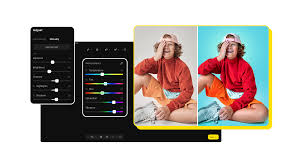
The Ultimate Guide to Removing Written From Photos: A Step-by-step Tutorial
Are you tired of dealing with unwanted text or annotations on your photos? Do you want to edit them professionally without breaking the bank? Look no further! In this comprehensive guide, we’ll show you how to remove written from photos using various software and online services.
The Problem With Written in Photos
Written, whether it’s a timestamp, caption, or annotation, can be distracting and ruin an otherwise perfect photo. It’s especially frustrating when you’re trying to preserve memories or share them on social media. But don’t worry; we’ve got you covered!
Programs to Remove Written From Photos (Free)
Before we dive into the online services and mobile apps, let’s explore some excellent free programs that can help you remove written from photos.
Photo (Windows 10)
If you’re using Windows 10, you might already have Photo installed on your computer. This built-in app allows you to edit images, including removing unwanted text or annotations.
To use Photo:
- Open the photo you want to edit.
- Click on the “Edit” button and select “Modification.”
- Choose the “Rule” tab and click on the “Correction punctured” tool.
- Select the written you want to remove by clicking repeatedly on it.
- Press the “Save” button to save your edited photo.
Photo (macOS)
If you’re a Mac user, you can use Photo to edit your photos and remove unwanted text.
To use Photo:
- Open the photo you want to edit.
- Click on the “Edit” button and select “Modification.”
- Choose the “Rule” tab and click on the “Correction punctured” tool.
- Select the written you want to remove by clicking repeatedly on it.
- Press the “Save” button to save your edited photo.
Gimp (Windows/macOS/Linux)
GIMP is a powerful free software that can be used for image editing, including removing unwanted text.
To use GIMP:
- Download and install GIMP from their official website.
- Open the photo you want to edit.
- Select “Open…” from the menu bar.
- Choose the photo you want to edit.
- Click on the “Pencil” tool in the toolbar.
- Adjust the brush size using the regulation bar below the tool.
- Click repeatedly on the written you want to remove.
- Press the “Save” button to save your edited photo.
Online Services And Mobile Apps
Now that we’ve covered some excellent free programs, let’s explore online services and mobile apps that can help you remove written from photos.
Photopea
Photopea is a free web-based application that allows you to edit images online without installing any software or plugins. Its interface is inspired by Adobe Photoshop, making it easy to use for those familiar with the program.
To use Photopea:
- Visit their website and click on the “Open” button.
- Select the photo you want to edit from your computer.
- Click on the paintbrush tool in the toolbar.
- Adjust the brush size using the regulation bar below the tool.
- Click repeatedly on the written you want to remove.
- Press the “Export” button to download your edited photo.
Photoshop (Windows/macOS)
Adobe Photoshop is a professional image editing software that can be used to remove unwanted text or annotations from photos. It’s available as a subscription-based service, with a free 7-day trial period.
To use Photoshop:
- Download and install Photoshop from the Adobe website.
- Open the photo you want to edit.
- Click on the “Edit” button and select “Modification.”
- Choose the “Stamp” tool in the toolbar.
- Adjust the brush size using the regulation bar below the tool.
- Click repeatedly on the written you want to remove.
- Press the “Save” button to save your edited photo.
Other Helpful Solutions
If Photopea, Photoshop, and other free programs don’t meet your needs, there are more online services and mobile apps that can help you remove written from photos.
- Watermarkremover: This service allows you to automatically remove watermarks and unwanted text from images.
- Snap Edit: This tool enables you to remove unwanted objects or text from photos using a simple and intuitive interface.
Mobile Apps
If you prefer using mobile apps, there are several excellent options available for both Android and iOS devices.
- Snapseed (Android/iOS): This popular photo editing app allows you to remove unwanted text or annotations from images.
- Pixlr (Android/iOS): This free mobile app provides a range of tools and effects for editing photos, including removing written.
- Touchretouch (Android/iOS): This app offers a simple and effective way to remove unwanted objects or text from photos.
By following this comprehensive guide, you’ll be able to remove written from photos using various software and online services. Whether you’re a professional photographer or just someone who wants to edit their personal memories, these tools will help you achieve the perfect results.
Conclusion
Removing written from photos is a simple process that can be achieved using various free programs, online services, and mobile apps. By following this guide, you’ll be able to edit your images professionally without breaking the bank. Whether you’re a beginner or an experienced editor, these tools will help you achieve the perfect results.
Faqs
-
What is the best software for removing written from photos?
- The best software for removing written from photos depends on your specific needs and preferences. Some popular options include Photopea, Photoshop, GIMP, and mobile apps like Snapseed and TouchRetouch.
-
Can I remove watermarks from images using online services?
-
Yes, there are several online services that allow you to remove watermarks or unwanted text from images. WatermarkRemover is one such service.
-
How do I remove written from photos on my mobile device?
-
There are several excellent mobile apps available for both Android and iOS devices that can help you remove unwanted text or annotations from photos, including Snapseed, Pixlr, TouchRetouch, and Remove Unwanted Object.
-
Is Adobe Photoshop the only software that allows me to remove written from photos?
- No, there are several other excellent programs and online services available for removing written from photos, including Photopea, GIMP, and mobile apps like Snapseed and TouchRetouch.
-
Can I edit multiple images at once using these tools?
- Yes, most of the software and online services mentioned in this guide allow you to edit multiple images at once or batch process them for easier editing.
-
What is the cost of using Adobe Photoshop?
- Adobe Photoshop requires a subscription-based service, with a free 7-day trial period. The cost varies depending on your specific needs and plan.
-
Can I remove written from photos without installing any software or plugins?
- Yes, there are several online services that allow you to edit images directly in the browser without installing any software or plugins, including Photopea.
-
What is the difference between using a free program versus an online service?
- The main difference between using a free program and an online service lies in their functionality, ease of use, and cost. Some programs offer more features than others, while online services might have limitations due to platform restrictions.
-
Can I remove written from photos taken with any camera type or resolution?
- Yes, most software and online services mentioned in this guide can handle various image formats and resolutions.
-
What is the recommended software for beginners who want to learn photo editing skills?
-
For beginners, Photopea or GIMP are excellent options as they offer a more user-friendly interface compared to Adobe Photoshop.


