
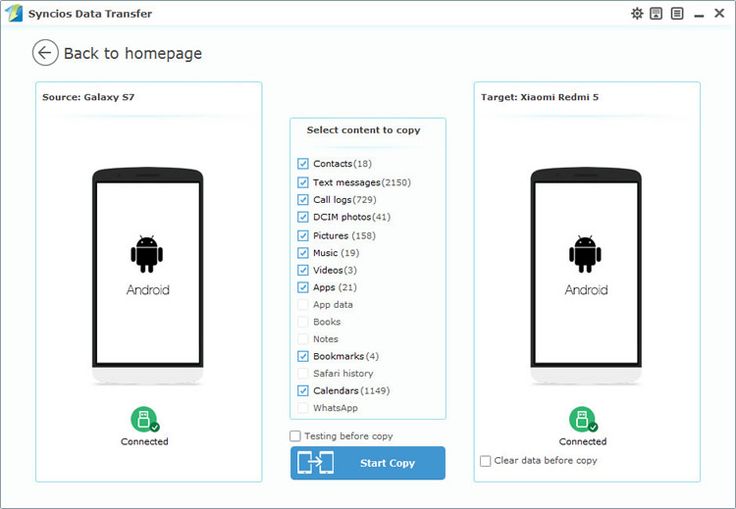
Transferring Data From Samsung to Xiaomi: A Step-by-step Guide
Are you tired of using a Samsung phone and want to switch to a new Xiaomi device? If so, this article is perfect for you! Transferring data from one smartphone to another can be a daunting task, but don’t worry; we’ve got you covered.
Why Transfer Data From Samsung to Xiaomi?
Transferring your data from an old phone to a new one ensures that all your important files, photos, and settings are safely transferred. This way, you won’t have to start from scratch when setting up your new device. Whether you’re upgrading to a newer model or simply want to try out a different operating system, transferring your data is essential.
Method 1: Using Mi Mover
Mi Mover is an official app by Xiaomi designed specifically for transferring data between devices running MIUI. This method is perfect for those who want to transfer all their data at once.
Step-by-step Guide to Transfer Data Using Mi Mover
- Download And Install Mi Mover: Open the Play Store on your Samsung phone, search for Mi Mover, and install it.
- Configure Permissions: Launch Mi Mover, tap on “Accept” and then repeatedly press the “Consent” button to grant permissions.
- Connect Your Devices: Connect both devices to the same Wi-Fi network and open Mi Mover on your Xiaomi phone.
- Initiate Transfer: Tap on “Continue” and select the data you want to transfer (e.G., Photos, videos, contacts).
- Wait For The Transfer to Complete: Let the transfer process finish; this might take a few minutes depending on the amount of data.
Method 2: Using Google Account Synchronization
If you have a Google account synced on your Samsung phone and want to switch to a new Xiaomi device, you can use this method. This is ideal for those who have already set up their Google account on their old phone.
Step-by-step Guide to Transfer Data Using Google Account Synchronization
- Check Your Google Account Sync: Ensure that the Google account sync is active on your Samsung phone by going to Settings > Account and Backup.
- Transfer Data From Samsung: Open the Google Photos app, go to Settings, and enable backup and synchronization for all data.
- Connect Your Xiaomi Device: Open the Google Photos app on your new Xiaomi device and sign in with the same Google account.
- Wait For The Transfer to Complete: Let the transfer process finish; this might take a few minutes depending on the amount of data.
Method 3: Using Telegram, Bluetooth, or Nfc
If you want to transfer individual files between devices, you can use these methods.
Step-by-step Guide to Transfer Data Using Telegram
- Download And Install Telegram: Open the Play Store on both phones and install Telegram.
- Configure Telegram on Samsung: Open Telegram on your Samsung phone, tap on Messages saved, and select the file you want to transfer.
- Send The File: Tap on the sharing icon (three dots joined by a line) and choose Bluetooth or NFC to send the file.
Step-by-step Guide to Transfer Data Using Bluetooth
- Activate Bluetooth: Go to Settings > Bluetooth on both devices, select the device you want to connect to, and turn on Bluetooth.
- Send The File: Open the file-sharing app on your Samsung phone, choose Bluetooth as the sharing method, and send the file to your Xiaomi phone.
Other Methods
If the above methods don’t suit your needs, consider using microSD cards or cloud services like Google Drive or OneDrive. You can also transfer data from your old phone to a computer using a USB cable.
In conclusion, transferring data from Samsung to Xiaomi is easier than you think! Use Mi Mover, Google account synchronization, Telegram, Bluetooth, or NFC depending on the type of file you want to transfer and your personal preferences.
Frequently Asked Questions (FAQs)
- What Are The Benefits of Using Mi Mover?
Mi Mover allows seamless data transfer between devices running MIUI, making it an ideal choice for those looking to upgrade or switch operating systems. - Can I Transfer Individual Files Instead of All Data at Once?
Yes! Use Telegram, Bluetooth, or NFC to send specific files from one device to another. - How Long Does The Transfer Process Take?
The duration depends on the amount of data being transferred; it can take a few minutes for small files and longer for larger datasets. - Are There Any Security Risks When Using These Methods?
As with any data transfer, ensure both devices are secure and connected to the same network or via Bluetooth/NFC before initiating the transfer. - Can I Use These Methods on Other Android Devices?
Yes! While Mi Mover is specifically designed for MIUI devices, other methods like Telegram, Bluetooth, and NFC work across various Android devices. - What if I Encounter Issues During The Transfer Process?
Refer to our troubleshooting guide or contact Xiaomi support for assistance with any problems that may arise.
By following these step-by-step guides, you’ll be able to transfer your data from Samsung to Xiaomi with ease!


