
Getting Started With Whatsapp: A Comprehensive Guide
Are you curious about how to use WhatsApp, one of the most popular messaging apps in the world? Look no further! In this article, we will guide you through the process of getting started with WhatsApp on your phone, as well as using it on your PC.
What is Whatsapp?
WhatsApp is a free messaging app that allows users to send text messages, make voice and video calls, and share media files. It’s available for both Android and iOS devices.
How to Get Started With Whatsapp
To get started with WhatsApp, you’ll need to create an account on the platform. Here’s how:
Step 1: Download And Install Whatsapp
If you haven’t already, download and install WhatsApp on your device from the Google Play Store (for Android) or the Apple App Store (for iOS).
Step 2: Create a Whatsapp Account
Once you’ve installed WhatsApp, follow these steps to create an account:
- Open WhatsApp and tap “Get Started” to begin the sign-up process.
- Enter your phone number to receive a verification code via SMS.
- Tap “Next” and enter the verification code to verify your phone number.
- Set up your profile by adding a name, photo, and other details.
How to Use Whatsapp With Another Number
If you already have a WhatsApp account but want to use it with another number, here’s what you can do:
Step 3: Add a New Account
- Open WhatsApp and tap the three dots (…) in the top-right corner.
- Tap “Settings” > “Add a new account.”
- Enter the new phone number and follow the verification process.
How to Use Whatsapp Without Sim
You can use WhatsApp on your device even if you don’t have a SIM card inserted. Just make sure that the phone number associated with your WhatsApp account is not already linked to another device.
Step 4: Deactivate Last Seen And Online Status
If you want to remain incognito while using WhatsApp, follow these steps:
- Open WhatsApp and tap the three dots (…) in the top-right corner.
- Tap “Settings” > “Account” > “Last” > “Privacy access.”
- Select “None” for both Last Seen and Online Status.
How to Use Whatsapp on PC
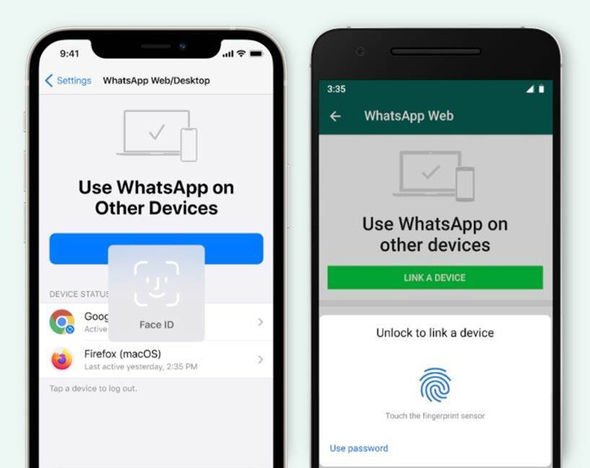
You can use WhatsApp on your PC by scanning a QR code with your smartphone or by using the WhatsApp Web app.
Step 5: Scan The QR Code
- Open WhatsApp on your phone and tap the three dots (…) in the top-right corner.
- Tap “WhatsApp Web/Desktop.”
- Select the option to scan the QR code on your PC screen.
- Scan the QR code using your smartphone’s camera.
How to Use Whatsapp on PC Without QR Code
If you don’t want to scan a QR code every time, you can enable the “Be connected” feature in WhatsApp settings.
Step 6: Enable Be Connected
- Open WhatsApp on your phone and tap the three dots (…) in the top-right corner.
- Tap “WhatsApp Web/Desktop.”
- Select the option to enable Be connected.
How to Use Whatsapp Without Phone
You can use WhatsApp on PC even if you don’t have a phone nearby. Just make sure that both devices are connected to the same Wi-Fi network and that the Be connected feature is enabled in WhatsApp settings.
Conclusion
Getting started with WhatsApp is easy! By following these steps, you’ll be able to create an account, add a new number, use it without SIM, deactive last seen and online status, and even use it on your PC. Happy chatting!
Frequently Asked Questions (FAQs)
- Q: How do I Download Whatsapp?
A: You can download WhatsApp from the Google Play Store (for Android) or the Apple App Store (for iOS). - Q: What is Be Connected Feature in Whatsapp?
A: Be connected feature allows you to use WhatsApp on PC without scanning a QR code every time. - Q: Can I Use Whatsapp Without Sim Card?
A: Yes, you can use WhatsApp on your device even if you don’t have a SIM card inserted. - Q: How do I Deactive Last Seen And Online Status in Whatsapp?
A: Follow the steps in Step 4 above to deactivate last seen and online status in WhatsApp. - Q: Can I Use Whatsapp on PC Without Phone Nearby?
A: Yes, you can use WhatsApp on PC even if your phone is not nearby, as long as both devices are connected to the same Wi-Fi network. - Q: How do I Enable Be Connected Feature in Whatsapp?
A: Follow the steps in Step 5 above to enable Be connected feature in WhatsApp. - Q: Can I Use Whatsapp With Another Number if Already Have a Whatsapp Account?
A: Yes, you can add a new account on WhatsApp by following the steps in Step 3 above. - Q: What is Whatsapp Web And How do I Use It?
A: WhatsApp Web allows you to use WhatsApp on your PC without scanning a QR code every time. To use it, follow the steps in Step 5 above.


