
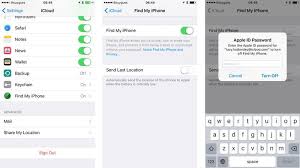
How to Disable Find My Iphone on PC Without Password
As an Apple device user, you’re likely aware of the “Find My” feature that allows you to locate your devices on a map, remotely lock or erase them if they’re lost or stolen, and even recover data from them. However, sometimes you might need to disable this feature for various reasons, such as selling or gifting your device. In this article, we’ll guide you through the process of disabling Find My iPhone on PC without a password.
Understanding Find My Iphone
Find My iPhone is a built-in feature on Apple devices that allows you to locate them using the iCloud website or app. When enabled, it uses GPS and cellular data to determine your device’s location. If your device is lost or stolen, you can remotely lock or erase it to protect your personal data.
Why Disable Find My Iphone?
There are several reasons why you might want to disable Find My iPhone on your device:
- Selling or gifting your device
- Transferring ownership of the device
- Avoiding unnecessary notifications and updates
Step-by-step Guide to Disabling Find My Iphone Without Password
To disable Find My iPhone on PC without a password, follow these steps:
- Access Icloud.Com: Go to the iCloud website (www.Icloud.Com) using your web browser.
- Sign in With Your Apple ID: Enter your Apple ID and password to access your account.
- Click on ‘All Devices’: Click on the “All Devices” option, which is located at the top of the page.
- Select Your Device: Choose the device you want to disable Find My iPhone for from the list of available devices.
- Click on The ‘Find My Iphone’ Button: Click on the “Find My iPhone” button next to the device name.
- Turn Off The Toggle Switch: Toggle the switch next to “Find My iPhone” off.
- Confirm Your Action: Confirm that you want to disable Find My iPhone by clicking on the “Turn Off” button.
Alternative Methods For Disabling Find My Iphone
If you don’t have access to a computer or can’t remember your Apple ID password, there are alternative methods to disable Find My iPhone:
- Use a Friend’s Device: If you have a friend with an Apple device, they can help you disable Find My iPhone.
- Recover Your Apple ID Password: If you’ve forgotten your Apple ID password, you can recover it using the “Forgot Password” option on the iCloud website.
- Reset Your Device: If none of the above methods work, you may need to reset your device to its factory settings. This will erase all data and settings on your device.
Conclusion
Disabling Find My iPhone on PC without a password can be done through various methods, including accessing the iCloud website, using a friend’s device, recovering your Apple ID password, or resetting your device. Follow the steps outlined in this guide to ensure that you’re able to disable Find My iPhone for your device.
Frequently Asked Questions (FAQs)
Here are some frequently asked questions related to disabling Find My iPhone:
Q: What is Find My iPhone?
A: Find My iPhone is a built-in feature on Apple devices that allows users to locate them using the iCloud website or app.
Q: Why would I want to disable Find My iPhone?
A: You might want to disable Find My iPhone for various reasons, such as selling or gifting your device, transferring ownership of the device, or avoiding unnecessary notifications and updates.
Q: Can I still recover data from my device if I disable Find My iPhone?
A: Yes, you can still recover data from your device even if you’ve disabled Find My iPhone. However, this may require using a third-party recovery tool or visiting an Apple Store for assistance.
Q: Will disabling Find My iPhone affect my ability to locate my device on the map?
A: No, disabling Find My iPhone won’t affect your ability to locate your device on the map. The feature will simply be disabled, and you’ll no longer receive notifications about your device’s location.
Recommended Reading
If you’re interested in learning more about Apple devices and their features, here are some recommended reading materials:
- Apple Support: Visit the official Apple support website for comprehensive guides and tutorials on using Apple devices.
- Icloud.Com: Learn more about the iCloud service and how to use it with your Apple device.
- Find My Iphone Guide: Read our in-depth guide on using Find My iPhone, including tips on how to locate your device, remotely lock or erase it, and recover data from it.


