
How to Erase a WordPress Blog: A Step-by-step Guide
Are you tired of managing a WordPress blog that’s no longer serving its purpose? Perhaps you’re looking to erase it completely, or maybe you just want to take it offline for some time. Whatever your reasons may be, this article will guide you through the process of erasing a WordPress blog on different platforms.
Why Erase a WordPress Blog?
Before we dive into the steps, let’s briefly discuss why someone might want to erase a WordPress blog. Here are a few possible reasons:
- Inactivity: If your blog has been inactive for an extended period and you don’t see it contributing to your online presence anymore.
- Changes in Priorities: Your priorities or goals may have changed, making the blog less relevant or useful.
Erasng a WordPress Blog on WordPress.Com
If your blog is hosted on WordPress.Com, erasing it is a relatively straightforward process. Here’s how you can do it:
- Log in to your WordPress.Com account.
- Go to your site’s dashboard and click on the “Settings” icon (it looks like a gear).
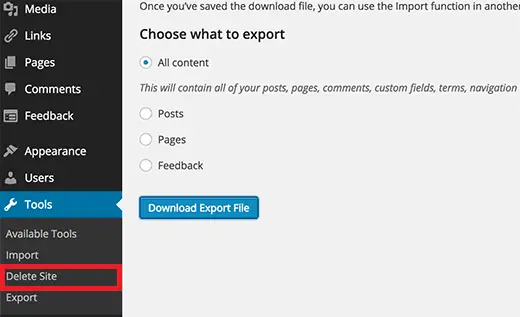
- Scroll down to the bottom of the page and click on “Delete Site.”
- Enter your site’s URL and confirm that you want to delete it.
Erasing a WordPress Blog on Altervista
Altervista is another popular platform for hosting WordPress blogs. Here’s how you can erase one:
- Log in to your Altervista account.
- Go to the “My Sites” section and select the site you want to erase.
- Click on the “Settings” icon (it looks like a gear) and scroll down to the bottom of the page.
- Click on “Delete Site” and confirm that you want to delete it.
Erasing a WordPress Blog on Aruba
If your blog is hosted on Aruba, erasing it requires some more steps:
- Log in to your Aruba account.
- Go to the “My Sites” section and select the site you want to erase.
- Click on the “Settings” icon (it looks like a gear) and scroll down to the bottom of the page.
- Click on “Delete Site” and confirm that you want to delete it.
Backing Up Your Blog
Before erasing your WordPress blog, make sure to back up all its content, including posts, pages, media files, and comments. You can do this by going to the “Settings” section of your site and clicking on “Export.” Choose what data you want to export (all or specific types) and click on “Download.”
Conclusion
Erasing a WordPress blog is not always an easy task, but with these step-by-step guides, it should be relatively straightforward. Remember to back up all your content before making any changes. If you have any questions or need further assistance, don’t hesitate to ask.
Frequently Asked Questions (FAQs)
- What Happens After I Erase my WordPress Blog?
- Your blog will be deleted from the platform.
- Can I Restore my WordPress Blog if I Change my Mind?
- Yes, you can request its restoration within a certain time frame (usually 30 days).
- How do I Back up my WordPress Blog Content?
- You can export all or specific types of data from your site’s dashboard.
- Will Erasing my WordPress Blog Affect Other Services Associated With It?
- It depends on the specific service and how they’re connected to your blog.
- How Long Does it Take For a WordPress Blog to be Erased Completely?
- The time frame varies depending on the platform and the complexity of the process.
- What Should I do if I’m Having Trouble Erasing my WordPress Blog?
- Contact the support team of your hosting platform or seek help from their community resources.
-
Can I Erase a WordPress Blog Hosted on a Different Platform (e.G., Shared Hosting)?
- Yes, but the process may differ depending on your specific hosting provider and the technical setup of your site.
-
What are the consequences of not erasing a dormant WordPress blog?


