
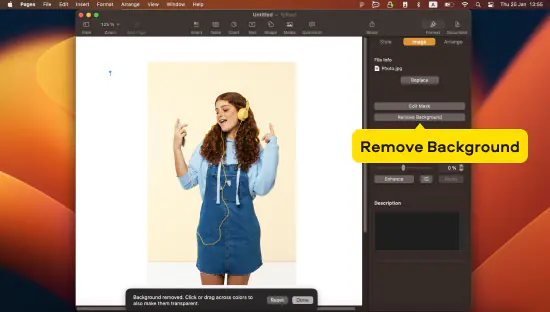
How to Remove Background From an Image: A Comprehensive Guide
Are you tired of having a distracting background on your photos? Do you want to make them look more professional or create a unique effect? Removing the background from an image can be a great way to achieve this. In this article, we will show you how to remove the background from an image using various tools and techniques.
What is Background Removal?
Background removal is the process of isolating a subject or object from its surroundings, typically by removing the background. This can be done for a variety of reasons, such as:
- To create a more professional-looking photo
- To isolate a specific object or subject
- To create a unique effect or atmosphere
- To remove distracting elements from an image
Tools And Techniques For Background Removal
There are several tools and techniques that you can use to remove the background from an image. Here are some of the most popular ones:
- Gimp: GIMP is a free and open-source raster graphics editor that can be used to remove backgrounds from images.
- Photoworks: PhotoWorks is a photo editing software that allows you to remove backgrounds, adjust colors, and apply effects to your photos.
- Photoshop: Adobe Photoshop is a professional-grade photo editing software that can be used to remove backgrounds, adjust colors, and apply complex effects to your photos.
- Paint: Paint is a simple paint program that comes pre-installed on Windows machines. It can be used to remove backgrounds from images by using the “magic wand” tool.
- Anteprima: Anteprima is a free app for Mac users that allows you to trim and crop images, including removing backgrounds.
Step-by-step Guide: Removing Background With Gimp
To remove the background from an image using GIMP, follow these steps:
- Open GIMP and select the image you want to edit.
- Go to “Tools” > “Selection Tools” and choose the “Magic Wand” tool.
- Click on the area of the image where you want to start selecting.
- Drag the wand over the area of the image that you want to remove, making sure not to select any part of the subject.
- Go to “Edit” > “Undo” to remove any mistakes.
- Repeat steps 3-5 until the entire background is removed.
- Use the “Select” menu to invert the selection and isolate the subject.
Step-by-step Guide: Removing Background With Photoworks
To remove the background from an image using PhotoWorks, follow these steps:
- Open PhotoWorks and select the image you want to edit.
- Go to “Tools” > “Background Removal” and choose the “Remove” option.
- Select the area of the image where you want to start removing the background.
- Drag the tool over the area of the image that you want to remove, making sure not to select any part of the subject.
- Use the “Undo” button to correct any mistakes.
- Repeat steps 3-5 until the entire background is removed.
Step-by-step Guide: Removing Background With Photoshop
To remove the background from an image using Photoshop, follow these steps:
- Open Photoshop and select the image you want to edit.
- Go to “Select” > “Magic Wand Tool” and choose the area of the image where you want to start selecting.
- Click on the area of the image where you want to remove the background.
- Use the “Select” menu to invert the selection and isolate the subject.
- Go to “Edit” > “Content-Aware Fill” to remove any remaining background.
Step-by-step Guide: Removing Background With Paint
To remove the background from an image using Paint, follow these steps:
- Open Paint and select the image you want to edit.
- Go to “Tools” > “Selection Tools” and choose the “Magic Wand” tool.
- Click on the area of the image where you want to start selecting.
- Drag the wand over the area of the image that you want to remove, making sure not to select any part of the subject.
- Use the “Undo” button to correct any mistakes.
Step-by-step Guide: Removing Background With Anteprima
To remove the background from an image using Anteprima, follow these steps:
- Open Anteprima and select the image you want to edit.
- Go to “Tools” > “Trim” and choose the area of the image where you want to start trimming.
- Drag the tool over the area of the image that you want to remove, making sure not to select any part of the subject.
Tips And Tricks
Here are some tips and tricks for removing backgrounds from images:
- Use a high-quality image to begin with, as this will make it easier to remove the background.
- Use the “Magic Wand” tool to isolate the subject and remove the background.
- Use the “Select” menu to invert the selection and isolate the subject.
- Use the “Content-Aware Fill” feature in Photoshop to remove any remaining background.
Conclusion
Removing backgrounds from images can be a great way to create professional-looking photos or unique effects. In this article, we have shown you how to use various tools and techniques to remove backgrounds from images. Whether you are using GIMP, PhotoWorks, Photoshop, Paint, or Anteprima, the process is relatively similar.
Frequently Asked Questions
Q: What is background removal?
A: Background removal is the process of isolating a subject or object from its surroundings by removing the background.
Q: How do I remove the background from an image using GIMP?
A: To remove the background from an image using GIMP, follow these steps:
- Open GIMP and select the image you want to edit.
- Go to “Tools” > “Selection Tools” and choose the “Magic Wand” tool.
- Click on the area of the image where you want to start selecting.
- Drag the wand over the area of the image that you want to remove, making sure not to select any part of the subject.
Q: How do I remove the background from an image using PhotoWorks?
A: To remove the background from an image using PhotoWorks, follow these steps:
- Open PhotoWorks and select the image you want to edit.
- Go to “Tools” > “Background Removal” and choose the “Remove” option.
- Select the area of the image where you want to start removing the background.
Q: How do I remove the background from an image using Photoshop?
A: To remove the background from an image using Photoshop, follow these steps:
- Open Photoshop and select the image you want to edit.
- Go to “Select” > “Magic Wand Tool” and choose the area of the image where you want to start selecting.
Q: How do I remove the background from an image using Paint?
A: To remove the background from an image using Paint, follow these steps:
- Open Paint and select the image you want to edit.
- Go to “Tools” > “Selection Tools” and choose the “Magic Wand” tool.
Q: How do I remove the background from an image using Anteprima?
A: To remove the background from an image using Anteprima, follow these steps:
- Open Anteprima and select the image you want to edit.
- Go to “Tools” > “Trim” and choose the area of the image where you want to start trimming.
Q: What is the best tool for removing backgrounds from images?
A: The best tool for removing backgrounds from images depends on your personal preference and the type of image you are working with. GIMP, PhotoWorks, Photoshop, Paint, and Anteprima are all popular options.
Q: How do I save an edited image in Photoshop?
A: To save an edited image in Photoshop, go to “File” > “Save As” and choose the desired file format.
Q: Can I remove backgrounds from images on a mobile device?
A: Yes, you can remove backgrounds from images on a mobile device using apps such as PhotoLayers, Superimpose Studio, or Apple’s Photos app.


