
Uninstalling Avast: A Step-by-step Guide For Windows, Mac, Android, And Iphone
It’s been a few years since I started using Avast as my antivirus software on my computer. However, lately, I realized it was time to change my approach and reinstall a new antivirus. The problem was getting rid of Avast without any issues, but after searching online for a solution, I couldn’t find anything helpful.
Why is it Necessary to Uninstall Avast?
Avast is an antivirus software that provides protection against malware and other types of cyber threats. However, if you leave it installed without using or updating it, it can pose a security risk for your computer.
How to Uninstall Avast on Windows?
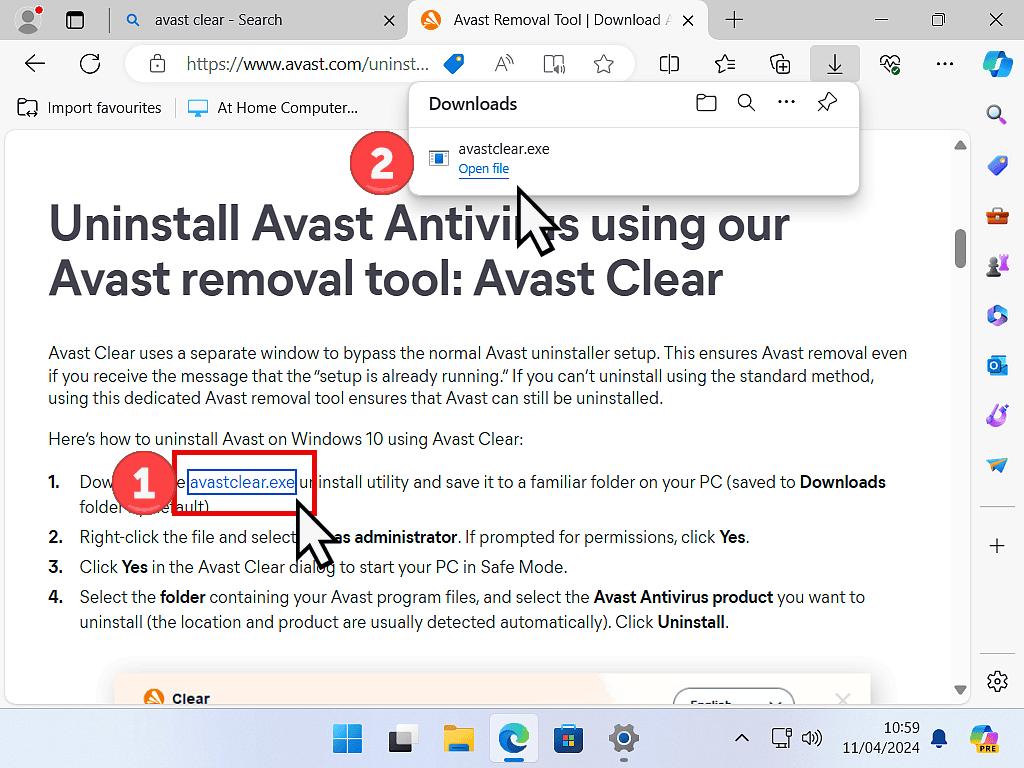
Here are the step-by-step instructions to uninstall Avast from your PC:
1. Open The Start Menu And Select “Settings”: You can do this by clicking on the Start button or using the “Settings” option in the Start menu.
2. Select “Apps” And Then “Installed Apps”: At this point, you should see a list of all installed apps on your PC, including Avast.
3. Find And Select Avast: Use the search bar to find Avast in the list of installed apps. Once you’ve found it, click on “Avast Free Antivirus” or the paid version of Avast that you have installed.
4. Click The “Uninstall” Button: After selecting Avast, you should see the “Uninstall” button. Click this button to start the uninstallation process for Avast.
How to Uninstall Avast on Mac?
Here are the step-by-step instructions to uninstall Avast from your Mac:
1. Open The Utilities Menu And Select “Disk Utility”: You can do this by clicking on the Apple icon in the top left corner of your screen.
2. Select “Uninstall an Application”: At this point, you should see a list of all installed apps on your Mac, including Avast.
3. Find And Select Avast: Use the search bar to find Avast in the list of installed apps. Once you’ve found it, click on “Avast Security” or the paid version of Avast that you have installed.
4. Click The “Uninstall” Button: After selecting Avast, you should see the “Uninstall” button. Click this button to start the uninstallation process for Avast.
How to Uninstall Avast Secure Browser?
Here are the step-by-step instructions to uninstall Avast Secure Browser from your PC:
1. Open The Start Menu And Select “Settings”: You can do this by clicking on the Start button or using the “Settings” option in the Start menu.
2. Select “Apps” And Then “Installed Apps”: At this point, you should see a list of all installed apps on your PC, including Avast Secure Browser.
3. Find And Select Avast Secure Browser: Use the search bar to find Avast Secure Browser in the list of installed apps. Once you’ve found it, click on “Avast Secure Browser”.
4. Click The “Uninstall” Button: After selecting Avast Secure Browser, you should see the “Uninstall” button. Click this button to start the uninstallation process for Avast Secure Browser.
How to Uninstall Avast Premium Security?
Here are the step-by-step instructions to uninstall Avast in version Premium Security from your PC:
1. Open The Start Menu And Select “Settings”: You can do this by clicking on the Start button or using the “Settings” option in the Start menu.
2. Select “Apps” And Then “Installed Apps”: At this point, you should see a list of all installed apps on your PC, including Avast in version Premium Security.
3. Find And Select Avast in Version Premium Security: Use the search bar to find Avast in version Premium Security in the list of installed apps. Once you’ve found it, click on “Avast Premium Security”.
4. Click The “Uninstall” Button: After selecting Avast in version Premium Security, you should see the “Uninstall” button. Click this button to start the uninstallation process for Avast in version Premium Security.
Conclusion
I hope this guide has been helpful. Uninstalling Avast is a simple process that can be done by following the step-by-step instructions provided above. If you need further assistance or have issues with uninstalling Avast, don’t hesitate to ask.


