
Setting Up Google Home Mini: A Step-by-step Guide
Are you excited to explore the world of smart home devices and configure your very own Google Home Mini? You’ve come to the right place! In this comprehensive guide, we’ll walk you through the process of setting up your Google Home Mini, covering all the essential steps and tips to get you started.
What is Google Home Mini?
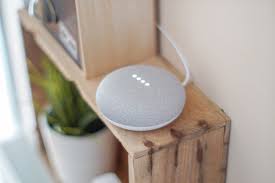
Before we dive into the setup process, let’s quickly cover what Google Home Mini is. Google Home Mini is a compact smart speaker that allows you to control various devices in your home with just your voice. It’s an extension of the Google Assistant, which can perform tasks like playing music, setting alarms, and answering questions.
Hardware Requirements
To set up your Google Home Mini, you’ll need:
- The Google Home Mini device itself
- A smartphone or tablet (either Android or iOS)
- A stable internet connection
Step 1: Unboxing And Powering On
Begin by unboxing your Google Home Mini and carefully following the provided instructions. Once powered on, you should see four LED lights blinking on top of the device. This indicates that it’s ready for configuration.
Step 2: Downloading The Google Home App
On your smartphone or tablet, download the Google Home app from either the Apple App Store (for iOS devices) or the Google Play Store (for Android devices). Follow the prompts to install the app on your device.
Step 3: Creating a Google Account
If you haven’t already created a Google account, now’s the time to do so. This will allow you to link your Google Home Mini to your account and access various features.
Step 4: Setting Up Your Google Home Account
Launch the Google Home app on your device and sign in with your Google account credentials. You’ll then be prompted to create a new home or select an existing one.
Step 5: Configuring Your Google Home Mini
Select “Add” from the menu, followed by “New Device.” Choose the location of your Google Home Mini (e.G., Living room) and tap on “Done.”
Step 6: Linking Your Google Home Mini to Wi-fi
Choose the Wi-Fi network you’d like to connect your Google Home Mini to. If prompted, enter the password for that network.
Step 7: Updating Software And Voice Assistant Setup
The app will automatically update the software and configure the voice assistant. Follow the on-screen instructions to complete this process.
Step 8: Setting Up Services (Optional)
You can also set up various services like Spotify, YouTube Music, or Deezer for music streaming and Netflix for video streaming.
Step 9: Finalizing Your Google Home Mini Configuration
Once you’ve completed all the above steps, your Google Home Mini should be fully configured. You’ll see a summary of the devices connected to your account in the app’s main screen.
Troubleshooting Tips
If you encounter any issues during setup or have questions about specific features, refer to the following sections:
- Setting Up With Hotspot: Configure your Google Home Mini using a hotspot connection.
- Using With PC: Unfortunately, setting up your Google Home Mini directly on a computer is not currently possible. However, we’ll cover alternative options below.
Alternative Options For Using Google Home Mini
While it’s not possible to set up Google Home Mini directly from a computer, you can still control and configure your device using other methods:
- Google Home App: Access the app from your smartphone or tablet to adjust settings and control devices.
- Web Interface: Although not as comprehensive as the mobile app, you can also access basic settings and functionality through the Google Home website.
Conclusion
Setting up your Google Home Mini is a straightforward process that requires patience and attention to detail. By following these steps, you’ll be able to configure your device and enjoy the benefits of smart home technology. Don’t hesitate to reach out if you have any further questions or concerns!
Frequently Asked Questions (FAQs)
-
Q: Can I Set up my Google Home Mini on a Computer?
A: Unfortunately, no. You’ll need a smartphone or tablet to configure your device. -
Q: How do I Troubleshoot Issues During Setup?
A: Refer to the troubleshooting tips above for assistance with common problems. -
Q: Can I Use Multiple Devices With my Google Home Mini?
A: Yes! You can connect and control multiple devices using the Google Home app. -
Q: What Are Some Potential Services I Can Link to my Google Home Mini?
A: Spotify, YouTube Music, Deezer, Netflix, and more can be integrated into your device for music streaming and video streaming capabilities. -
Q: How do I Reset my Google Home Mini if Something Goes Wrong?
A: Refer to the section on resetting your device for instructions. -
Q: What Are Some Potential Benefits of Using a Google Home Mini?
A: Enhanced voice control, improved home automation, and seamless music streaming capabilities are just a few advantages of incorporating this smart speaker into your living space. -
Q: Can I Use my Google Home Mini With a Different Wi-fi Network?
A: Yes! You can change the connected Wi-Fi network in the app’s settings menu. -
Q: How do I Update Software For my Google Home Mini?
A: The app will automatically update your device’s software during setup and subsequent checks.


