
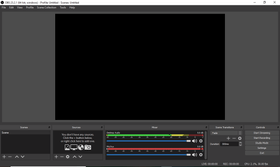
Setting Up Obs Studio: A Step-by-step Guide
Are you a passionate gamer looking to showcase your skills online? Do you want to learn how to set up OBS Studio, the popular video streaming software? Look no further! In this article, we will guide you through the process of setting up OBS Studio for both live streaming and recording.
What is Obs Studio?
OBS Studio, or simply OBS, is a free and open-source software used for live streaming and video recording. It’s available for Windows, macOS, and Linux operating systems. OBS allows users to capture footage from multiple sources, such as webcams, game consoles, and more, and stream it online.
Setting Up Obs Studio
To set up OBS Studio, follow these steps:
- Download And Install Obs: Visit the official OBS website and download the software for your operating system.
- Run The Installer: Once downloaded, run the installer and follow the prompts to install OBS.
- Launch Obs: After installation, launch OBS and you will be presented with a setup wizard.
Setting Up Obs For Streaming
To set up OBS for live streaming:
- Select The Streaming Service: Choose your preferred streaming service from the dropdown menu in the “Settings” tab.
- Configure Your Stream Settings: Set your stream quality, bitrate, and other settings according to your needs.
- Add Sources: Add any additional sources you want to include in your stream, such as a webcam or game footage.
Setting Up Obs For Recording
To set up OBS for video recording:
- Select The Recording Format: Choose your preferred recording format from the dropdown menu in the “Settings” tab.
- Configure Your Record Settings: Set your record quality, bitrate, and other settings according to your needs.
- Add Sources: Add any additional sources you want to include in your recordings, such as a webcam or game footage.
Optimizing Obs For Better Performance
To optimize OBS for better performance:
- Check Your Internet Connection: Ensure that your internet connection is stable and can handle the demands of live streaming.
- Adjust Your Stream Settings: Adjust your stream settings to optimize your bitrate, quality, and other parameters.
- Use a High-quality Webcam: Use a high-quality webcam to capture clear footage.
Setting Up The Microphone For Obs
To set up the microphone for OBS:
- Check That The Microphone is Connected Correctly: Ensure that the microphone is connected correctly to your computer.
- Adjust The Volume of The Microphone: Adjust the volume of the microphone in the “Mixer” tab to ensure clear audio.
Tips And Tricks
- Use a High-quality Webcam: Use a high-quality webcam to capture clear footage.
- Optimize Your Stream Settings: Optimize your stream settings to ensure smooth streaming.
- Use a Stable Internet Connection: Ensure that your internet connection is stable and can handle the demands of live streaming.
Conclusion
Setting up OBS Studio for both live streaming and recording is a straightforward process. By following these steps, you’ll be able to set up OBS for streaming or recording and enjoy high-quality video content online.
Frequently Asked Questions (FAQs)
- What is Obs Studio?
OBS Studio is a free and open-source software used for live streaming and video recording. - Is Obs Available For Windows, Macos, And Linux?
Yes, OBS is available for all three operating systems. - How do I Set up Obs For Streaming?
To set up OBS for streaming, select your preferred streaming service from the dropdown menu in the “Settings” tab, configure your stream settings, and add any additional sources you want to include in your stream. - How do I Set up Obs For Recording?
To set up OBS for recording, select your preferred recording format from the dropdown menu in the “Settings” tab, configure your record settings, and add any additional sources you want to include in your recordings. - What is The Best Way to Optimize Obs For Better Performance?
The best way to optimize OBS for better performance is to check your internet connection, adjust your stream settings, and use a high-quality webcam. - How do I Set up The Microphone For Obs?
To set up the microphone for OBS, ensure that it’s connected correctly to your computer, adjust the volume of the microphone in the “Mixer” tab, and follow any additional steps required for your specific setup.
Setting Up Obs Studio: Additional Tips
- Experiment With Different Settings: Experiment with different settings to find what works best for you.
- Stay Up-to-date With Updates: Regularly check for updates to ensure that you have the latest features and bug fixes.
- Join Online Communities: Join online communities, such as forums or social media groups, to connect with other users and get help when needed.
Setting Up Obs Studio: Troubleshooting Tips
- Check Your Internet Connection: Ensure that your internet connection is stable and can handle the demands of live streaming.
- Adjust Your Stream Settings: Adjust your stream settings to optimize your bitrate, quality, and other parameters.
- Use a High-quality Webcam: Use a high-quality webcam to capture clear footage.
Setting Up Obs Studio: Setting Up The Microphone For Obs
- Check That The Microphone is Connected Correctly: Ensure that the microphone is connected correctly to your computer.
- Adjust The Volume of The Microphone: Adjust the volume of the microphone in the “Mixer” tab to ensure clear audio.


