
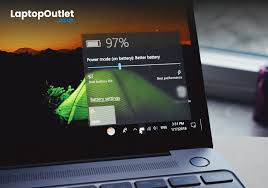
The Ultimate Guide to Extending Your Laptop’s Battery Life
Are you tired of your laptop running out of battery power when you need it most? Do you find yourself constantly searching for ways to extend its battery life? Look no further! In this comprehensive guide, we’ll show you how to optimize your laptop’s battery performance and make the most out of its runtime.
Understanding Battery Life
Before we dive into the tips and tricks, let’s first understand what affects battery life. Laptops have a finite amount of power stored in their batteries, which can be depleted by various factors such as usage patterns, software applications, and hardware components. To extend battery life, you’ll need to identify areas where your laptop is consuming excessive energy and take steps to mitigate those issues.
Tip #1: Adjust Your Screen Brightness
One of the simplest ways to conserve battery power is to adjust your screen brightness. The higher the brightness, the more energy your laptop consumes. To save battery life, lower your screen brightness or turn off auto-brightness if you’re using an external display. On Windows 11 and Windows 10, press the keyboard shortcut Ctrl + Alt + F1 to open the Power Options and adjust the brightness setting.
Tip #2: Disable Unnecessary Connections
Another way to save battery power is to disable unnecessary connections such as Wi-Fi and Bluetooth when not in use. On Windows 11 or Windows 10, click on the network icon in the system tray and select “Disconnect” for both Wi-Fi and Bluetooth. This will prevent your laptop from constantly searching for these connections and consuming excess energy.
Tip #3: Disable Automatic Program Execution
To save battery power, you can disable automatic program execution on startup. On Windows 11 or Windows 10, press the keyboard shortcut Ctrl + Alt + Del to open the Task Manager. Then, click on “Startup” in the left-hand menu and select any unnecessary programs that are set to run automatically.
Tip #4: Activate Energy-saving Mode
To further extend battery life, activate energy-saving mode on your laptop. This can be done by adjusting the Power Options on Windows 11 or Windows 10. To access this setting, press the keyboard shortcut Ctrl + Alt + Del and select “Power Options” from the menu. Choose a power plan that suits your needs, such as Balanced or Power Saver.
Tip #5: Update Your Software
Keep your operating system, software applications, and drivers up-to-date to ensure you have the latest security patches and performance improvements. Outdated software can lead to unnecessary energy consumption and decreased battery life.
Tip #6: Use Energy-efficient Programs
Choose programs that consume minimal energy when running on your laptop. Some popular energy-efficient browsers include Microsoft Edge and Safari.
Tip #7: Calibrate Your Battery
If you’re experiencing issues with your laptop’s battery life, try calibrating it by following these steps:
- Charge your laptop to 100% and then unplug the charger.
- Let your laptop run until the battery is completely drained (this may take several hours).
- Plug in the charger and let your laptop charge for at least two hours.
Tip #8: Replace Your Battery
If none of the above tips help, it might be time to replace your laptop’s battery. Consult with a professional repair service or contact the manufacturer’s support team for guidance on this process.
Conclusion
By implementing these eight tips, you can significantly extend your laptop’s battery life and enjoy more hours of usage without worrying about running out of power. Remember to adjust your screen brightness, disable unnecessary connections, and activate energy-saving mode to save battery power. Keep your software up-to-date, use energy-efficient programs, calibrate your battery, and consider replacing it if necessary.
Frequently Asked Questions (FAQs)
Q: How often should I update my laptop’s software?
A: Update your laptop’s software regularly to ensure you have the latest security patches and performance improvements.
Q: What are some energy-efficient browsers for laptops?
A: Microsoft Edge, Safari, and Google Chrome are popular energy-efficient browser options.
Q: Can I calibrate my laptop’s battery if it’s damaged or old?
A: No, calibration is only effective on a healthy battery. Consult with a professional repair service or contact the manufacturer’s support team if you have concerns about your laptop’s battery health.
Q: Will using an external power bank affect my laptop’s battery life?
A: Using an external power bank can actually help extend your laptop’s battery life by providing additional power when needed.
Q: How often should I clean up unnecessary files and programs on my laptop?
A: Regularly cleaning up unnecessary files and programs can help maintain your laptop’s performance and prolong its battery life.
Bonus Tip: To further enhance your laptop’s battery life, consider using a power bank or external battery to provide additional power when needed. This can be especially useful for laptops with USB-C ports that require high-capacity batteries.
By following these tips and tricks, you’ll be able to enjoy extended battery life on your laptop and stay productive on the go!


