
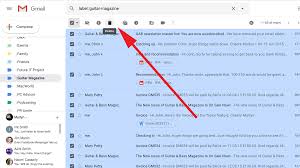
How to Erase All Free Email on Your Device
Are you tired of dealing with an overflowing inbox? Do you want to start fresh and free up some space on your device? Look no further! In this article, we’ll show you how to erase all Free email from your computer, smartphone, or tablet.
Why Erase All Free Email?
Free email services like Gmail, Yahoo Mail, and Outlook can be convenient for sending and receiving emails. However, they can also take up a significant amount of space on your device, especially if you’re using the mobile app. Erasing all Free email from your device can help free up storage space and improve performance.
How to Erase All Free Email on Your Computer
If you want to erase all Free email from your computer, follow these steps:
Using The Web Version of Free Mail
- Open The Browser: Open the web browser on your computer (e.G., Google Chrome, Mozilla Firefox).
- Go to Free Mail: Go to the Free mail website (www.Free-mail.Com) and log in to your account.
- Click on The Three Dots: Click on the three dots in the top right corner of the page and select “Settings.”
- Select “Delete All Emails”: In the settings menu, select “Delete all emails.”
- Confirm Deletion: Confirm that you want to delete all emails by clicking “Yes.”
Using a Client For Electronic Mail
If you’re using a client like Microsoft Outlook or Mozilla Thunderbird, follow these steps:
Microsoft Outlook (Windows 10 And Windows 11)
- Open The Client: Open the Microsoft Outlook client on your computer.
- Click on The Folder Icon: Click on the folder icon in the top left corner of the window to open the folder menu.
- Select “Delete All Emails”: Select “Delete all emails” from the folder menu.
- Confirm Deletion: Confirm that you want to delete all emails by clicking “Yes.”
Mozilla Thunderbird
- Open The Client: Open the Mozilla Thunderbird client on your computer.
- Click on The Folder Icon: Click on the folder icon in the top left corner of the window to open the folder menu.
- Select The Folder You Want to Delete: Select the folder you want to delete from the folder menu.
- Right-click And Select “Delete”: Right-click on the selected folder and select “Delete.”
- Confirm Deletion: Confirm that you want to delete all emails by clicking “Yes.”
How to Erase All Free Email on Your Smartphone or Tablet
If you want to erase all Free email from your smartphone or tablet, follow these steps:
Using The Mobile App For Discharge Mail (Android And Ios/ipados)
- Open The App: Open the Discharge mail mobile app on your device.
- Tap on The Folder Icon: Tap on the folder icon in the top right corner of the screen to open the folder menu.
- Select “Delete All Emails”: Select “Delete all emails” from the folder menu.
- Confirm Deletion: Confirm that you want to delete all emails by tapping “Yes.”
Using a Client For Electronic Mail (Android And Ios/ipados)
If you’re using a client like Microsoft Outlook or Apple Mail, follow these steps:
Microsoft Outlook
- Open The Client: Open the Microsoft Outlook client on your device.
- Tap on The Folder Icon: Tap on the folder icon in the top left corner of the screen to open the folder menu.
- Select “Delete All Emails”: Select “Delete all emails” from the folder menu.
- Confirm Deletion: Confirm that you want to delete all emails by tapping “Yes.”
Apple Mail
- Open The Client: Open the Apple Mail client on your device.
- Tap on The Folder Icon: Tap on the folder icon in the top left corner of the screen to open the folder menu.
- Select The Folder You Want to Delete: Select the folder you want to delete from the folder menu.
- Swipe Left And Select “Delete”: Swipe left on the selected folder and select “Delete.”
- Confirm Deletion: Confirm that you want to delete all emails by tapping “Yes.”
Conclusion
Erasing all Free email from your device can help free up storage space and improve performance. By following the steps outlined in this article, you should be able to erase all Free email from your computer, smartphone, or tablet.
Frequently Asked Questions (FAQs)
- Q: Will Deleting All Emails Delete my Account?
A: No, deleting all emails will not delete your account. - Q: Can I Recover Deleted Emails?
A: Yes, you can recover deleted emails for a limited time before they are permanently deleted. - Q: What About Emails in The Spam Folder?
A: Emails in the spam folder can be deleted by following the same steps outlined above. - Q: How do I Prevent This From Happening Again?
A: To prevent this from happening again, make sure to regularly clean out your inbox and delete any unnecessary emails. - Q: Can I Use a Third-party App to Erase All Emails?
A: Yes, you can use a third-party app to erase all emails, but be careful when using these apps as they may not always work correctly. - Q: Will Deleting All Emails Affect my Online Backups?
A: No, deleting all emails will not affect your online backups. - Q: Can I Schedule Email Deletion?
A: Yes, you can schedule email deletion to occur at a later time if needed.
I hope this article has been helpful in guiding you through the process of erasing all Free email from your device!


