
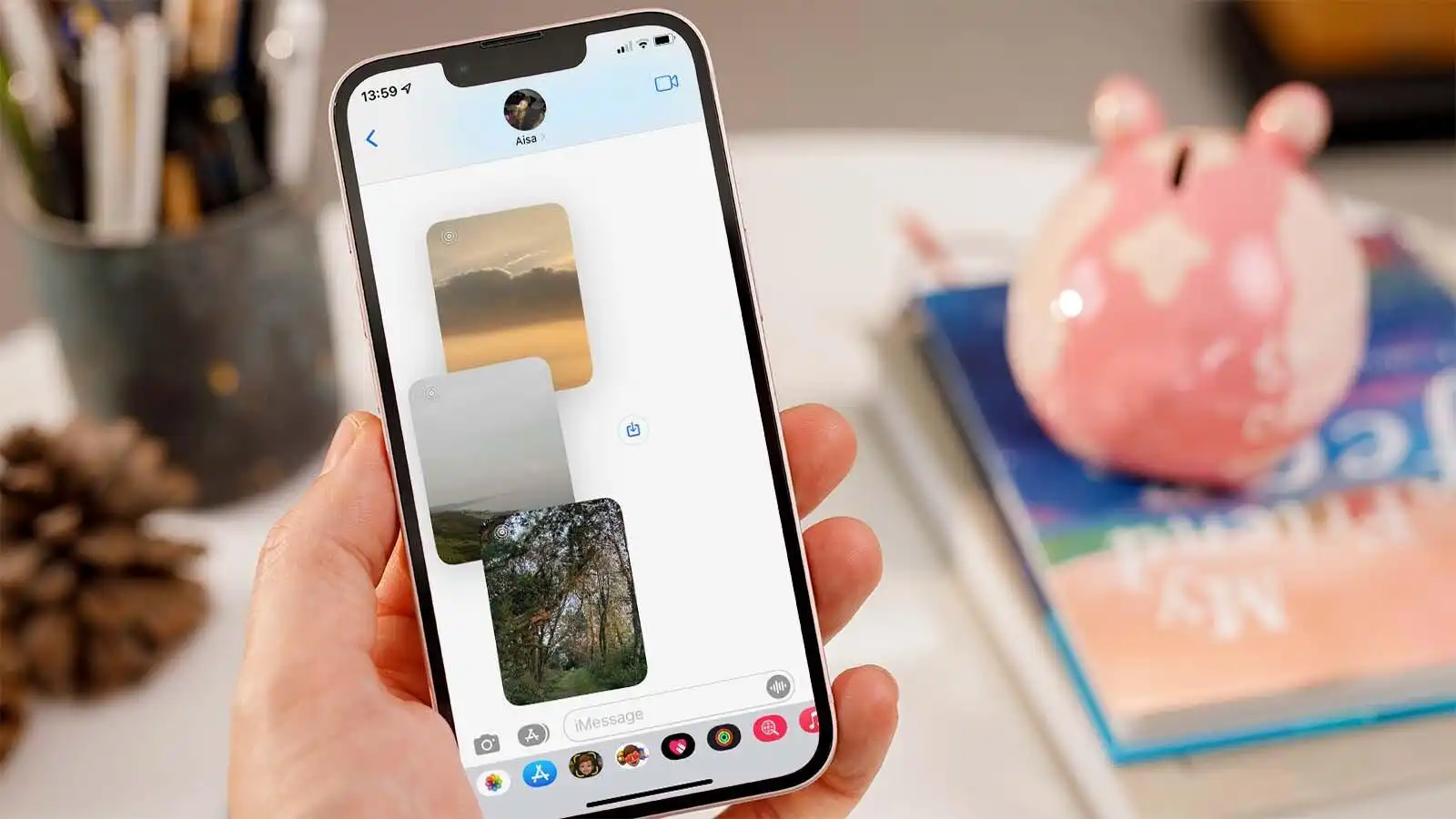
Saving Photos Online: A Step-by-step Guide
Are you tired of having a cluttered photo gallery on your device? Do you want to save photos online, but don’t know where to start? Look no further! In this article, we will guide you through the process of saving photos online using popular services such as Google Drive, iCloud, and more.
Why Save Photos Online?
Saving photos online has numerous benefits. Firstly, it allows you to access your photos from anywhere, at any time, as long as you have an internet connection. Secondly, it helps to free up space on your device, making it run faster and smoother. Lastly, saving photos online provides a backup of your memories, ensuring that they are safe in case something happens to your device.
Google Drive: A Popular Choice
If you’re looking for a simple and convenient way to save photos online, Google Drive is an excellent option. With Google Drive, you can upload photos directly from your device or computer, and access them from any device with an internet connection.
How to Save Photos on Google Drive
To save photos on Google Drive:
- Download the Google Drive app on your mobile device or install it on your computer.
- Sign in with your Google account credentials.
- Tap or click on the “New” button, then select “Folder”.
- Name your folder and tap or click on “Create”.
- Drag and drop your photos into the folder.
Icloud: A Great Option For Apple Users
If you’re an Apple user, iCloud is a great option to save photos online. With iCloud Photo Library, you can access all of your photos from any device with an internet connection.
How to Save Photos on Icloud
To save photos on iCloud:
- Open the Settings app on your iPhone or iPad.
- Tap on “iCloud” and select “Photos”.
- Toggle the switch next to “iCloud Photo Library” to enable it.
- Make sure that “Optimise Storage” is enabled.
Other Options: Google Photos, Dropbox, And More
There are many other services available for saving photos online, including:
- Google Photos: A dedicated photo storage service that allows you to save, share, and edit your photos.
- Dropbox: A cloud storage service that allows you to upload and access files from any device with an internet connection.
- Microsoft Onedrive: A cloud storage service that allows you to save and access files from any device with an internet connection.
Saving Photos From Mobile Devices
If you want to save photos from your mobile device, here are some steps you can follow:
- Android: Download the Google Drive or Dropbox app on your Android device. Sign in with your account credentials and tap or click on the “New” button to create a new folder.
- Iphone: Open the Photos app and select the photos you want to save. Tap or click on the “Share” icon, then select “Save to Files”. Choose a cloud storage service such as Google Drive or Dropbox.
Saving Photos From Whatsapp
If you want to save photos from WhatsApp, here are some steps you can follow:
- Android: Open the WhatsApp app and select the photo you want to save. Tap or click on the three dots icon, then select “Save to Gallery”.
- Iphone: Open the WhatsApp app and select the photo you want to save. Tap or click on the share icon, then select “Save to Files”.
Saving Photos From Instagram
If you want to save photos from Instagram, here are some steps you can follow:
- Mobile Device: Open the Instagram app and select the photo you want to save. Tap or click on the three dots icon, then select “Save”.
- Pc: Open the Instagram website and sign in with your account credentials. Select the photo you want to save and click on the download button.
Saving Photos in Pdf
If you want to save photos in PDF format, here are some steps you can follow:
- Windows Pc: Open the Photo app and select the image you want to convert. Click on the print icon, then select “Save as PDF”.
- Macos: Open the Preview app and select the image you want to convert. Go to File > Save As, then select “PDF” from the file type dropdown menu.
Conclusion
Saving photos online has numerous benefits, including access from anywhere, freeing up space on your device, and providing a backup of your memories. With this guide, you can easily save photos online using popular services such as Google Drive, iCloud, and more. Whether you’re an Apple user or an Android enthusiast, we’ve got you covered.
Faqs
- Q: What is The Best Way to Save Photos Online?
A: The best way to save photos online depends on your device and personal preferences. However, Google Drive and iCloud are popular options for saving photos online. - Q: How do I Save Photos From Whatsapp?
A: To save photos from WhatsApp, open the app and select the photo you want to save. Tap or click on the three dots icon, then select “Save to Gallery” (Android) or “Save to Files” (iPhone). - Q: Can I Save Photos in Pdf Format?
A: Yes, you can save photos in PDF format using popular services such as Google Drive and Dropbox. - Q: How do I Access my Saved Photos Online?
A: To access your saved photos online, sign in with your account credentials on the service’s website or app. - Q: Is it Safe to Save Photos Online?
A: Yes, it is safe to save photos online using reputable services such as Google Drive and iCloud. - Q: Can I Share my Saved Photos Online?
A: Yes, you can share your saved photos online by clicking on the share icon and selecting a social media platform or email client. - Q: How do I Delete Saved Photos Online?
A: To delete saved photos online, sign in to your account credentials on the service’s website or app and select the “Trash” or “Delete” option. - Q: Can I Save Videos Online as Well?
A: Yes, many services such as Google Drive and Dropbox allow you to save videos online as well.
I hope this article has been helpful in answering your questions about saving photos online!


