
How to Clean Your Printer: A Step-by-step Guide
Are you tired of dealing with a clogged printer? Do you want to know how to clean your printer effectively? Look no further! In this article, we will guide you through the process of cleaning your printer, providing you with a step-by-step guide on how to do it safely and efficiently.
The Importance of Cleaning Your Printer
Before we dive into the steps, let’s talk about why cleaning your printer is essential. A clogged printer can lead to poor print quality, slow printing speeds, and even damage to your printer’s internal components. By regularly cleaning your printer, you can prevent these issues and ensure that it continues to function smoothly.
Cleaning Your Printer: Windows Edition
If you’re using a Windows-based computer, follow these steps:
- Click on The Start Button: Click on the Start button located at the bottom left corner of your screen.
- Search For Device Manager: Type “Device Manager” in the search bar and click on it.
- Open Device Manager: In the Device Manager window, click on “Devices and Printers”.
- Select Your Printer: Right-click on your printer icon and select “Properties”.
- Go to Maintenance/cleaning: In the Properties window, click on the tab labeled “Maintenance/Cleaning”.
- Click on Clean Head/nozzle: Click on the button labeled “Clean Head/Nozzle” to start the cleaning process.
- Follow The On-screen Instructions: Follow the on-screen instructions to complete the cleaning process.
Cleaning Your Printer: Mac Edition
If you’re using a Mac, follow these steps:
- Click on The Apple Menu: Click on the Apple menu located at the top left corner of your screen.
- Select System Preferences: Select “System Preferences” from the drop-down menu.
- Open Printers & Scanners: In the System Preferences window, click on “Printers & Scanners”.
- Select Your Printer: Right-click on your printer icon and select “Options & Supplies…”.
- Click on Clean Head/nozzle: Click on the button labeled “Clean Head/Nozzle” to start the cleaning process.
- Follow The On-screen Instructions: Follow the on-screen instructions to complete the cleaning process.
Cleaning Your Printer: Manual Method
If you’re not comfortable using the automated method, you can try cleaning your printer manually. Here’s how:
- Turn Off Your Printer: Turn off your printer and unplug it from the power source.
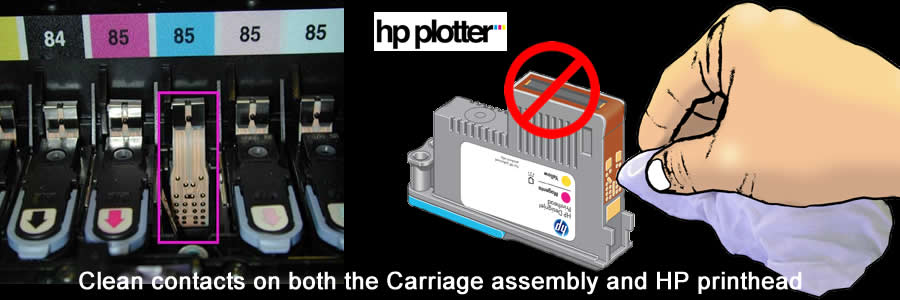
- Locate The Print Head: Locate the print head on your printer and take note of its position.
- Soak a Cotton Swab: Soak a cotton swab in warm water or isopropyl alcohol.
- Gently Wipe The Print Head: Gently wipe the print head with the cotton swab, working from the center outwards.
- Repeat The Process: Repeat the process several times until the ink flows freely.
Troubleshooting Common Issues
If you’re experiencing issues while cleaning your printer, here are some common problems and their solutions:
- Ink Drying on The Print Head: If ink is drying on the print head, try using a mixture of water and isopropyl alcohol to loosen it.
- Cartridges Not Recognized: If your cartridges are not recognized by your printer, try cleaning them manually or replacing them altogether.
Conclusion
Cleaning your printer regularly can help prevent clogs, improve print quality, and extend the lifespan of your printer. By following these step-by-step guides, you can clean your printer safely and efficiently, whether you’re using a Windows-based computer or a Mac. Remember to troubleshoot common issues if they arise, and don’t hesitate to consult your printer’s manual for specific instructions.
Faqs
- How Often Should I Clean my Printer?
Cleaning your printer regularly is essential to prevent clogs and maintain print quality. - What Happens if I Don’t Clean my Printer?
If you don’t clean your printer, it can lead to poor print quality, slow printing speeds, and even damage to the internal components. - Can I Use a Different Cleaning Method?
While we’ve provided instructions for specific methods, you can try using other cleaning materials like nail polish remover or compressed air to clean your printer. - What if my Cartridges Are Not Recognized by my Printer?
Try cleaning your cartridges manually or replacing them altogether if they’re not recognized by your printer. - Can I Use a Cleaning Solution on my Print Head?
Yes, you can use a cleaning solution specifically designed for printers to clean the print head and prevent clogs.
Additional Resources
If you need more guidance or have specific questions about cleaning your printer, check out these additional resources:


